How to stream with Audio Hijack

Email o@evenings.email for questions
Step 01: Install Audio Hijack on Desktop
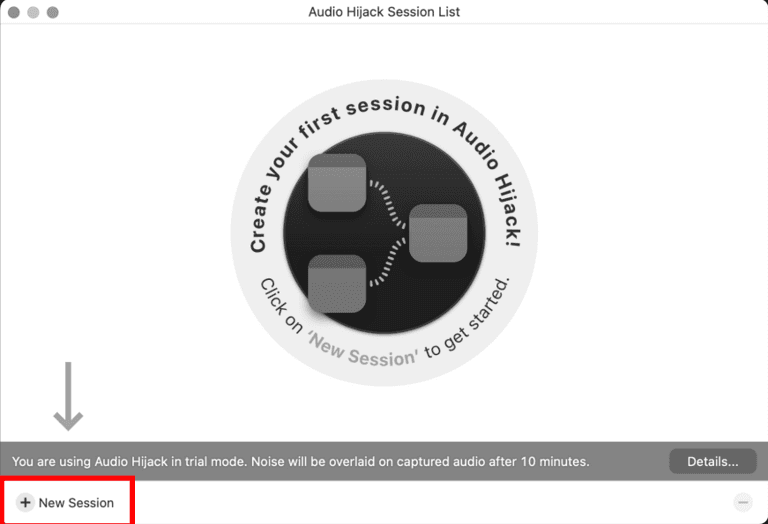
After downloading the Audio Hijack desktop app from https://rogueamoeba.com/audiohijack/ you will see a view like the one below if you did not purchase a license.
You’ll need to grant access to Audio Hijack on your computer since it will be marked as an unidentified developer.
Select “New Session” in the bottom left corner.
Step 02: Create a Live Stream template
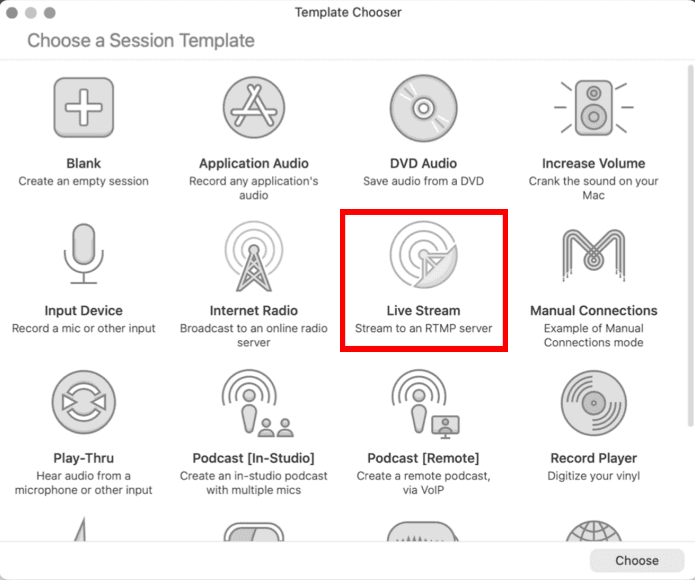
A new window titled “Template Chooser” will appear. Select the “Live Stream” option. A new window will open titled Live Stream.
Step 03: Setup your Live Stream session
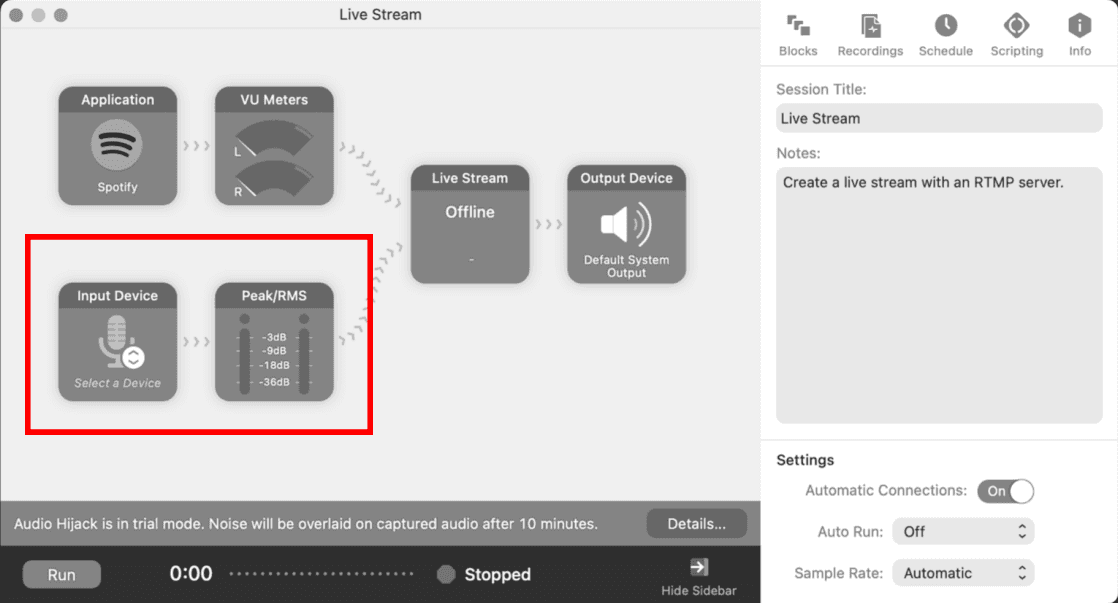
You can remove the “Input Device” and “Peak/RMS” nodes if you’re not using a microphone.
Step 04: Link Audio Hijack to your Evenings account
Select the “Live Stream” block and input the following information in the “Setup” dropdown
- Server URL:
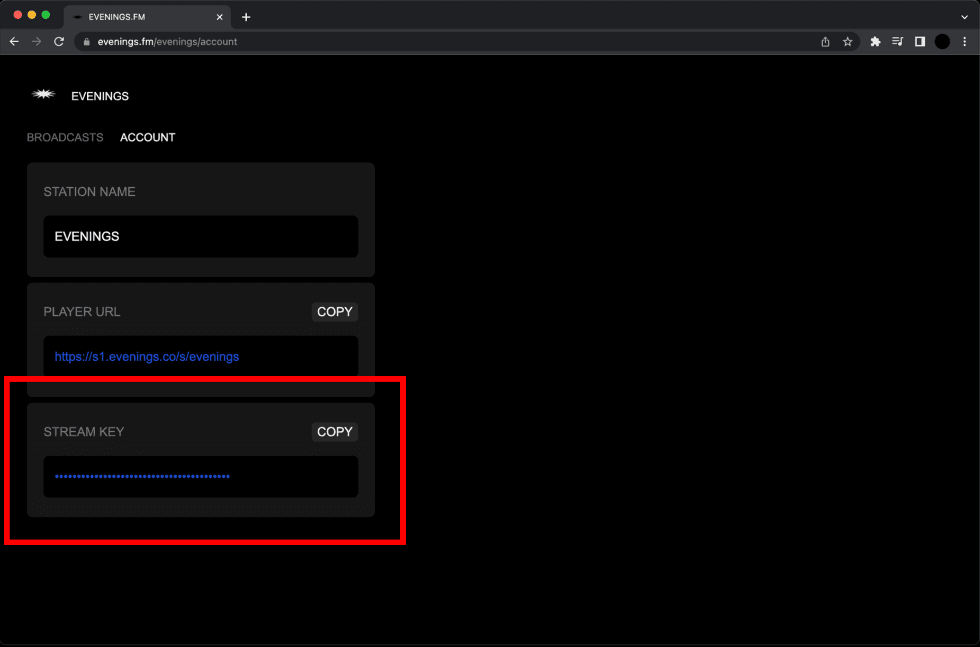
rtmp://s2.evenings.co/evenings - Key: Enter the Stream key from the Account page on Evenings
Step 05: Running your Live Stream
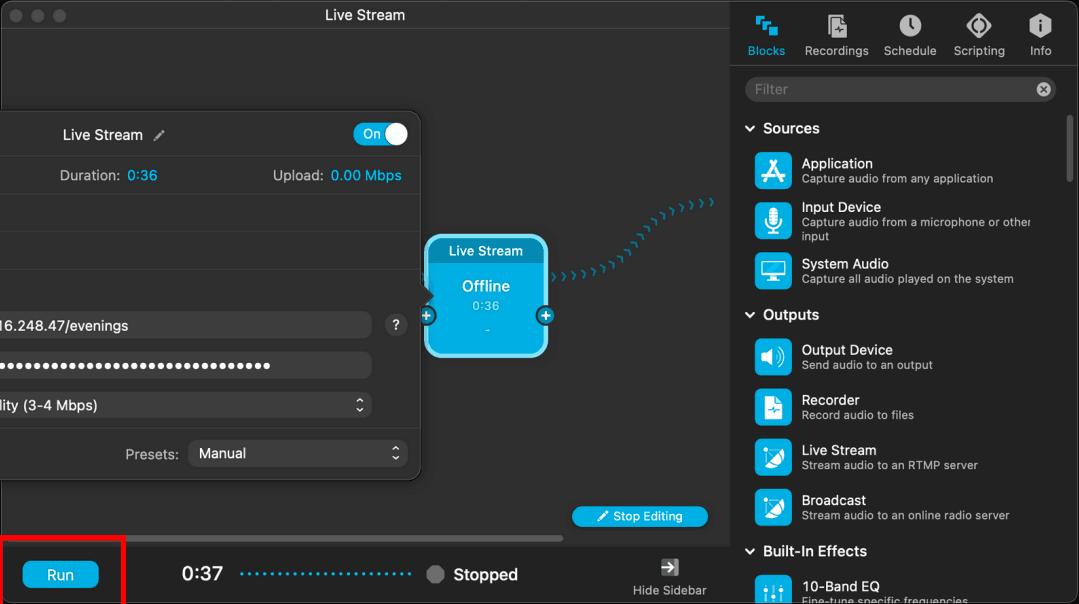
Close the pop up on Audio Hijack and select "Run" to go live, in bottom left corner of the window.
Step 06: Viewing and Archiving your Broadcast
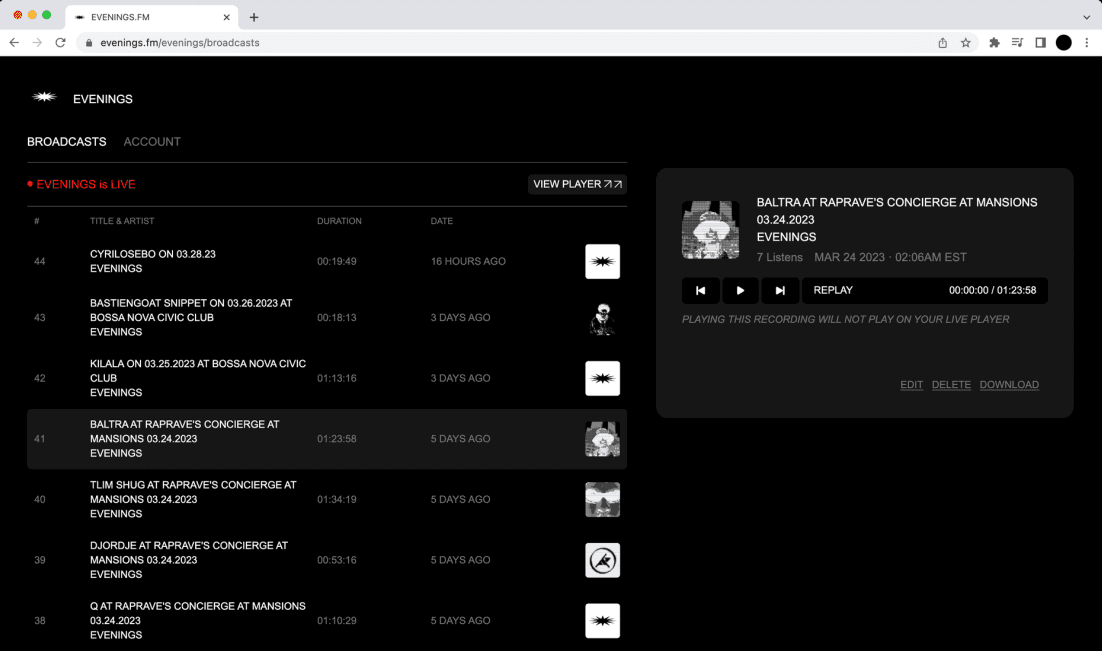
Your broadcast will be live on your LIBRARY page on Evenings. Select the “VIEW PLAYER” button to listen.
Step 07: Ending your Live Stream session
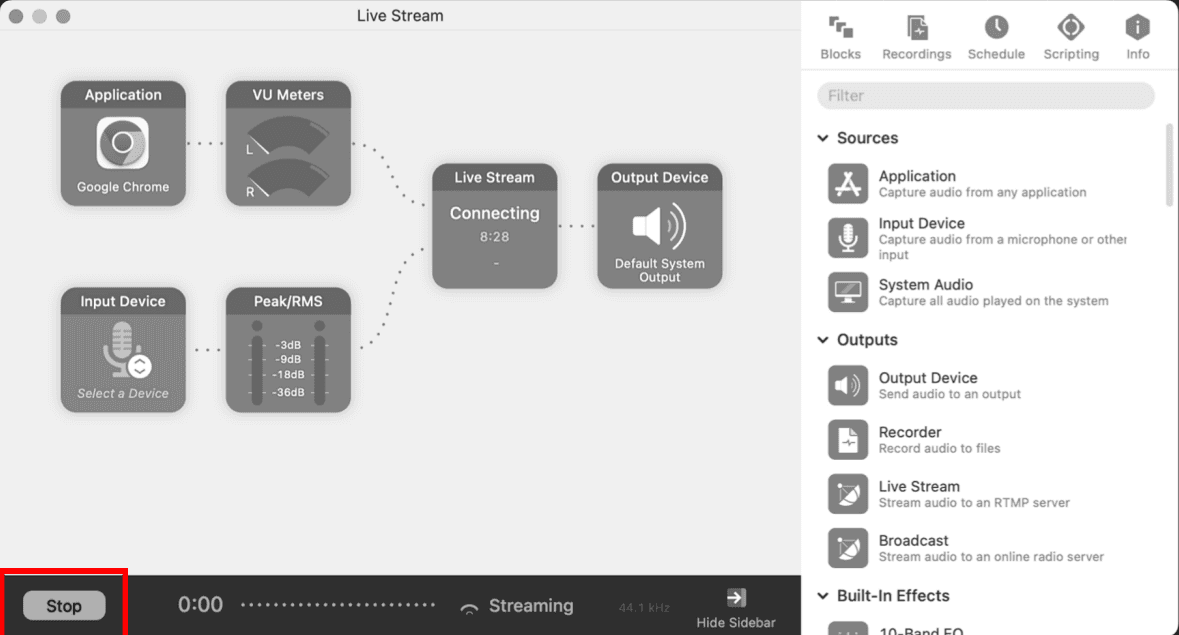
To end the livestream select stop. The livestream will be saved on your Library page.
For further questions reach out to contact@evenings.email