How to use the Always On streaming feature
Evenings

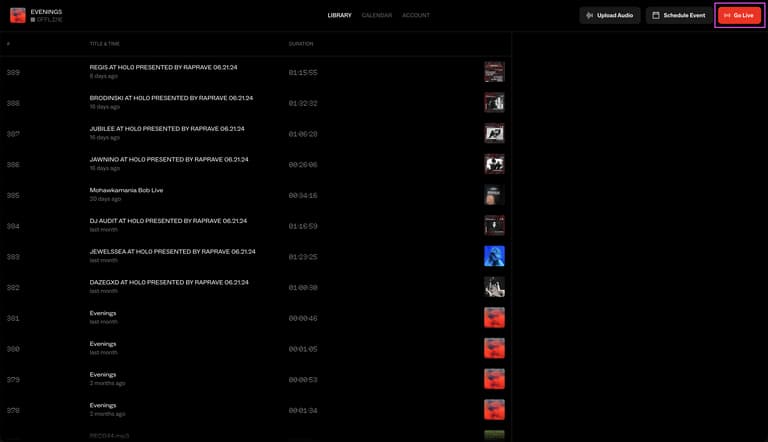
Step 01: Visit the stream settings page
Login using your station credentials and go to your stream settings page by clicking the 'Go Live' button on the top right of your dashboard.
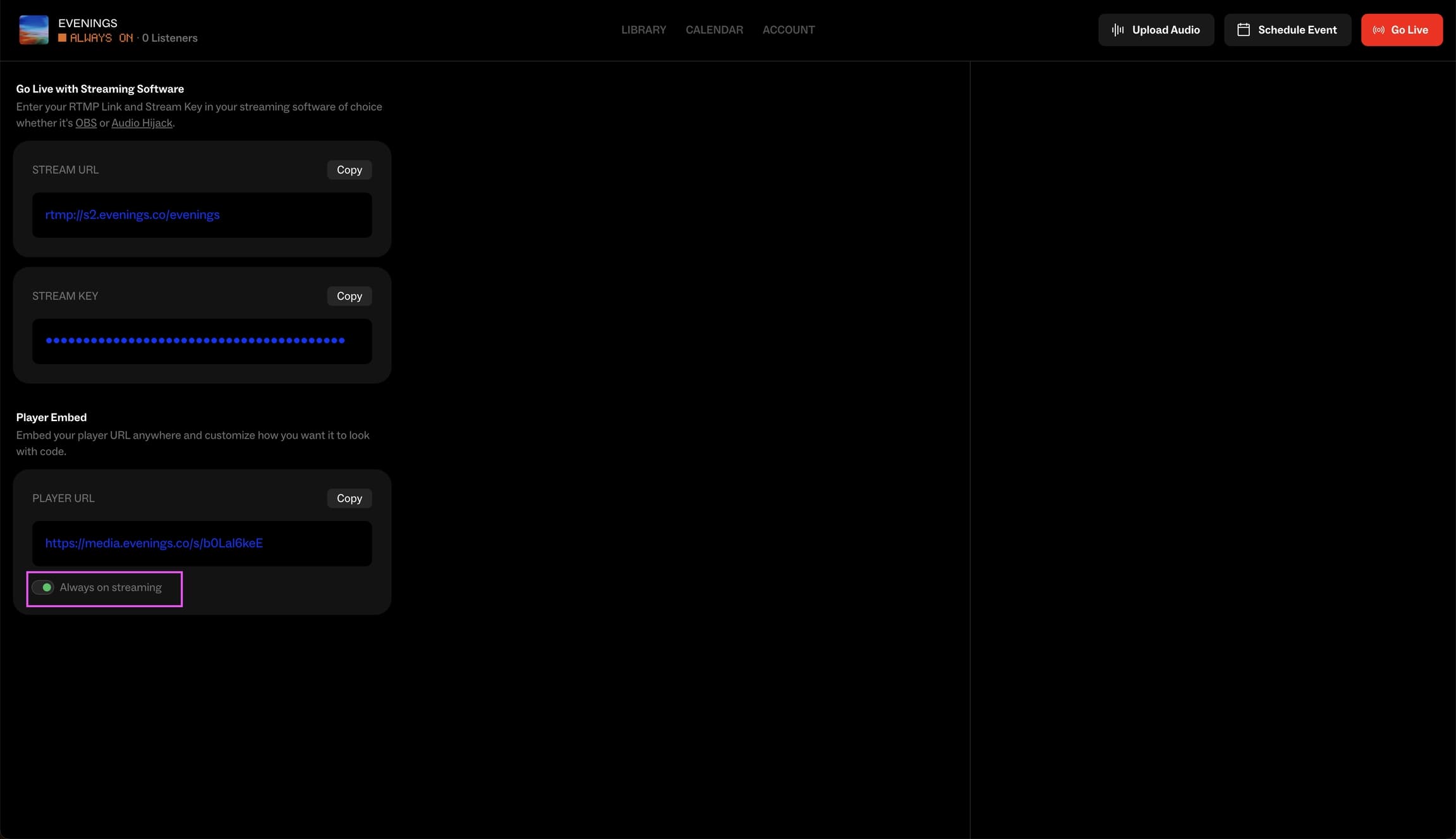
Step 02: Enable the 'Always On' setting
You can turn on the 'Always on streaming' setting by clicking on the toggle at the bottom of the stream settings page. This will rotate through shows in your Library. You should have at least one show for this feature to work.
Step 03: Manage currently playing
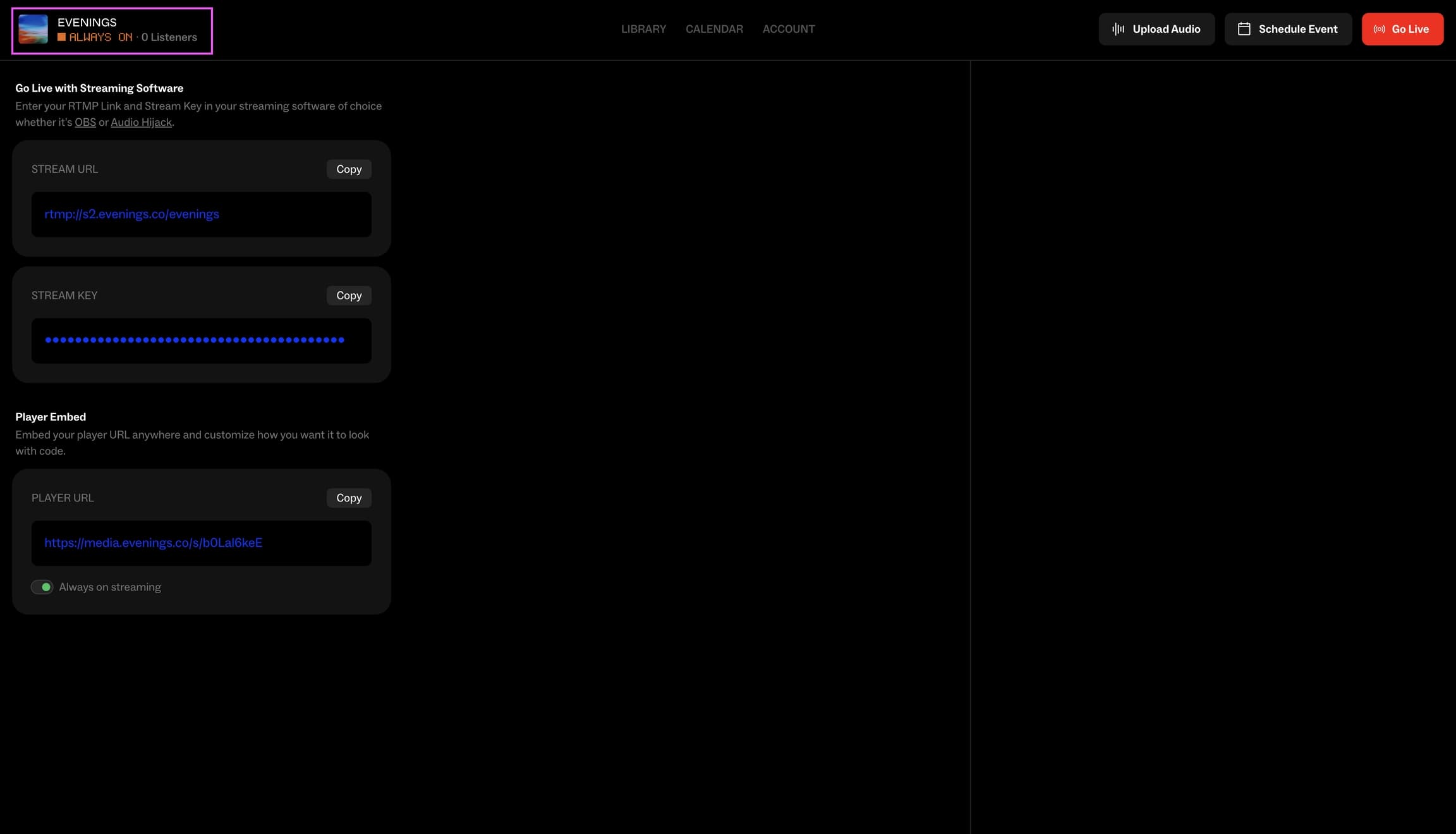
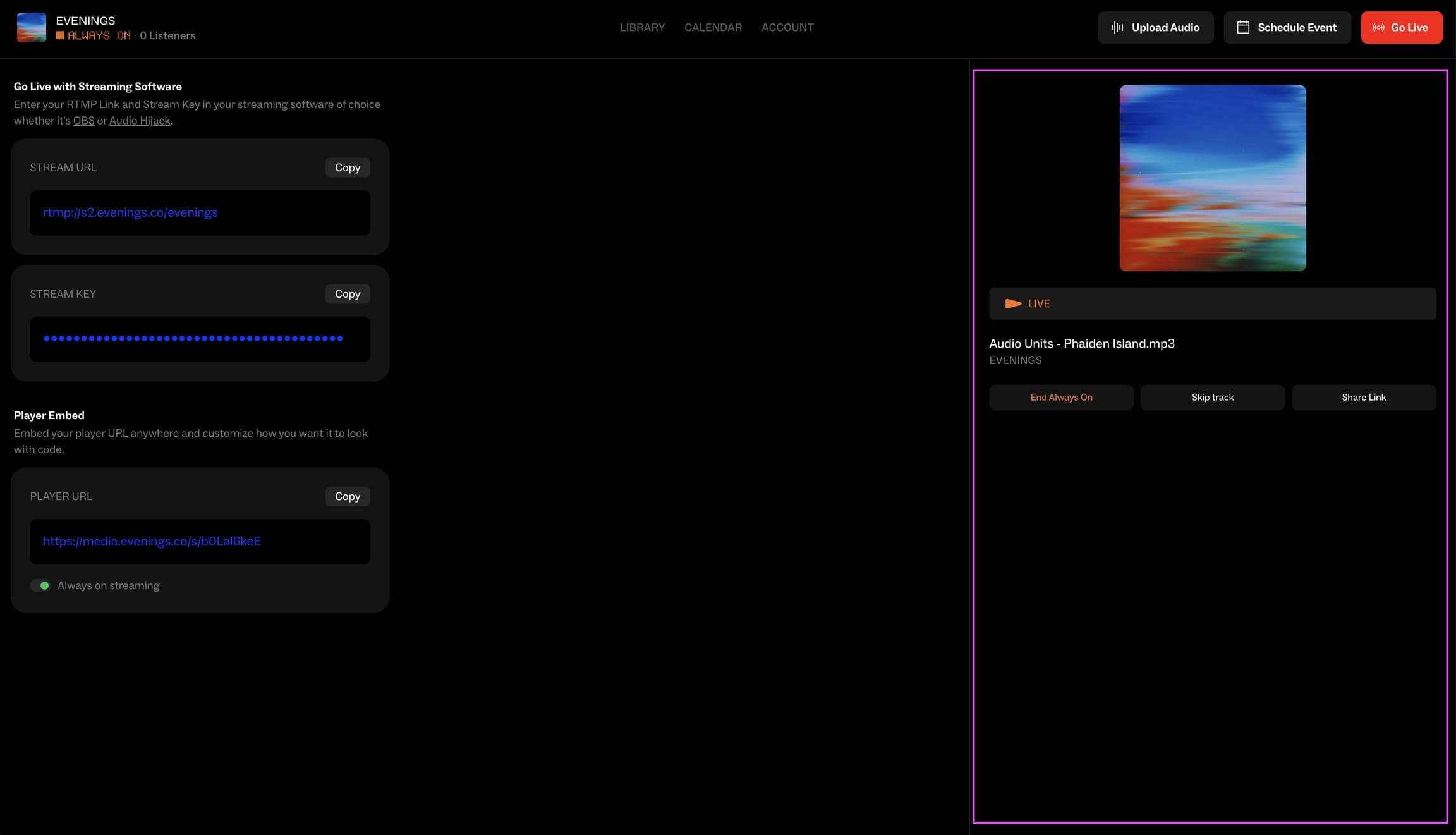
If you want to manage what is currently playing, you can click the playing widget on the top left which will show you a panel for skipping the track or ending the streaming.
Questions
That's all it takes to use the Always On feature. If you have any questions or feedback, please contact us at contact@evenings.email.