Go live from your browser

We added a way to go live from your browser in July, and we never properly introduced it here. It's the simplest way onto Evenings we've built: open your station, choose what to send, and press Go Live. There's no encoder to install, no server address or stream key to copy, and nothing to configure before you're on air.
Why we built it
OBS, BUTT and Audio Hijack are all good tools, and we write guides for each of them, but every one asks you to make decisions about servers, codecs and bitrates before you've played a single record. That's a lot to ask of someone doing their first show, or a guest who's been handed the station for an hour. We wanted a way on air that only asks what you want to play, so we built one into the page you already have open.
How it works
Log in, press the red Go Live button, and Go Live from your Browser is the first thing on the page. Turn on the sources you want:
- Tab / System Audio sends a browser tab, like a playlist, a DJ app or a set you've queued up.
- Second Tab mixes in another one, which is handy for a guest on a call.
- Microphone lets you talk over the mix.
Each source gets its own volume slider and a level meter, so you can balance your mic against the music before anyone hears it. Press Go Live, the button turns red, a timer starts, and you're broadcasting.
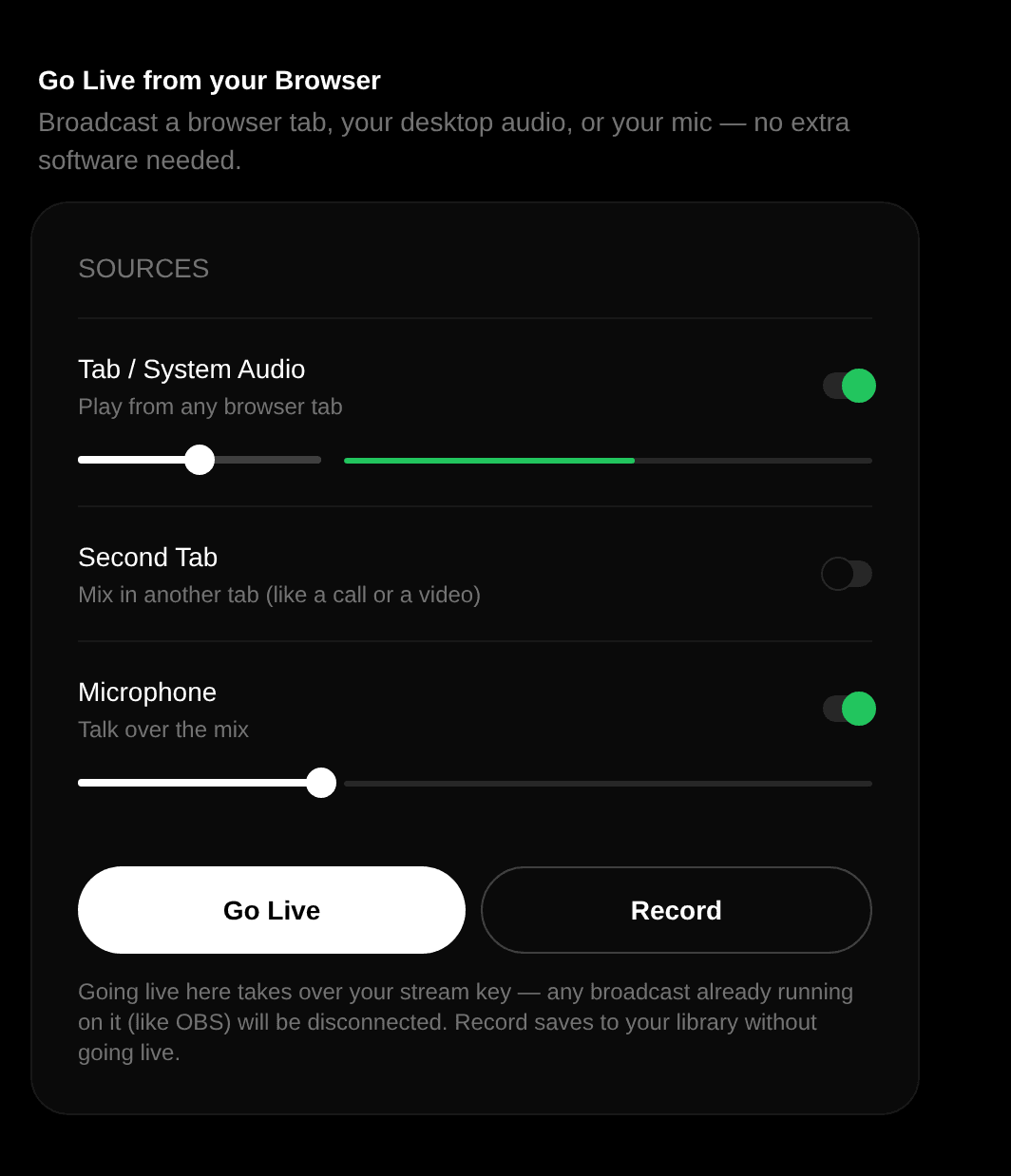
Under the hood, your browser mixes the sources with the Web Audio API, encodes them as Opus at 128 kbps, and sends them to us over a WebSocket. From there they join the same pipeline as every broadcast from OBS or BUTT, so to your listeners a browser tab sounds the same as a full studio rig. Because the connection uses the same port as any secure web page, it also gets through office and campus networks that block streaming software.
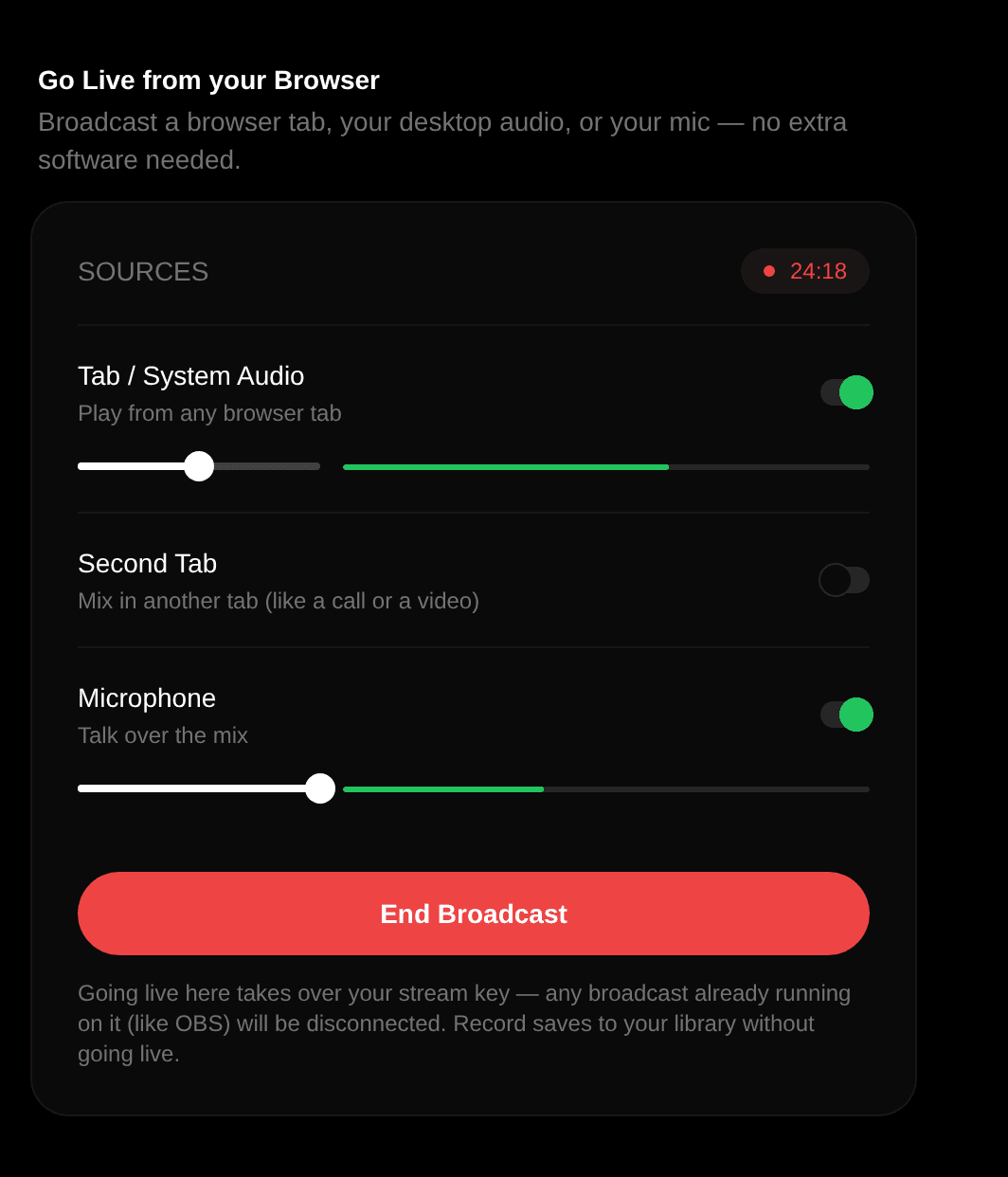
When you press End Broadcast, the recording saves to your Library like every other show on Evenings, ready to share or schedule again. If you'd like a test run first, Record captures a take in your browser without going out to listeners and adds it to your Library when you stop.
What you give up
Going live from a browser is the easiest way on air, and it's not trying to replace a full setup. These are the tradeoffs we'd want to know about:
- Fewer audio controls. You get a volume slider and a meter per source, and that's it. There's no EQ, compressor or limiter, and we send your mic exactly as it arrives, with no echo cancellation, noise suppression or automatic gain. That keeps it sounding like your mic rather than a video call, but it means wearing headphones so your speakers don't feed back into the mix. If you want processing on your voice, Audio Hijack or OBS is the right step up.
- A little more latency. Your browser sends audio in one-second pieces, so listeners can hear you up to a second later than they would from an encoder. For a music show that's not noticeable. For call-ins, your listeners' player is where most of the delay lives, and our low-latency player guide shows how to win back more than a second there.
- Browser support. Chrome and Edge can send a tab, your system audio and a mic. Firefox can only send a mic, and Safari isn't supported yet. On a Mac, you can share a tab's audio but not everything playing on your computer.
- The tab is your transmitter. Keep it open for the whole show. Closing it, or letting your laptop sleep, ends the broadcast (the recording up to that point is still saved). If your upload can't keep up, we stop rather than let listeners fall further and further behind, and you can press Go Live to reconnect.
- One broadcast per key. Going live from the browser takes over your stream key, so anything else broadcasting to your station, like OBS or BUTT, gets disconnected.
When to move on
For a lot of shows, this is all you need. When you want effects on your mic, a hardware mixer, or a dedicated machine you can leave running, our guides for BUTT, OBS and Audio Hijack pick up where the browser leaves off, and we've written about how Icecast and RTMP differ if you're deciding between them. Your schedule, station page and recordings stay exactly where they are when you switch.
Your first broadcast walks through every step and what each message on the page means. If you go live from a browser tab for your first show, send the link to contact@evenings.email before you start. We'd like to tune in.