
Guides
How to stream internet radio with OBS
Updated
This guide sets up OBS Studio for an audio-only stream to your Evenings station over RTMP. OBS is built for video, but it streams audio just as well, and if your scene does have video in it, we keep only the audio for your listeners and your recording.
OBS is free and open source, built by the OBS Project and its contributors, and it runs on Windows, macOS and Linux. It's a good fit if you already use it, or if you want to mix several sources with full control over levels. If you'd rather not install anything, you can go live from your browser. If you work with Icecast, use BUTT, which is also free. On a Mac, Audio Hijack is a paid option with a simpler patching view. To stream a DJ set from Serato or rekordbox through OBS, start with How to live stream a DJ set.
1. Install OBS
Download OBS Studio from obsproject.com/download and install it. The screenshots in this guide are from OBS 30 on macOS; the menus are the same on Windows and Linux except for the audio sources in the next step.
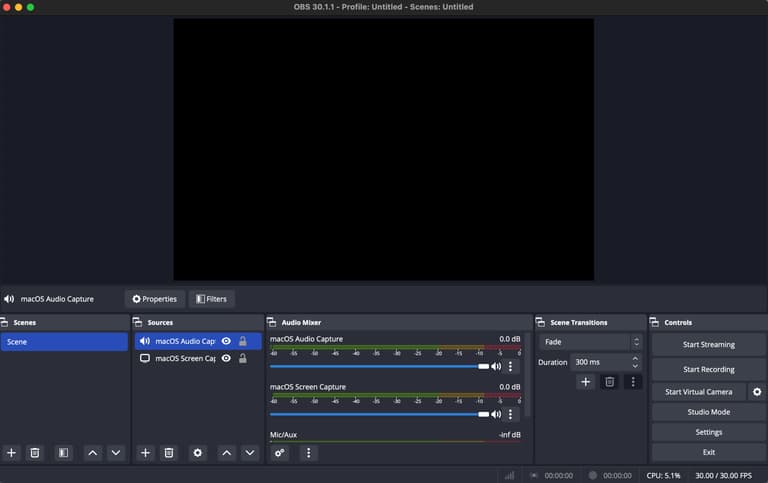
2. Add an audio source
In the Sources panel, click + and pick the source that matches what you want to send. Name it, then click OK.
macOS: choose macOS Audio Capture. In its properties, pick Application Audio Capture and select the app you're playing from, such as Chrome or your music player. To send everything your Mac plays instead, pick Desktop Audio Capture.
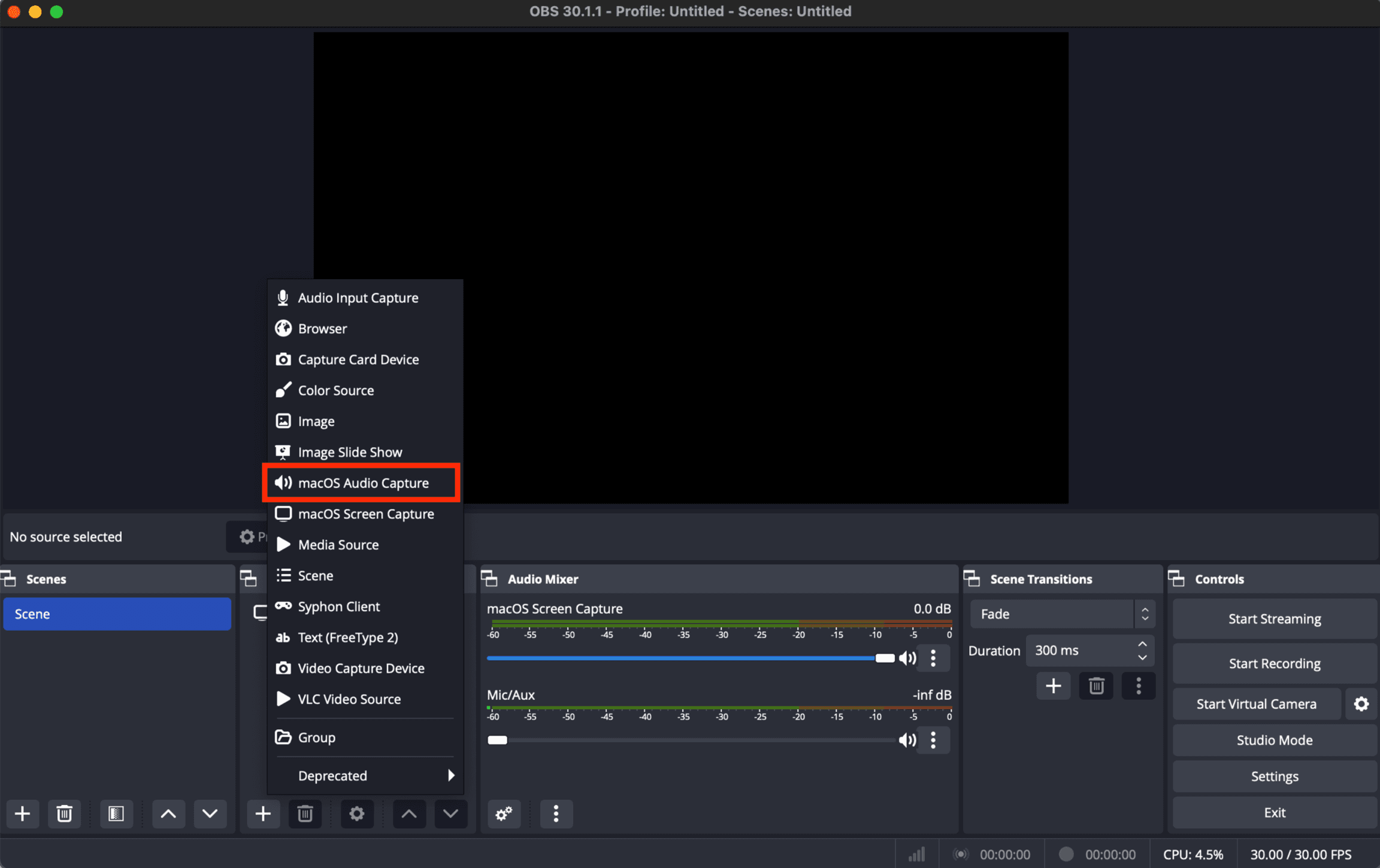
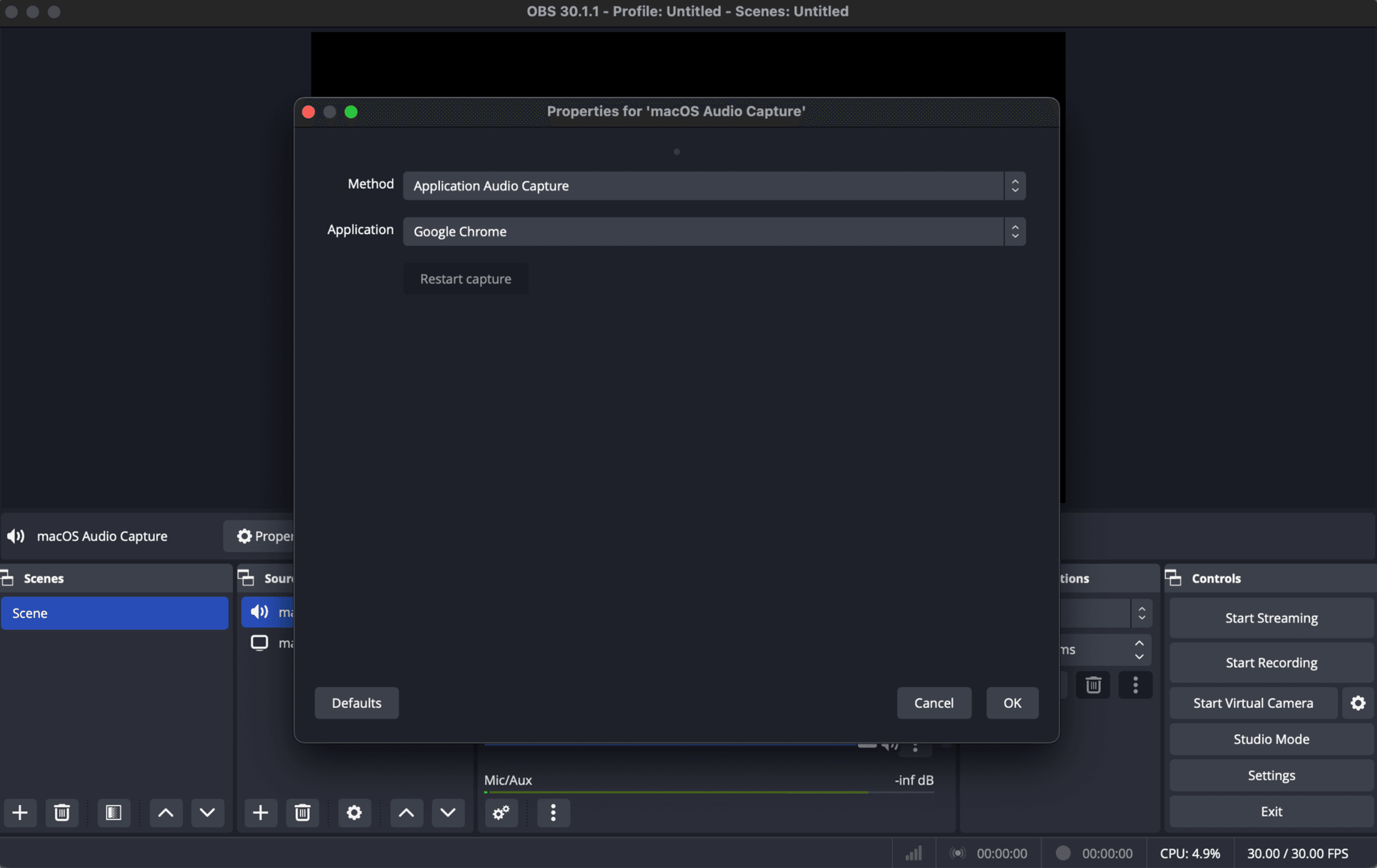
Windows: choose Application Audio Capture to send one app, or Audio Output Capture to send everything playing through an output device.
Linux: choose Audio Output Capture (PulseAudio) to send everything playing through an output device. OBS doesn't capture a single app on Linux by itself; the PipeWire Audio Capture plugin by dimtpap adds that if you need it.
Microphone, on any system: add an Audio Input Capture source and pick your mic or audio interface.
Before you go on, play something and check that the source's meter moves in the Audio Mixer.
3. Connect OBS to Evenings
On Evenings, click Go Live at the top right of your dashboard. Under "…or with Streaming Software" you'll find your Stream Url and Stream Key, each with a Copy button.
In OBS, click Settings in the Controls panel.
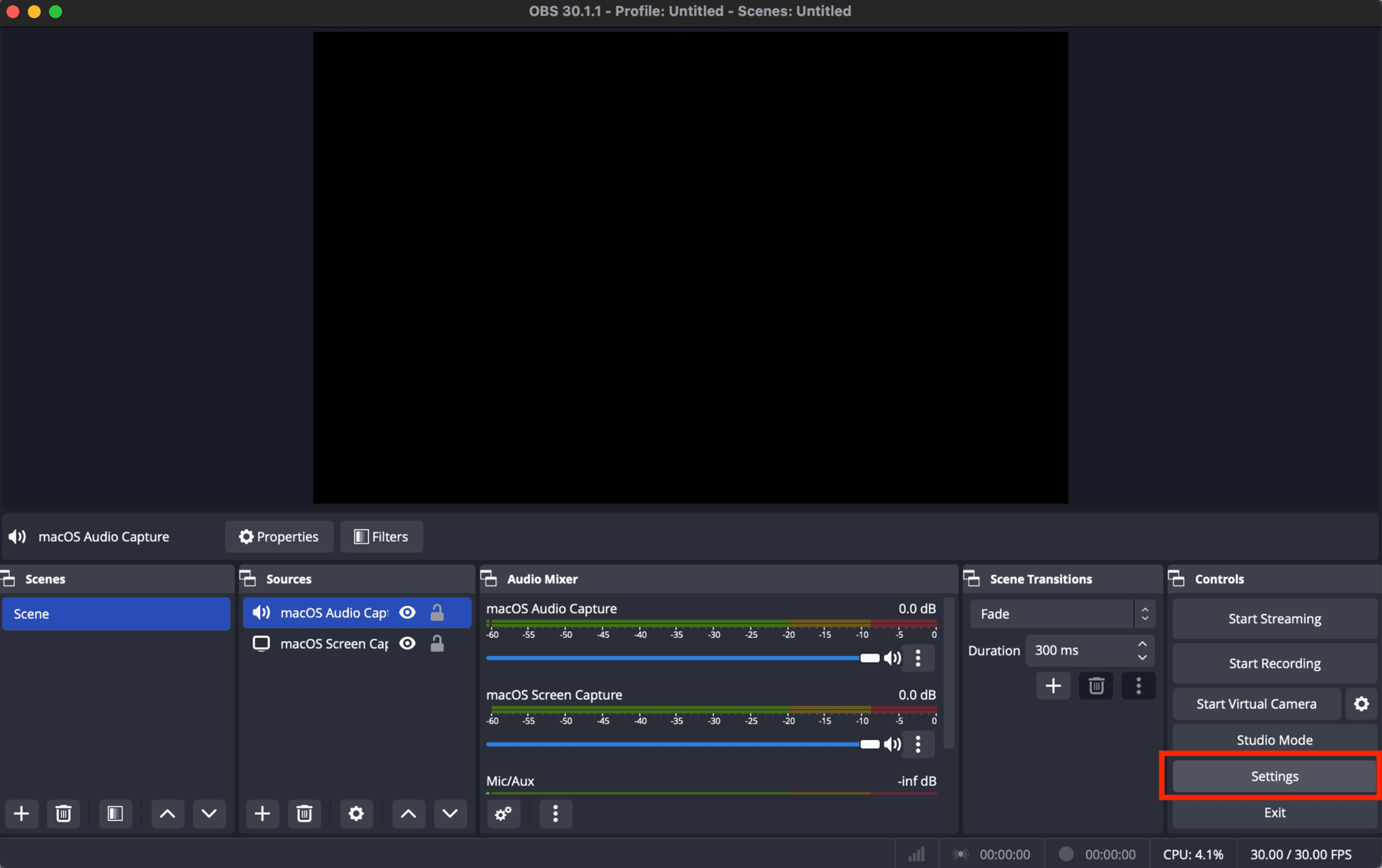
Open Stream, set Service to Custom..., and fill in:
- Server:
rtmp://s2.evenings.co/evenings - Stream Key: your stream key, pasted with the Copy button on the Go Live page
Leave Use authentication off and click OK.
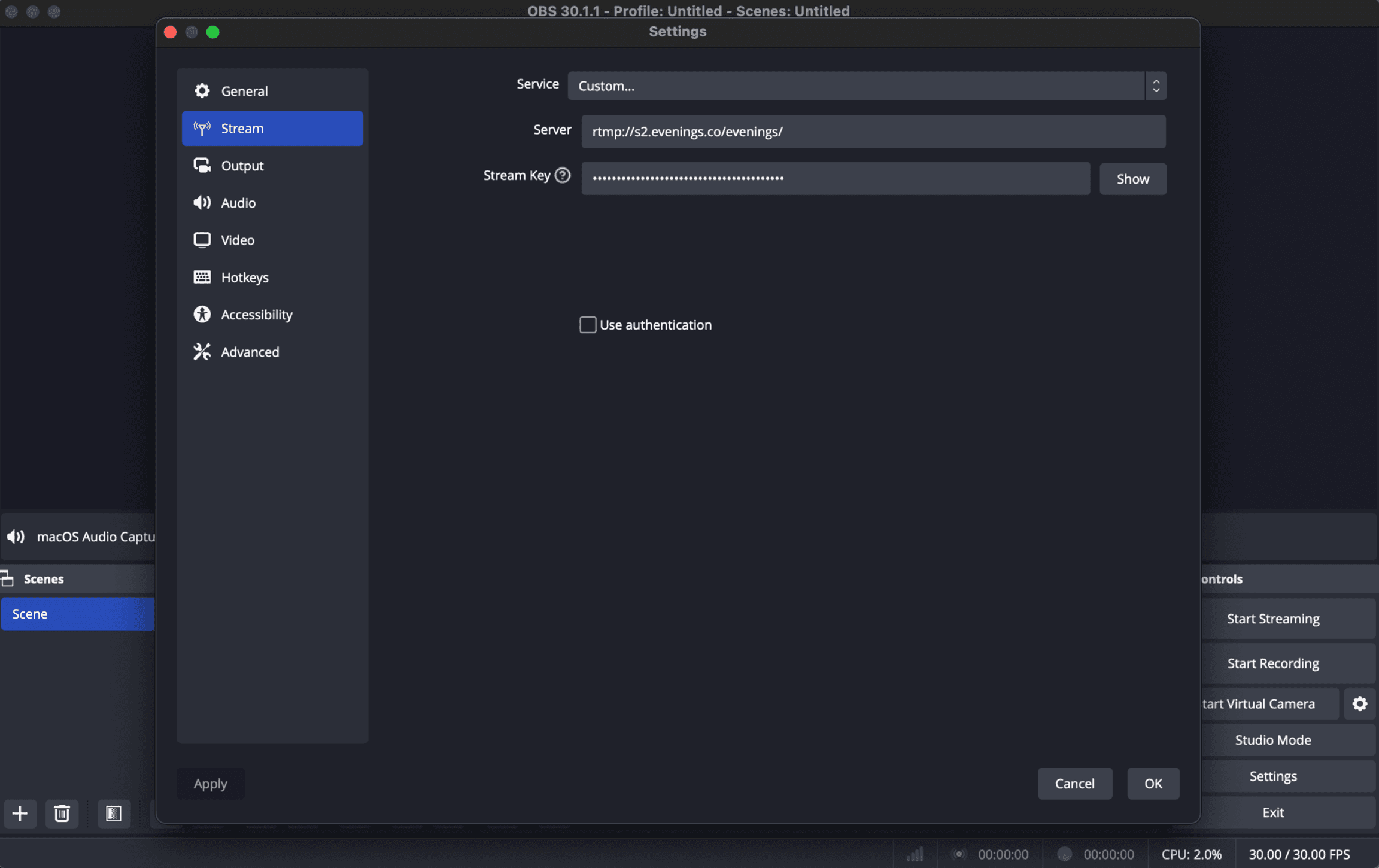
Paste the key into Stream Key, not onto the end of the server address, and use the Copy button rather than selecting it by hand so no stray space comes with it. Your stream key works like a password: anyone who has it can broadcast to your station.
4. Go live
Click Start Streaming in the Controls panel.
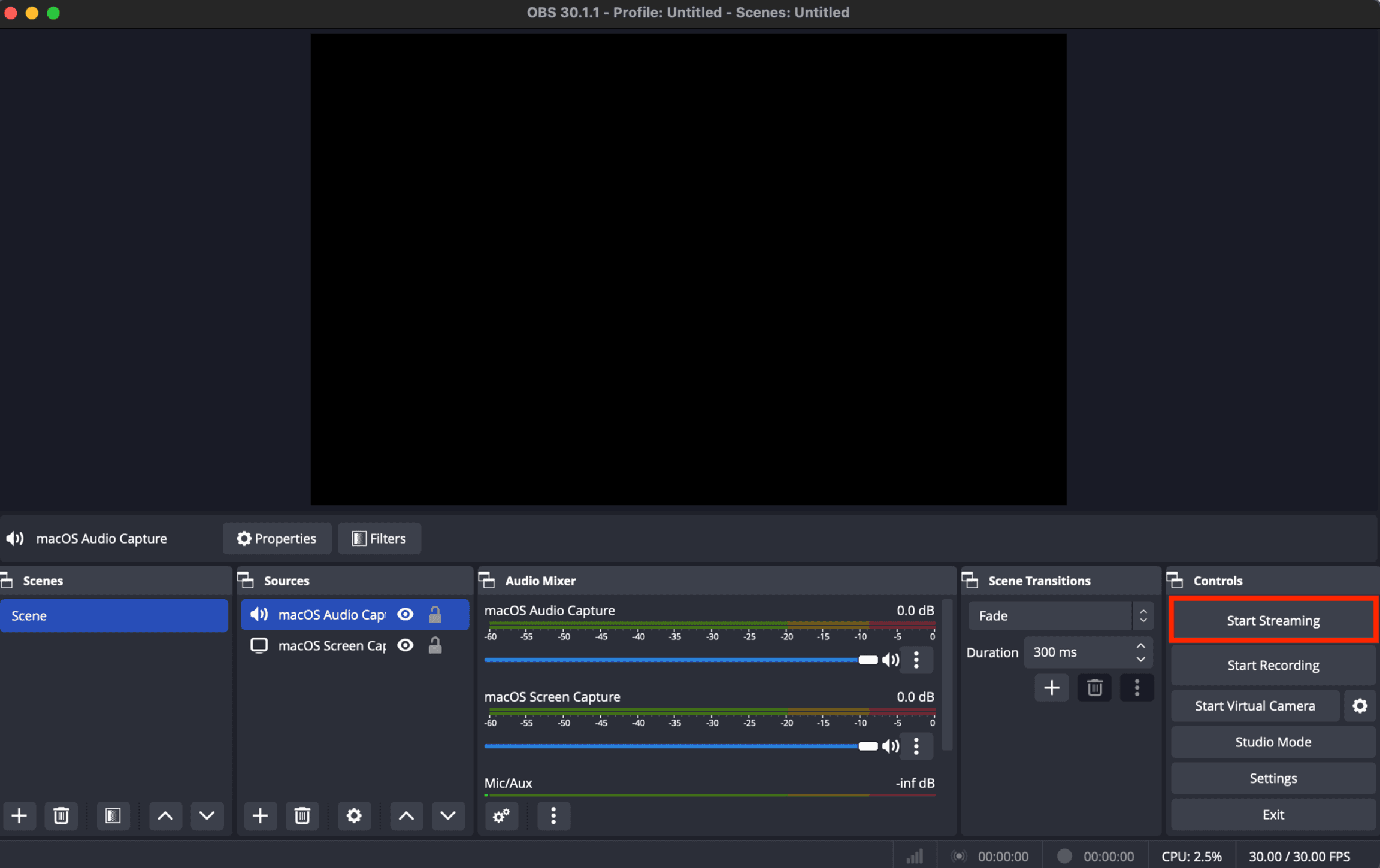
On Evenings, your station's name at the top left of the dashboard now shows LIVE and a listener count. Click it to open the player and hear what your listeners hear.
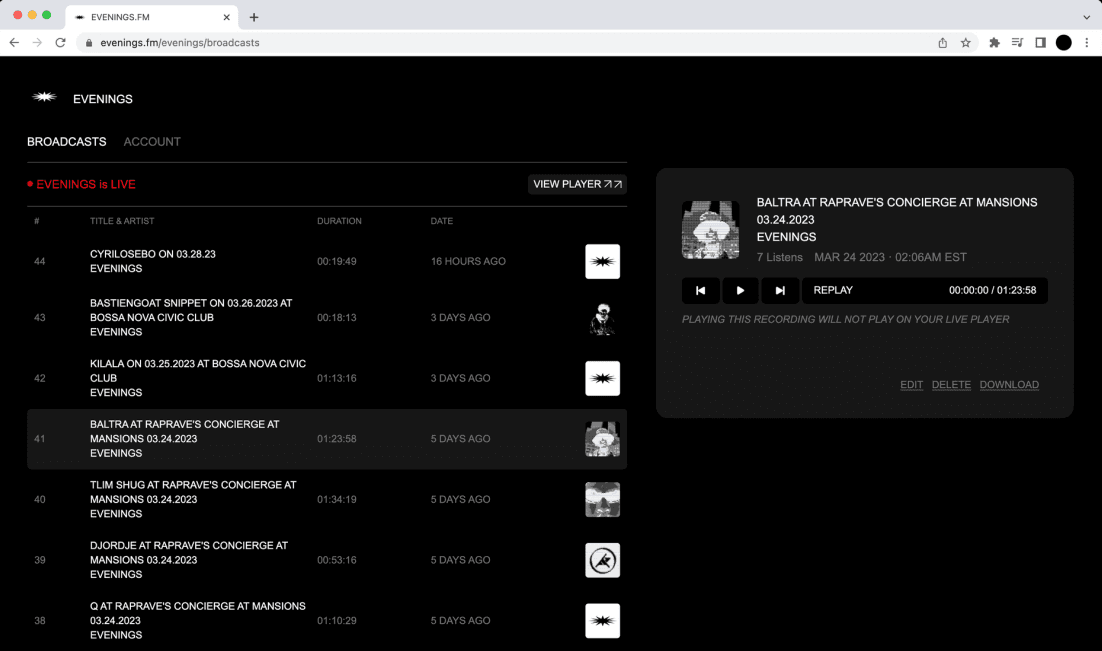
Only one connection can use your stream key at a time. While OBS is live, a second copy of OBS or Audio Hijack can't connect with the same key. Going live from the browser or BUTT does take over, though: that connection wins and OBS gets disconnected.
5. Stop streaming
Click Stop Streaming when your show is over.
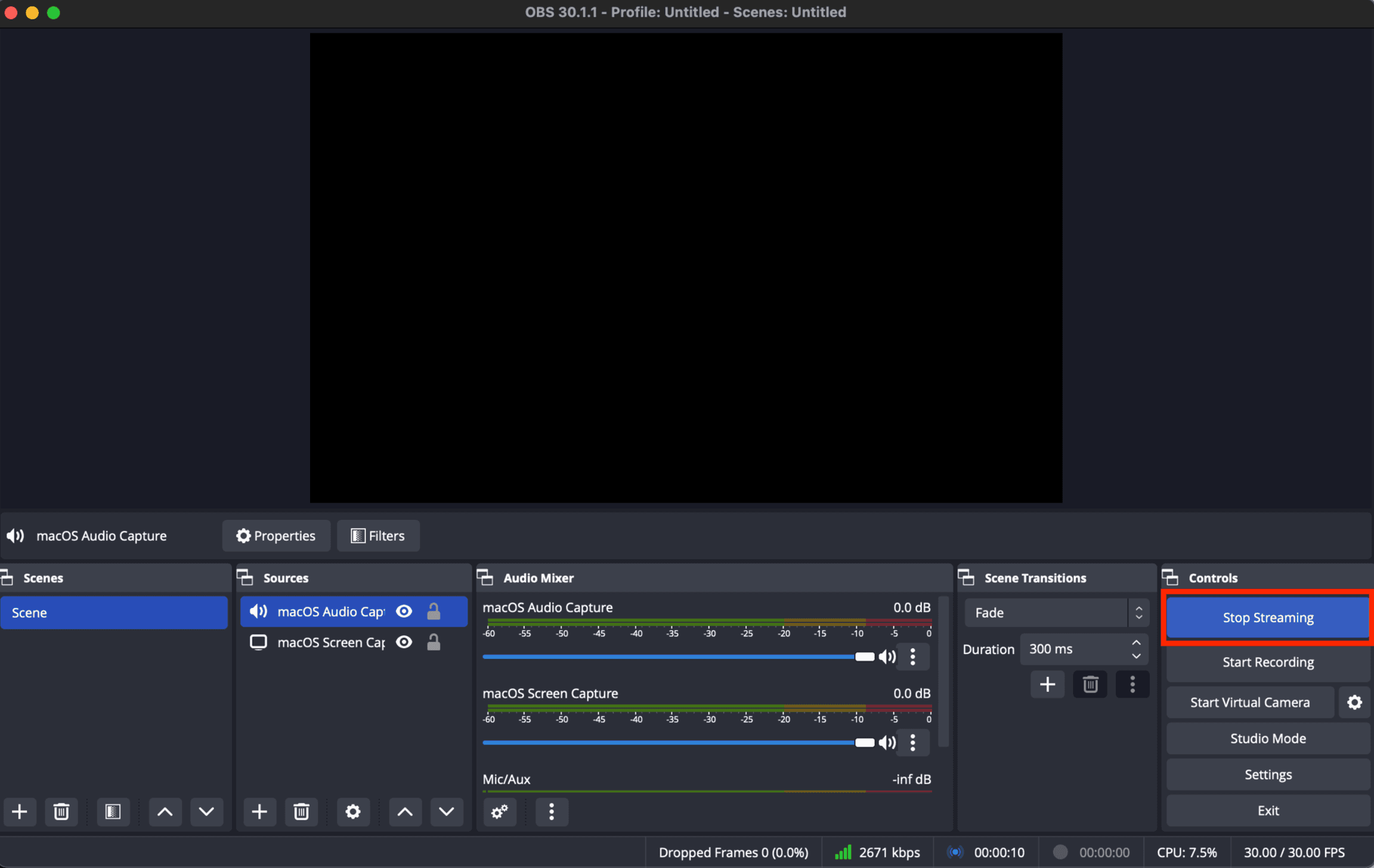
Every broadcast is recorded, and the recording shows up in your Library as a track after you stop. If your connection drops partway through, that part is saved on its own, and when you start streaming again we begin a new recording.
Next
Put your next show on the calendar so listeners know when to tune in: schedule a live broadcast. If OBS won't connect, start with Troubleshooting. If it still won't, email contact@evenings.email with your station name and a screenshot of your OBS Stream settings (with the key hidden), and we'll work through it with you.