
Getting Started
How Evenings works
Updated
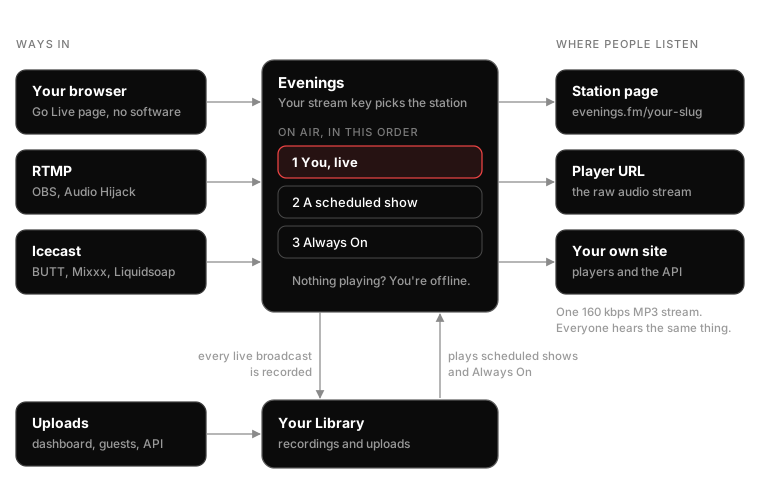
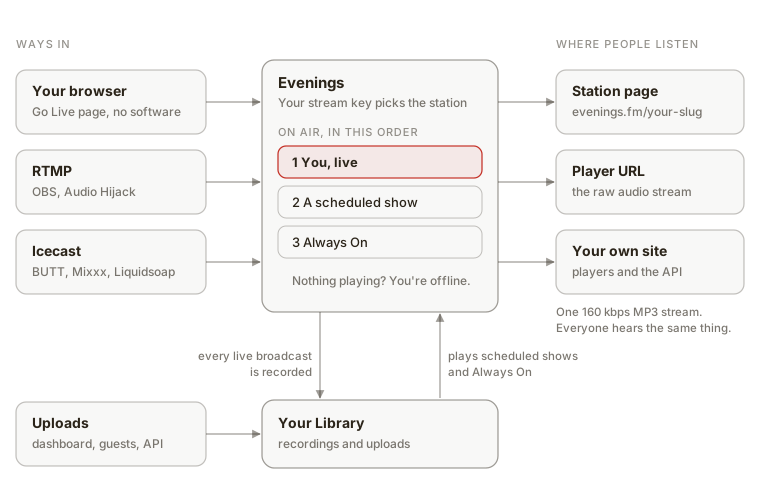
Before you set anything up, here's how Evenings actually works. The question we get asked the most is "wait, what's actually playing on my station right now?" This page answers that, plus a few other things that'll make the rest of the docs easier to follow. Here's a diagram of the whole thing.
Getting audio in
There are three ways to send audio to Evenings. They all end up in the same place, so pick whichever one matches the gear you already have.
- Your browser: Click Go Live in your dashboard and broadcast a browser tab, your computer's audio, or a mic. You don't need to install anything. Chrome and Edge can do all three. Firefox can only do the mic, and Safari isn't supported yet.
- RTMP: This is what OBS and Audio Hijack use. Point them at
rtmp://s2.evenings.co/eveningsand give them your stream key. We have guides for OBS and Audio Hijack. - Icecast: This is for BUTT, Mixxx, Liquidsoap, or anything else that uses Icecast. The server is
s2.evenings.coon port8001, and your stream key goes in the mountpoint field. Here's how to set up BUTT.
Your stream key is the only thing that tells us which station the audio belongs to. Whatever comes in with your key goes out on your station, so keep it private like you would a password. You can find it on the Go Live page.
If you connect with a key that's already live, the new connection takes over and the old one gets dropped. We did this on purpose. Sometimes encoders crash and hang on to the connection on their way down, and when that happens we want you to be able to just reconnect, instead of having to email us and wait.
What's on air
Only one thing plays on your station at a time. So what happens when you've got a show scheduled and Always On running, and then you decide to go live? Here's the order:
- You, live: If you're broadcasting, that's what people hear. Scheduled shows and Always On don't cut into a live broadcast.
- A scheduled show: When a prerecorded show's start time comes around, it goes on air and takes over from Always On.
- Always On: If you've turned it on and nothing else is playing, Evenings picks a track from your Library, plays it, and picks another when it ends. More on Always On.
- Nothing: If no one's live and Always On is off, your station is offline until something starts.
A scheduled show doesn't have to be prerecorded. You can also put a live slot on your calendar so people know when you'll be on. When you go live during that slot, your broadcast picks up the show's title and cover. Here's how to schedule a live show and how to schedule a prerecorded one.
When it switches from one of these to the next, listeners stay connected and the audio just changes over.
Where your recordings go
Every live broadcast is recorded while it happens. When you stop, the recording shows up in your Library as a track. If you went live during a scheduled show, the first recording from that show picks up its title, cover and tags. Recordings are saved on our end before they're uploaded, so if the upload hiccups we hold on to the file and try again.
Your Library is every track you have: recordings, plus anything you upload yourself from the dashboard, through your Upload Page, or with the Tracks API. Once a track is in your Library you can publish it so it's public, schedule it as a prerecorded show, or let Always On play it. Published tracks can also be exported to SoundCloud.
Always On picks tracks at random from your whole Library, and it doesn't check whether a track is published. This one trips people up. If you've picked tags in the Always On settings, it only plays tracks that have at least one of those tags. So if there's a recording you'd rather not have on air, tags are how you keep Always On from playing it.
Where people listen
Evenings works like a radio station. Everyone tuned in is hearing the same thing at the same time, so if someone shows up halfway through a song, they hear the second half. Everything goes out as a single 160 kbps MP3 stream, which pretty much anything that plays audio can handle.
- Your station page:
evenings.fm/your-slug. It shows what's on air right now and your latest tracks. Listeners can also leave their phone number there to get a text when you go live. - Your schedule:
evenings.fm/your-slug/schedulelists your published shows. Each show gets its own page that people can share, and listeners can sign up there for a text reminder 15 minutes before it starts. - Your player URL: It's on the Go Live page. It's the raw audio stream, so you can drop it into anything that plays audio. If nothing is on air it won't play, so if you're building a player, have it try again in a bit.
- Your own site: The Getting Started guide covers the API, and we have walkthroughs for building a player in plain HTML or Framer.
That's it! If something here doesn't match what you're seeing on your station, email contact@evenings.email and we'll fix the page.