
Guides
How to stream with Traktor: Broadcasting settings
Updated
This guide sets up Traktor Pro's built-in broadcasting so your mix goes straight to your Evenings station over Icecast, with no separate encoder.
Traktor Pro is Native Instruments' DJ software for Windows and macOS. Its broadcasting sends everything you can hear from the master output, and it speaks the same Icecast protocol we accept from BUTT and Mixxx. We wrote this guide against the Traktor Pro 4 manual.
1. Copy your stream key
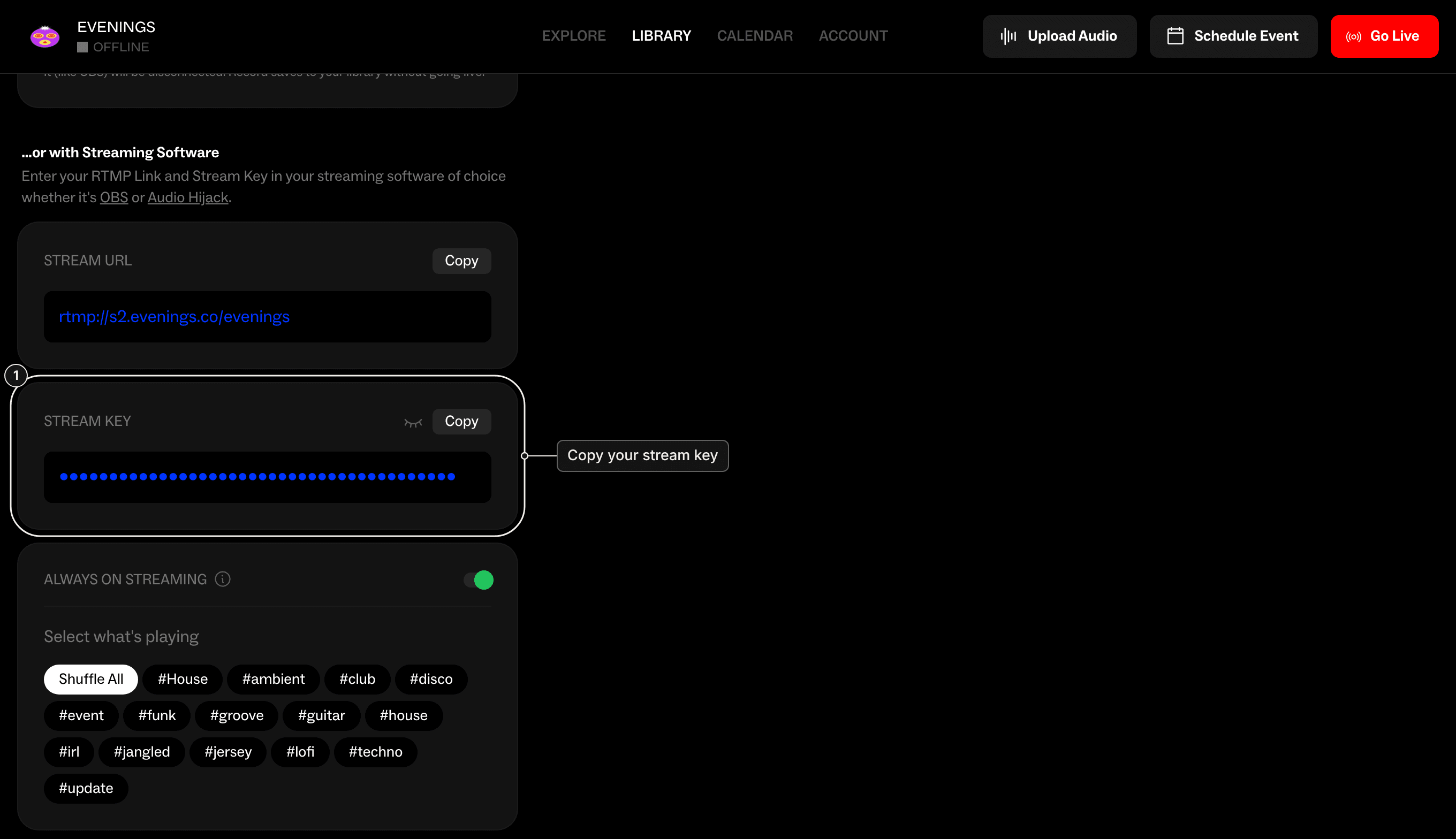
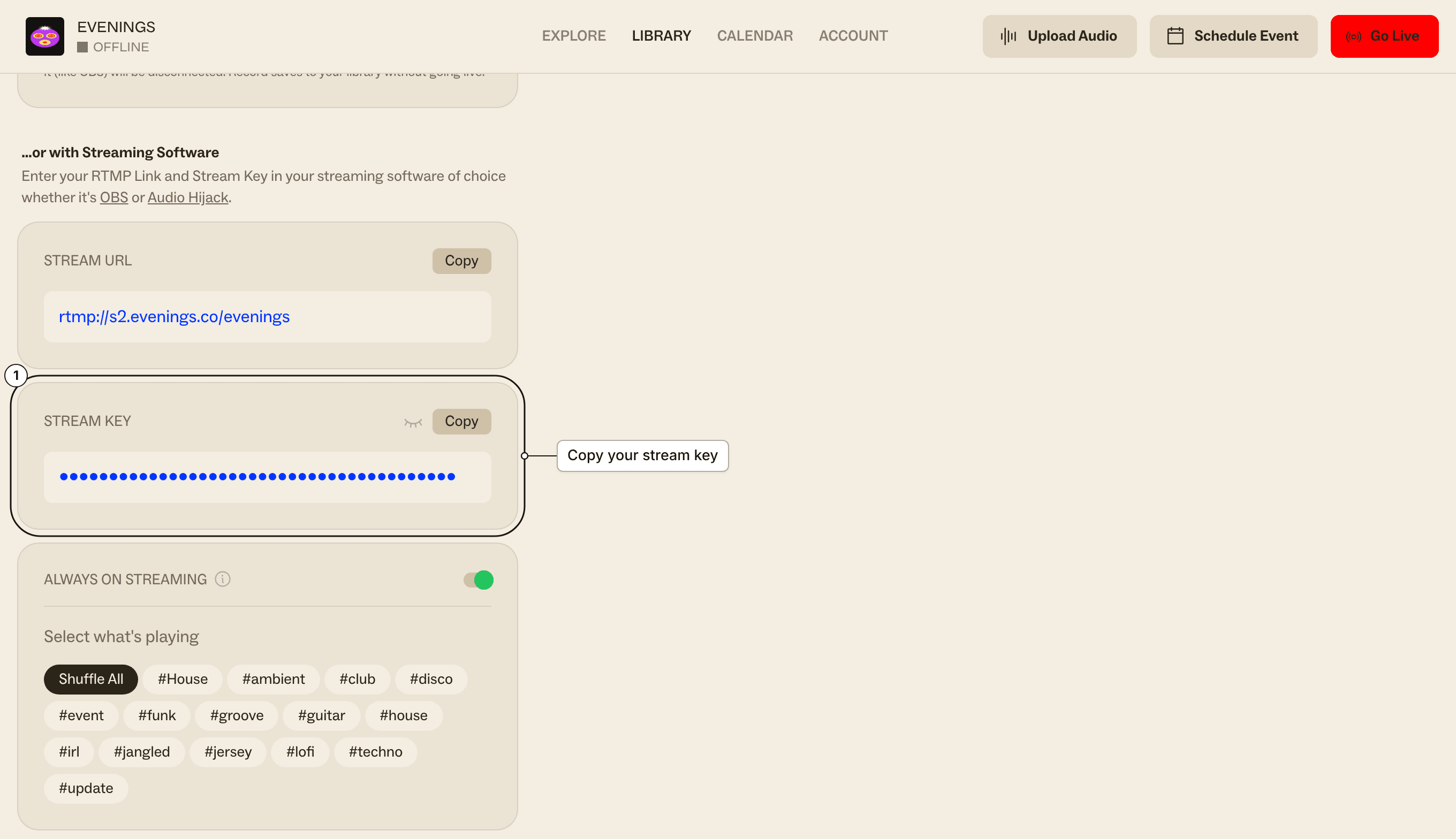
On Evenings, click Go Live at the top right of your dashboard and use the Copy button next to Stream Key.
2. Record from Traktor's own mix
Open Traktor's Preferences, go to Mix Recorder, and set Source to Internal. Traktor broadcasts through its recorder, so this makes sure it sends the mix Traktor produces.
3. Fill in the server
Still in Preferences, go to Broadcasting.
Leave Proxy Settings on None unless your network needs a proxy. Under Server Settings, fill in:
- Address:
s2.evenings.co - Port:
8001 - Mount Path: your stream key
- Password: any placeholder, such as
x
Traktor has no username field, and that's fine: we don't check usernames or passwords. Your stream key in the mount path is what tells us the broadcast is yours, so treat it like a password. The connection to port 8001 isn't encrypted, so keep real passwords out of the password field.
For Format, pick the highest quality Traktor offers. We convert every broadcast to a 160 kbps MP3 for listeners and record it as a 192 kbps MP3, and we accept the Ogg Vorbis audio Traktor sends, so the better it sounds going in, the better it sounds on air and in your recording.
The Metadata Settings (Stream URL, Stream Name, Stream Description, Stream Genre) are for public Icecast directories. We don't read them, so your station page shows the show details you set on Evenings.
Close Preferences to save.
4. Go live
Click the tape icon in Traktor's header to show the Audio Recorder, then click its Broadcast button.
When the button is highlighted, you're connected. If it keeps flashing, Traktor couldn't reach us; check the settings in step 3, or see the end of this guide.
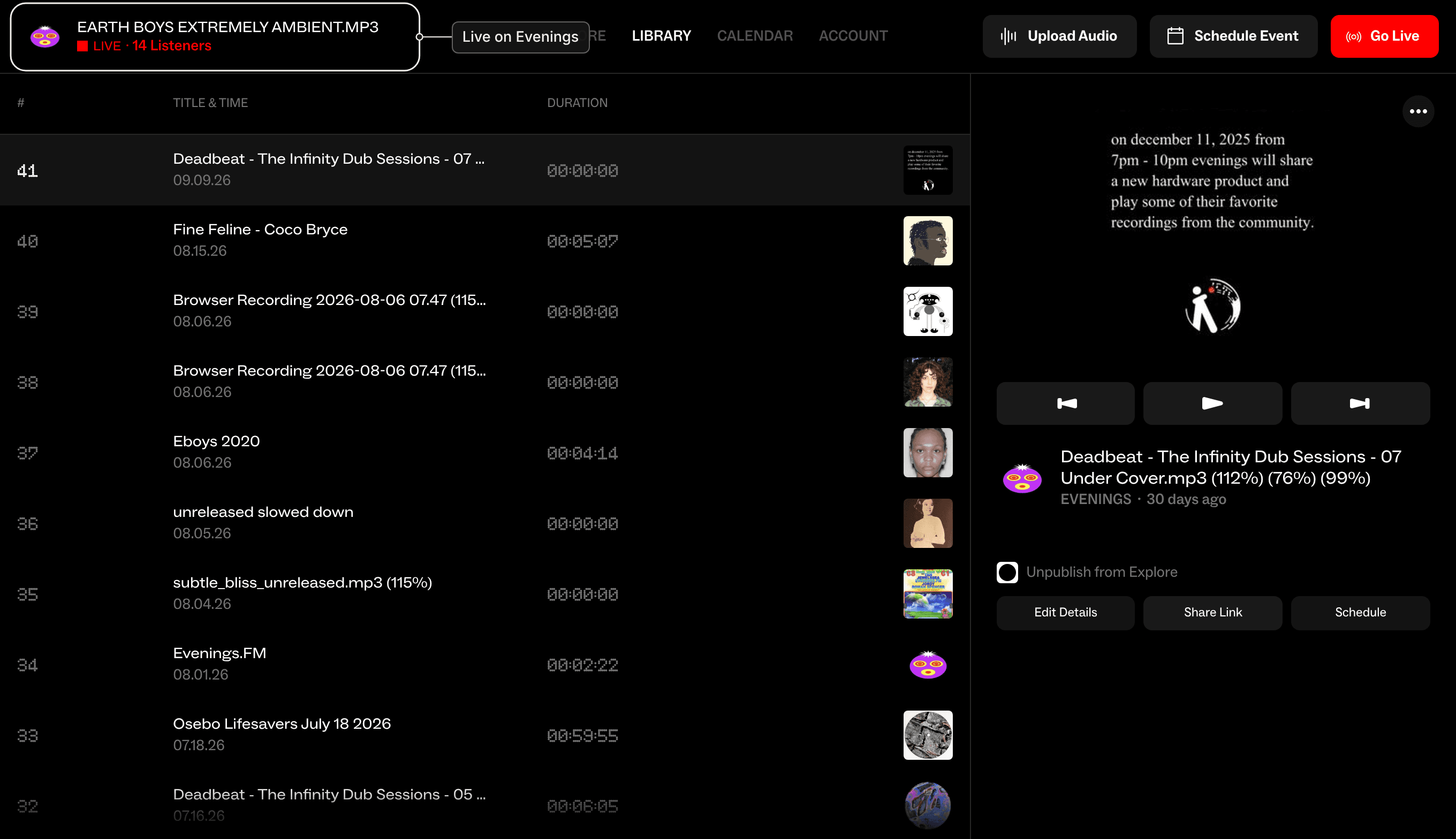
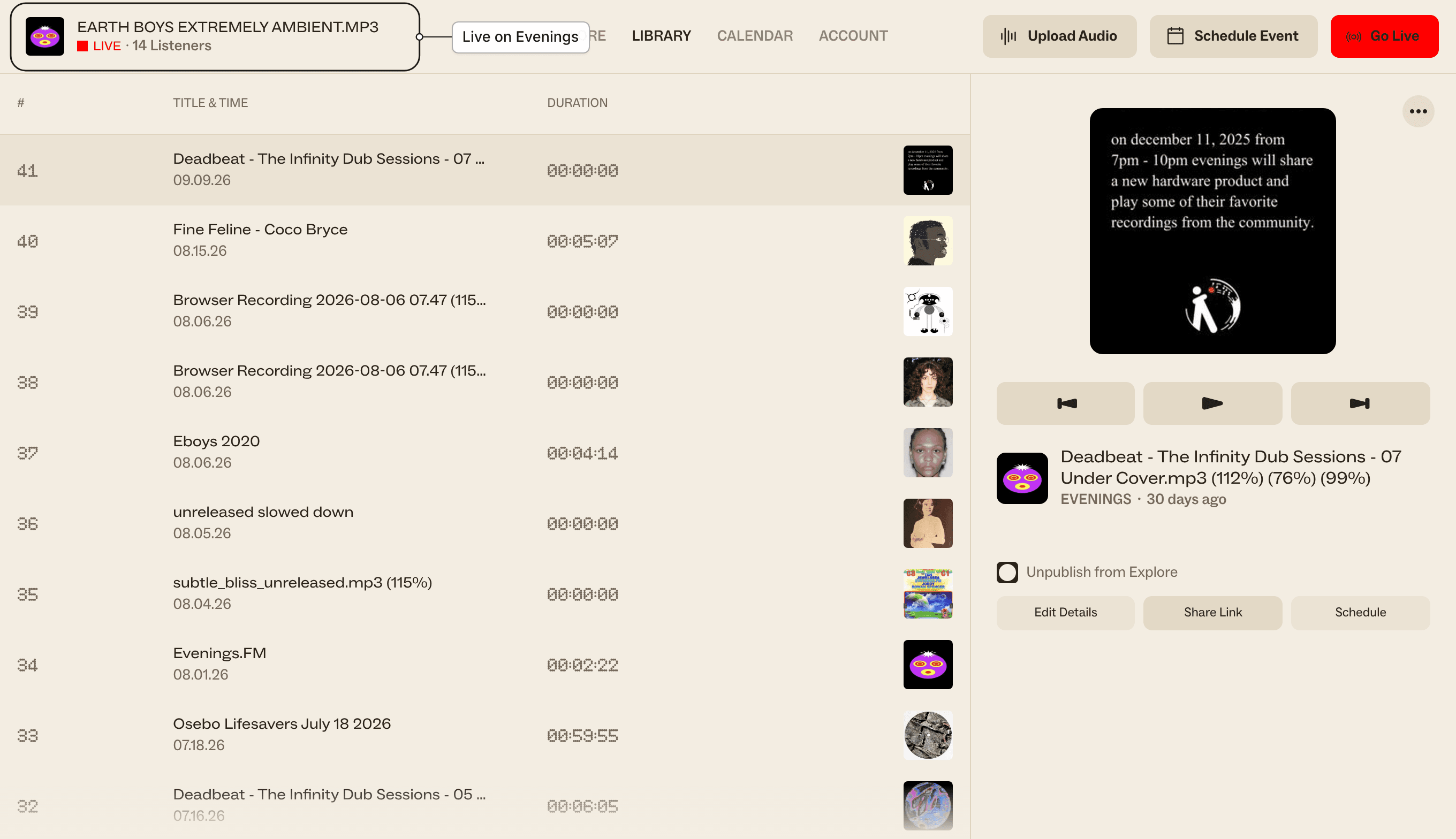
On Evenings, your station's name at the top left of the dashboard now shows LIVE and a listener count. Click it to open the player and hear what your listeners hear.
Only one connection can use your stream key at a time. If you go live from the browser or another Icecast app with the same key, the newer connection wins and Traktor gets disconnected.
5. Stop
Click Broadcast again when your set is over.
Every broadcast is recorded, and the recording shows up in your Library as a track after you stop. If your connection drops partway through, that part is saved on its own, and when you connect again we begin a new recording.
If the Broadcast button keeps flashing
- Address is exactly
s2.evenings.co, with nohttp://in front. - Port is
8001. Traktor's manual mentions8000because many Icecast servers use it, but ours doesn't. - Mount Path is your stream key, pasted with the Copy button so no stray space comes with it.
- A firewall or work network can block port
8001. Try another connection, such as a phone hotspot, to rule that out.
Next
Put your next set on the calendar so listeners know when to tune in: schedule a live broadcast. If Traktor still won't connect, Troubleshooting covers the usual causes, or email contact@evenings.email with your station name, your Traktor version and a screenshot of your Broadcasting preferences (with the key hidden), and we'll work through it with you.