
Guides
How to schedule a prerecorded livestream
Updated
A prerecorded livestream plays a track from your Library on your station at the time you choose, the same way a live broadcast reaches listeners. You don't need to be at your computer when it airs.
Step 01: Pick the track in your Library
Open your Library and select the track you want to air. If it isn't there yet, upload it first, or record one with Record on the Go Live page (see Your first broadcast).
In the track's panel on the right, click Schedule.
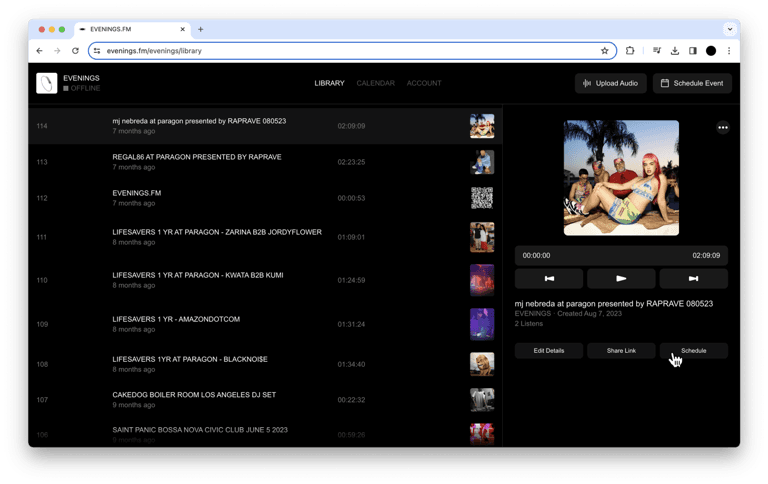
Start from the track. The Schedule Event button at the top of the dashboard can't attach audio, so it makes a slot for a live show instead.
Step 02: Set the time and details
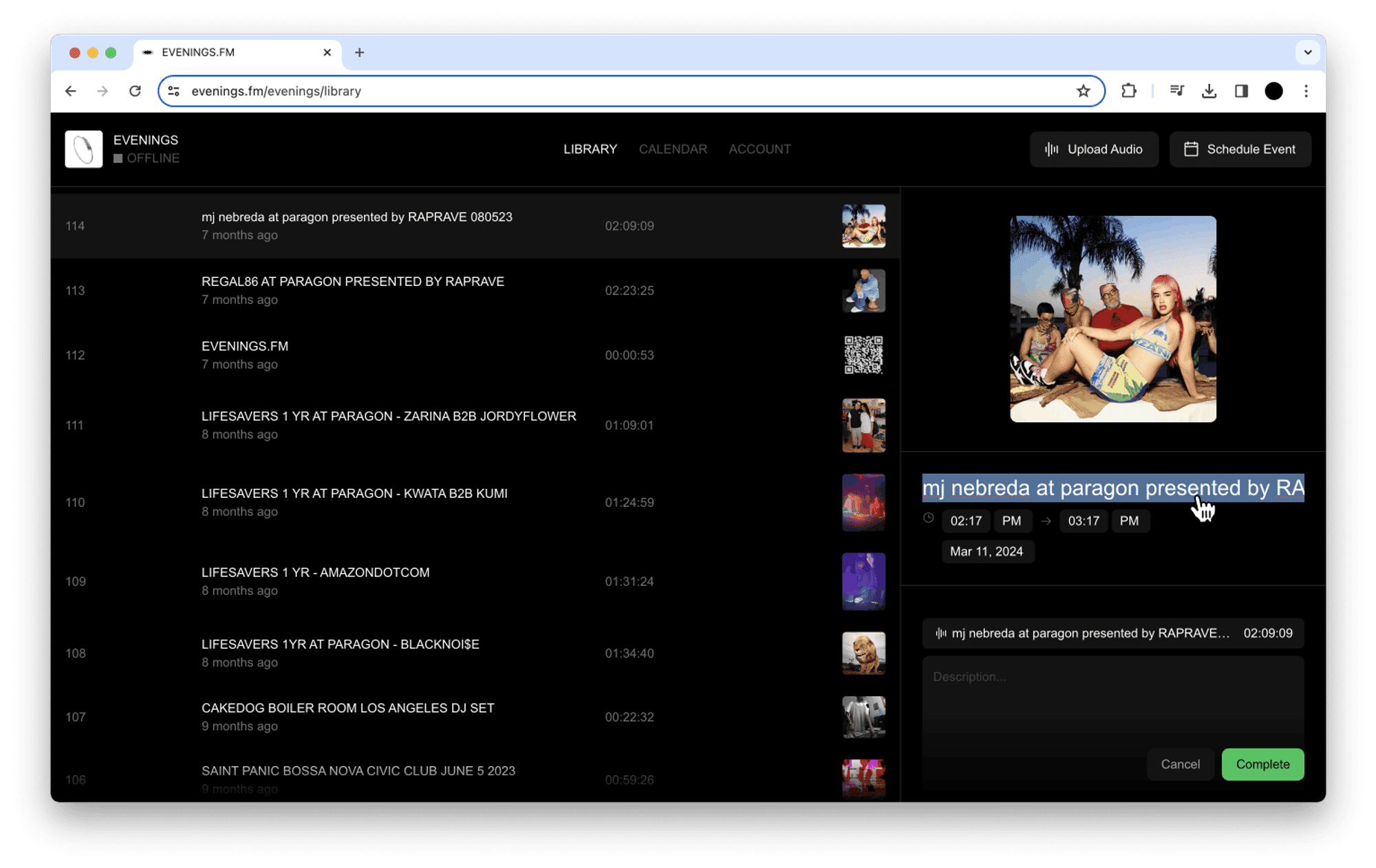
The form opens with the track's title, description and cover filled in, and shows the attached track with its length. Change anything you like:
- Title and cover
- Start and end time, and date: a 12-hour clock (21:00 is 9:00 PM) in your device's time zone, with its abbreviation next to the times. See Times and time zones.
- Repeat: air it daily, weekly or monthly (see Repeating shows)
- Private / Public: switch to Public to give the show an event page that listeners can RSVP to (see Event pages, RSVPs and text blasts)
- Description
The form starts with the current time and ends one track-length later. When you move the start time, the end time stays where it was, so move it too and make the slot at least as long as the track.
Click Complete when you're done.
Step 03: Check your Calendar
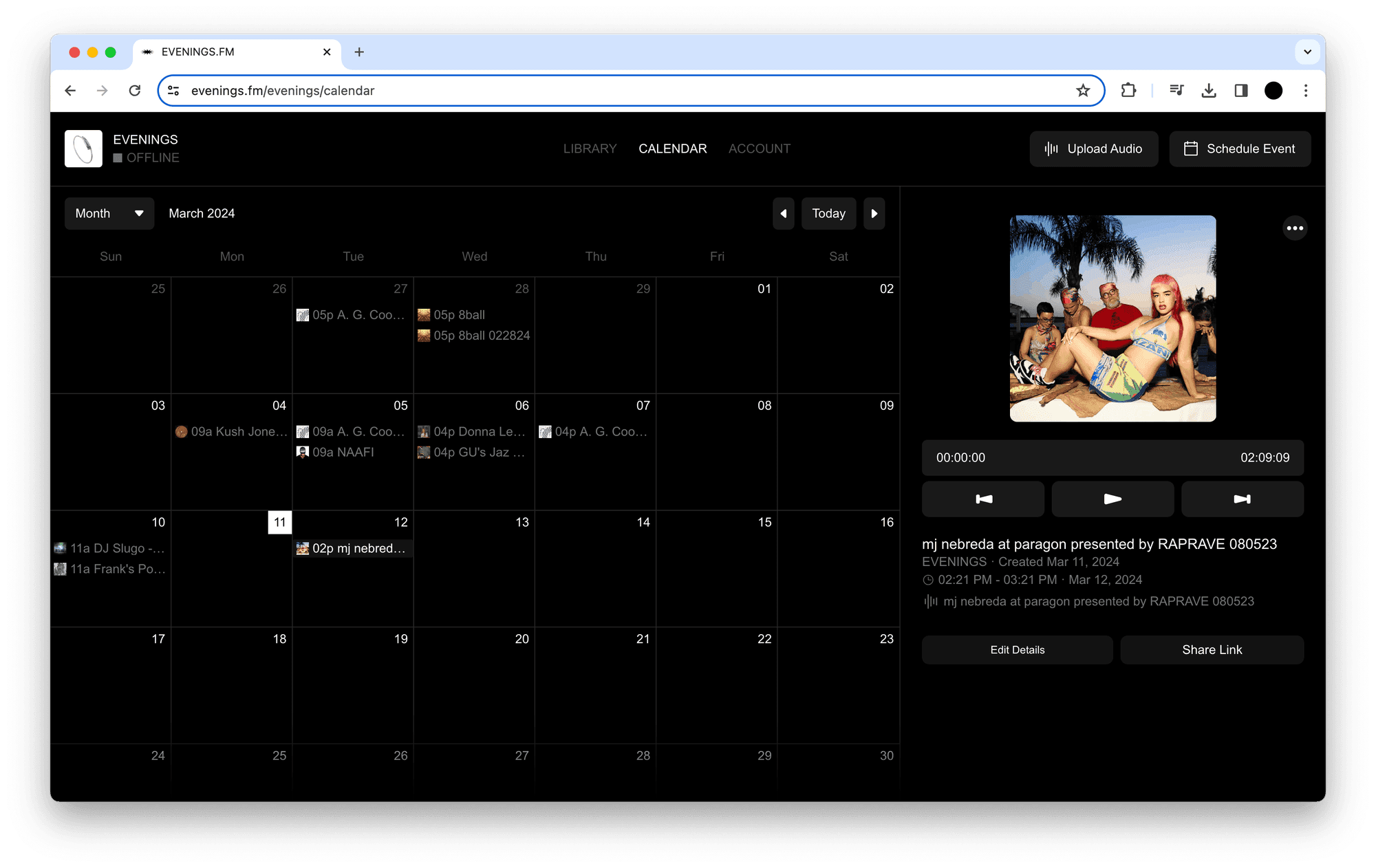
Your show appears on the Calendar tab. Click it to see the details or change them with Edit Details.
What happens at start time
We start playing the track on your station at the start time. If the start time has already passed and the end time hasn't when you click Complete, it starts straight away, which is a quick way to put a recording on air now.
A scheduled show takes over from Always On for its slot. If you go live yourself during the slot, your live broadcast plays instead. How Evenings works has the full order under "What's on air".
Next
To let listeners RSVP and get a text before it airs, make the show public. If a scheduled show doesn't start when you expect, email contact@evenings.email with the show's title and start time, including your time zone, and we'll check it on our side.