
Guides
How to build a custom audio player with Framer
Updated
This guide adds a play button for your station to a Framer site. Framer is a visual website builder that lets you drop your own React code into a design, which makes it a good fit for stations that want a player styled to match the rest of their site without maintaining a codebase. If you'd rather write plain HTML, follow the HTML player guide instead.
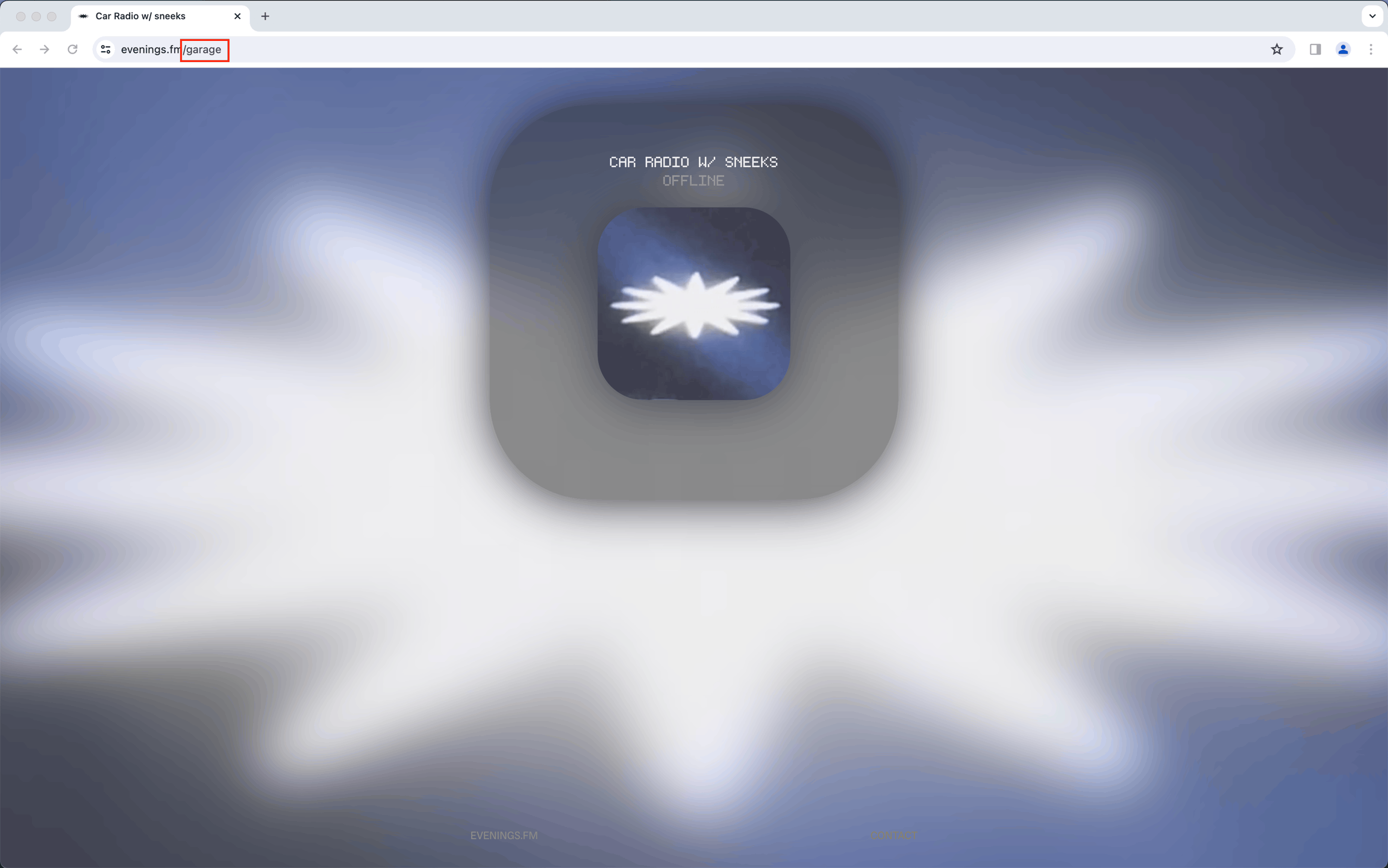
You'll need a Framer project (Framer runs in the browser, and there's also a desktop app) and your station's slug, the last part of your station's address. For evenings.fm/sample-radio, the slug is sample-radio.
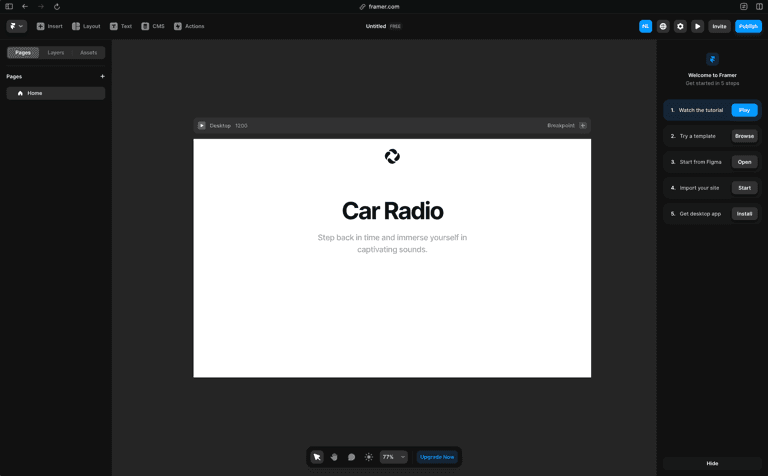
Step 01: Create a code file
- Open your project in Framer and go to the Assets panel.
- Next to Code, click + to create a new code file, and name it
EveningsPlayer.tsx. The file name becomes the component's name in your project.
Step 02: Paste the component
Replace everything in the new file with the code below, then save it.
import { useEffect, useRef, useState } from "react"
import { addPropertyControls, ControlType } from "framer"
import { PlayCircle, PauseCircle } from "react-feather"

// The API caches each response for up to 10 seconds,
// so there's no benefit in checking more often than this.
const POLL_INTERVAL = 10000

export default function EveningsPlayer(props) {
    const { stationSlug, color } = props
    const audioRef = useRef(null)
    const [station, setStation] = useState({ online: false, name: "", streamUrl: "" })
    const [isPlaying, setIsPlaying] = useState(false)

    // Check whether the station is on air now, then every 10 seconds,
    // so the player notices when you go live or sign off without a reload.
    useEffect(() => {
        if (!stationSlug) return
        let cancelled = false

        const refresh = async () => {
            try {
                const res = await fetch(
                    `https://api.evenings.co/v1/streams/${stationSlug}/public`,
                    { cache: "no-store" }
                )
                if (!res.ok) throw new Error(`HTTP ${res.status}`)
                const data = await res.json()
                if (cancelled) return
                setStation({
                    online: data.online,
                    name: data.name || data.host || stationSlug,
                    streamUrl: data.streamUrl,
                })
            } catch {
                if (!cancelled) setStation((s) => ({ ...s, online: false }))
            }
        }

        refresh()
        const timer = setInterval(refresh, POLL_INTERVAL)
        return () => {
            cancelled = true
            clearInterval(timer)
        }
    }, [stationSlug])

    // Pausing a live stream would leave the listener behind when they resume,
    // so stopping disconnects completely and playing reconnects at the live moment.
    const stop = () => {
        const audio = audioRef.current
        if (audio) {
            audio.pause()
            audio.removeAttribute("src")
            audio.load()
        }
        setIsPlaying(false)
    }

    const togglePlay = () => {
        const audio = audioRef.current
        if (!audio) return
        if (isPlaying) return stop()
        if (!station.online) return
        audio.src = station.streamUrl
        audio.play().then(() => setIsPlaying(true)).catch(stop)
    }

    // If the stream ends while someone is listening, reset the button.
    const onStreamEnd = () => {
        if (isPlaying) stop()
    }

    const Icon = isPlaying ? PauseCircle : PlayCircle
    const label = isPlaying || station.online ? station.name : "Offline"

    return (
        <div
            onClick={togglePlay}
            style={{
                color,
                display: "flex",
                alignItems: "center",
                border: `1px solid ${color}`,
                padding: "6px 8px",
                cursor: station.online || isPlaying ? "pointer" : "default",
                opacity: station.online || isPlaying ? 1 : 0.5,
                width: "100%",
            }}
        >
            <Icon size={18} color="currentColor" />
            <div style={{ marginLeft: 12 }}>{label}</div>
            <audio
                ref={audioRef}
                onEnded={onStreamEnd}
                onError={onStreamEnd}
                style={{ display: "none" }}
            />
        </div>
    )
}

addPropertyControls(EveningsPlayer, {
    stationSlug: {
        type: ControlType.String,
        title: "Station Slug",
    },
    color: {
        type: ControlType.Color,
        title: "Color",
        defaultValue: "#000000",
    },
})
How it works:
- Polling. The component asks the public Streams API whether your station is on air, every 10 seconds. That matches how long the API caches a response.
cache: "no-store"stops the browser from reusing its own copy, and we clear our cache when you go live or sign off, so the player catches either within about 10 seconds. - The label.
nameis whatever is on air right now: your scheduled show, the current Always On track, or the details you set with Edit Details when you go live without a show. It falls back tohost, then to the slug. - Play and stop. Playback only starts from a click, because browsers don't allow audio with sound until the listener interacts with the page. Stopping drops the connection, so the next press starts at the live moment instead of where the listener left off.
- Icons come from Feather by Cole Bemis, through the
react-featherpackage. Framer loads it for you; there's nothing to install.
Step 03: Add the player to your page
- In the Assets panel, find EveningsPlayer under Components, in the Project group.
- Drag it onto the canvas where you want the player.
- With the player selected, type your slug into Station Slug in the properties panel on the right, and pick a Color to match your design.
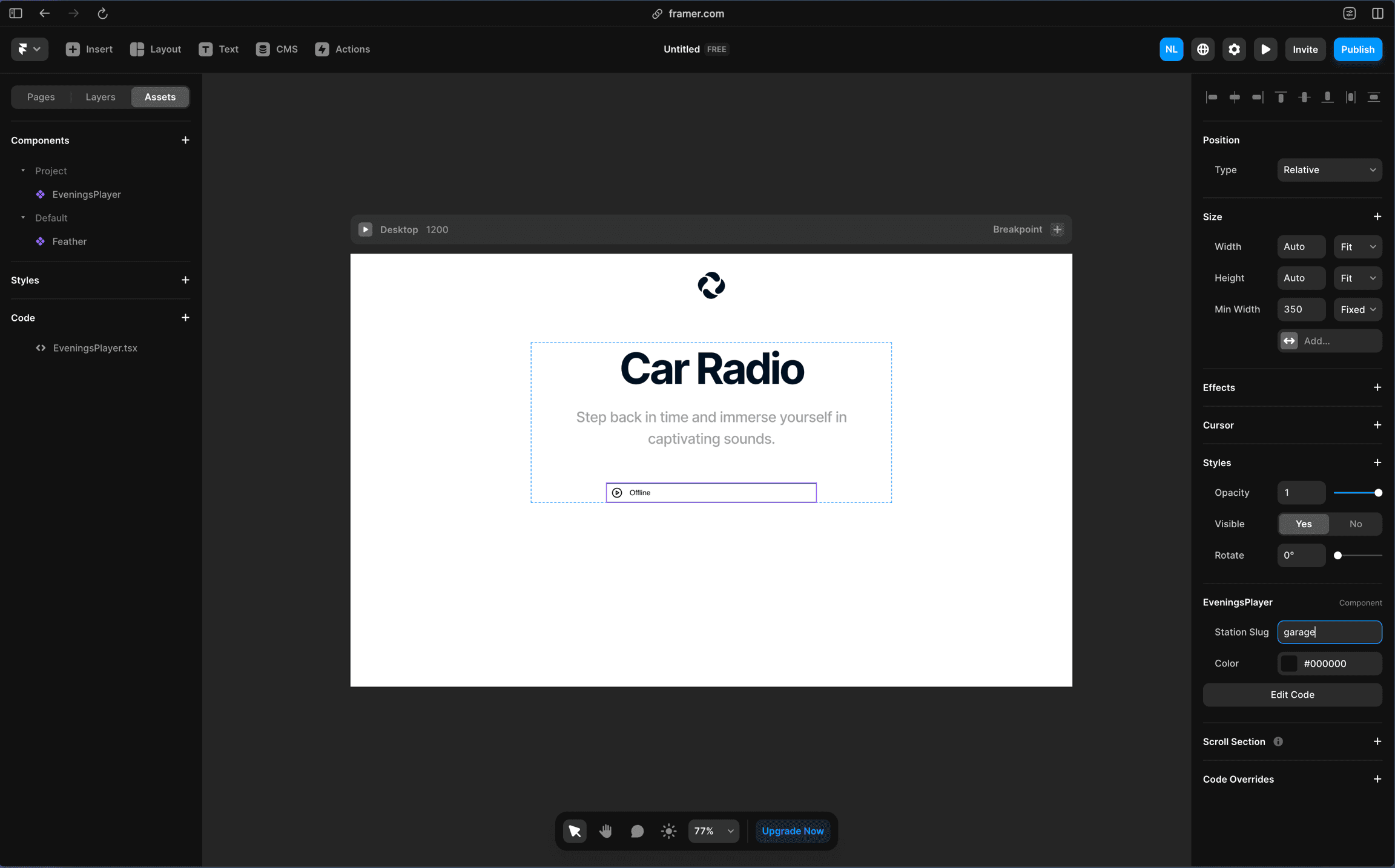
In our screenshots we've used Garage Radio, whose slug is garage. You can read any station's slug from the end of its address:
Step 04: Preview it
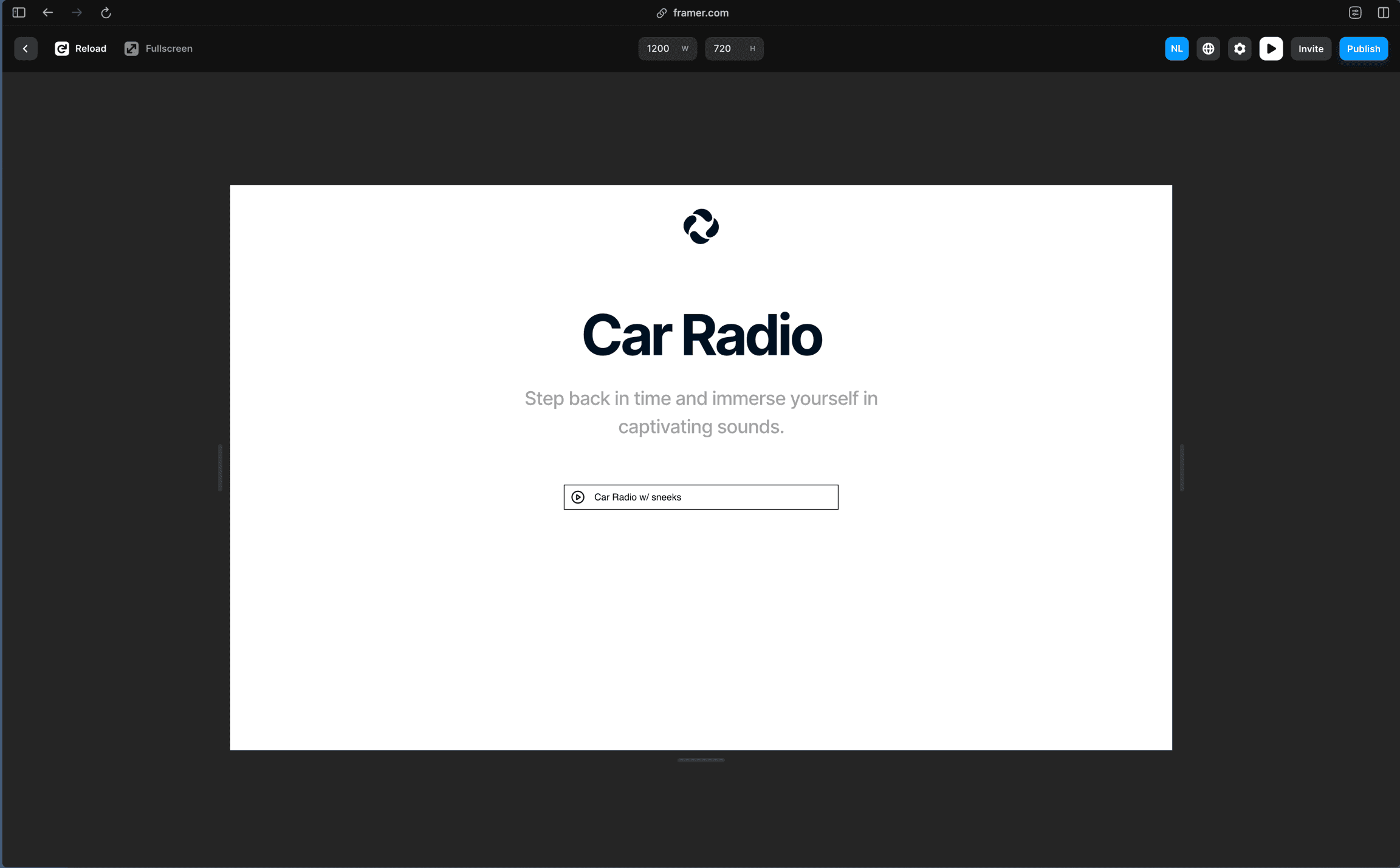
- Click the play icon at the top right of Framer to open Preview.
- While your station is on air, the player shows the name of what's on air. Click it to listen, and click again to stop.
- When you're off air, the player reads Offline and dims. It switches to your show's name within about 10 seconds of you going live.
When you publish your Framer site, the player goes with it. Each open page makes six API requests a minute, well inside the API's limit of 100 requests a minute per IP address.
Next steps
To bring listeners on your site closer to the live moment, read how to reduce player latency. If the player stays on Offline while you're live, check the slug first, then email contact@evenings.email with your slug and a link to your Framer site, and we'll work through it with you.