
Guides
How to live stream a DJ set from Serato or rekordbox
Updated
This guide gets your mix out of Serato DJ, rekordbox or any other DJ software and onto your Evenings station.
Serato and rekordbox are built for playing out, not broadcasting, so neither can send a stream by itself. The way around it is to hand your mix to a free broadcaster: BUTT sends it over Icecast and OBS sends it over RTMP. Either one works with Evenings. If your DJ software does broadcast by itself, use its own guide instead: Mixxx, Traktor or VirtualDJ.
There are two ways to get the mix into BUTT or OBS:
- In software, with a virtual audio device that your DJ software plays into and BUTT or OBS listens to. This works with most controllers and needs no extra hardware.
- Through your mixer, if it can send its master mix back to your computer over USB, or if you can cable its record output into an audio interface. This is the most dependable route for long sets, because it doesn't depend on your DJ software's audio settings.
Pick the section for your setup, then finish with Send it to Evenings.
Serato DJ Pro and Serato DJ Lite
Serato has its own virtual audio device for this.
macOS: open Setup > Audio and tick Make Audio Output Available to Other Applications. Serato asks to install Serato Virtual Audio the first time. Once it's installed, your mix is available as an input called Serato Virtual Audio.
Windows: install Virtual Audio Cable LITE first, then open Setup > Audio and tick Make Audio Available to Other Applications.
Serato only includes your microphone in this output on some hardware, so check Serato's list if you talk on the mic during your set. A few controllers, including the XDJ-RX3, can't use this option at all; the mixer route below works for those.
rekordbox
rekordbox can play your master mix through the computer's own audio output at the same time as your controller. Open rekordbox's Preferences > Audio and tick Output audio from the computer's built-in speakers and your DJ equipment (PC MASTER OUT). Then send the computer's audio to a virtual device:
macOS: install BlackHole by Existential Audio, which is free and open source. Choose BlackHole 2ch as your Mac's sound output in System Settings > Sound. rekordbox's master mix now goes to your controller and to BlackHole, and you keep monitoring on your headphones as usual.
Windows: install VB-CABLE from VB-Audio. Set CABLE Input as your default playback device, and the mix comes out of CABLE Output. rekordbox's own instructions use your controller's WASAPI device (for example DDJ-FLX4 WASAPI) as its audio device for this, so pick that in rekordbox's audio preferences if it's listed.
PC MASTER OUT depends on your controller; rekordbox documents it for the DDJ-FLX4. Anything else your computer plays, such as notification sounds, goes out with the mix while the computer's output is set to the virtual device, so turn those off before you go live.
Other DJ software
The same idea works with any DJ software that lets you choose its master output. Set the master output to BlackHole 2ch on a Mac or CABLE Input on Windows, and monitor through your controller's headphone output. If your software only plays through your controller, use the mixer route below.
Through your mixer
Many club mixers and some controllers have a USB channel that sends the master mix back to your computer as a recording input. Serato's support site lists the setting for common hardware, and it works the same way for BUTT and OBS:
| Hardware | Setting |
|---|---|
| Pioneer DJM-A9, DJM-V10, DJM-900NXS2, AlphaTheta Euphonia | Set the REC USB channel to MIX (REC OUT) |
| Pioneer DJM-850, DJM-900NXS, DJM-900SRT | Set channel 4 (USB 7/8) to REC OUT in the driver panel |
| Allen & Heath Xone:DB2, Xone:DB4 | Set channel 4 to Record under USB Routing in the mixer menu |
If your mixer doesn't send its mix over USB, run a cable from its REC OUT or a spare master output into an audio interface, and use that interface's input. Serato's hardware article covers more models.
Send it to Evenings
With BUTT: set up the server from the BUTT guide. Then open Settings, go to the Audio tab, and choose your input: Serato Virtual Audio, BlackHole 2ch, CABLE Output, or your mixer's record channel. Click play to go live.
With OBS: set up the stream from the OBS guide, but in step 2 add an Audio Input Capture source and pick the same input. rekordbox notes that it doesn't guarantee OBS streaming on every operating system, so if you run into trouble with rekordbox and OBS, try BUTT.
Before you go live, play a track and watch the input meter in BUTT or OBS. If it doesn't move, the mix isn't reaching it: check that the virtual device or USB channel is selected on both ends.
On Evenings, your station's name at the top left of the dashboard shows LIVE once you're on air. Click it to hear what your listeners hear. Expect a few seconds of delay; that's the stream, not your setup.
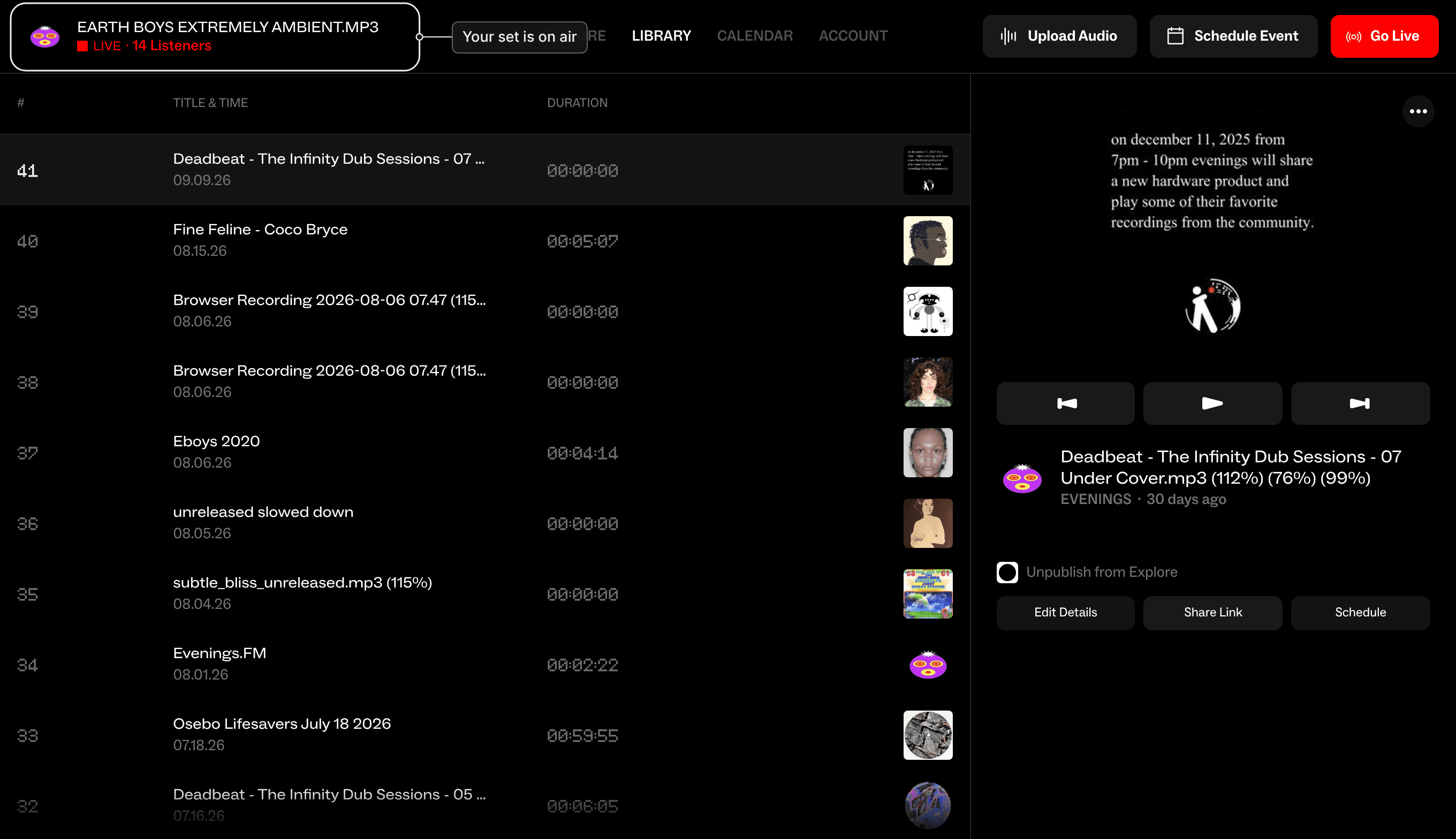
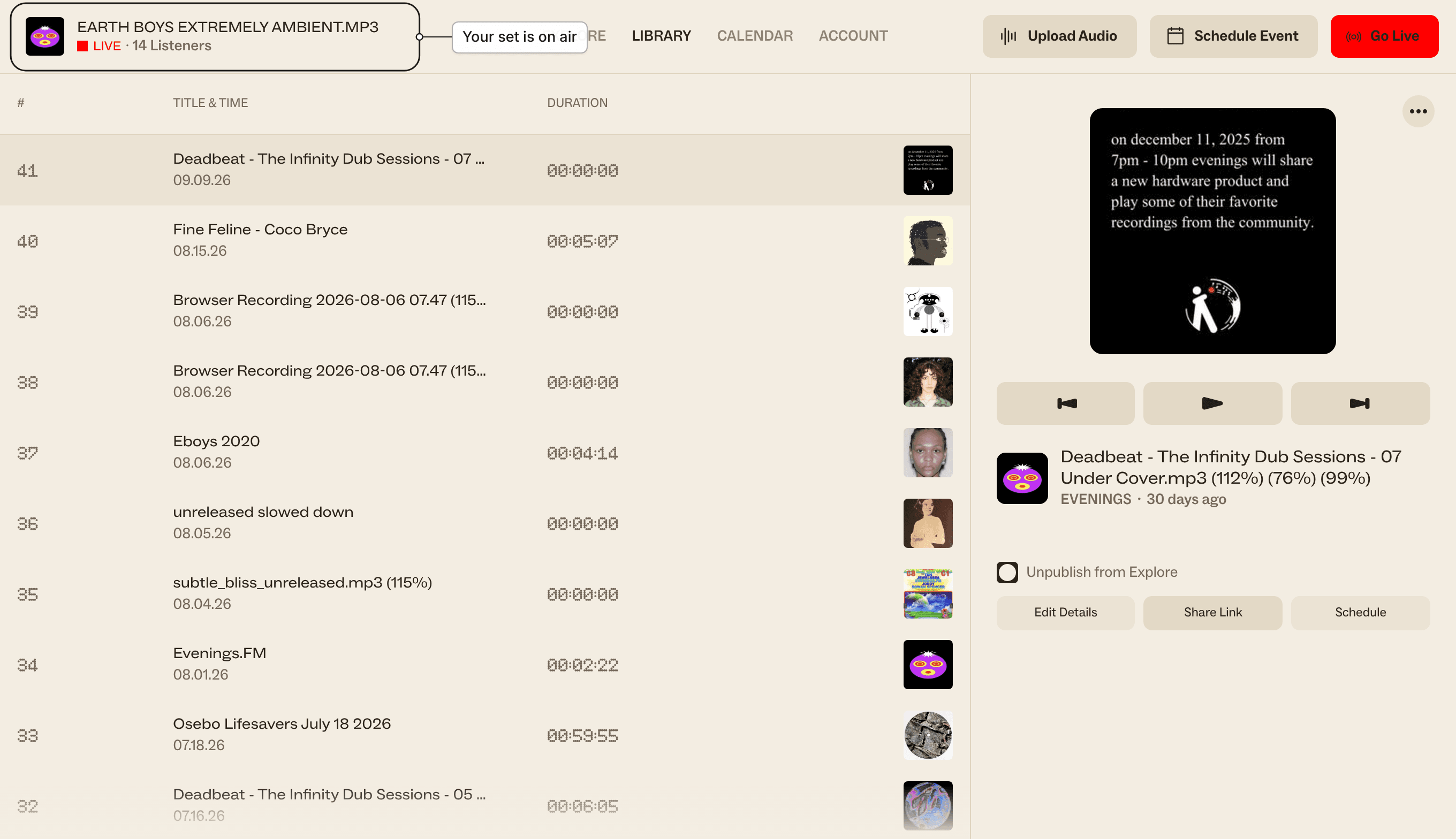
Every broadcast is recorded, and the recording shows up in your Library as a track after you stop.
Next
Put your next set on the calendar so listeners know when to tune in: schedule a live broadcast. If the mix isn't reaching Evenings, Troubleshooting covers the usual causes. If you're still stuck, email contact@evenings.email with your station name, your DJ software, your controller or mixer, and which broadcaster you're using, and we'll work through it with you.