
Guides
How to schedule a live broadcast
Updated
Scheduling a live show puts it on your calendar so listeners know when to tune in. When you go live during that slot, your broadcast takes the show's title and cover, and the recording lands in your Library with the same details. To air something you've already recorded instead, see How to schedule a prerecorded livestream.
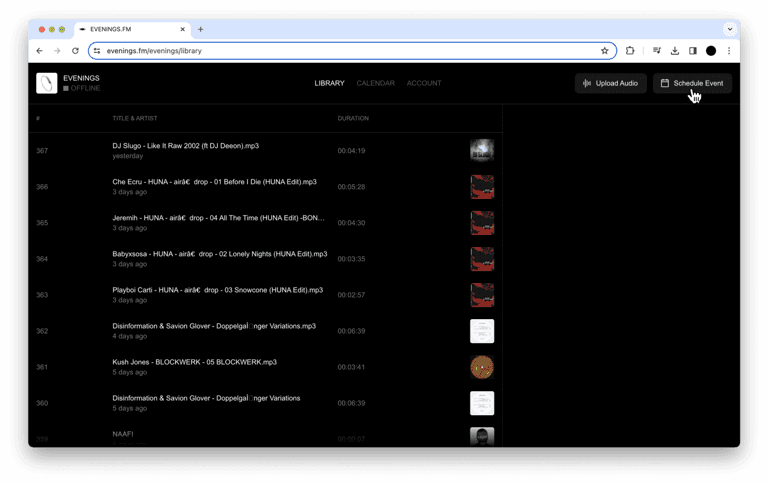
Step 01: Click Schedule Event
Click Schedule Event at the top of your dashboard. On narrower screens the button shows only a calendar icon.
Step 02: Fill in the show details
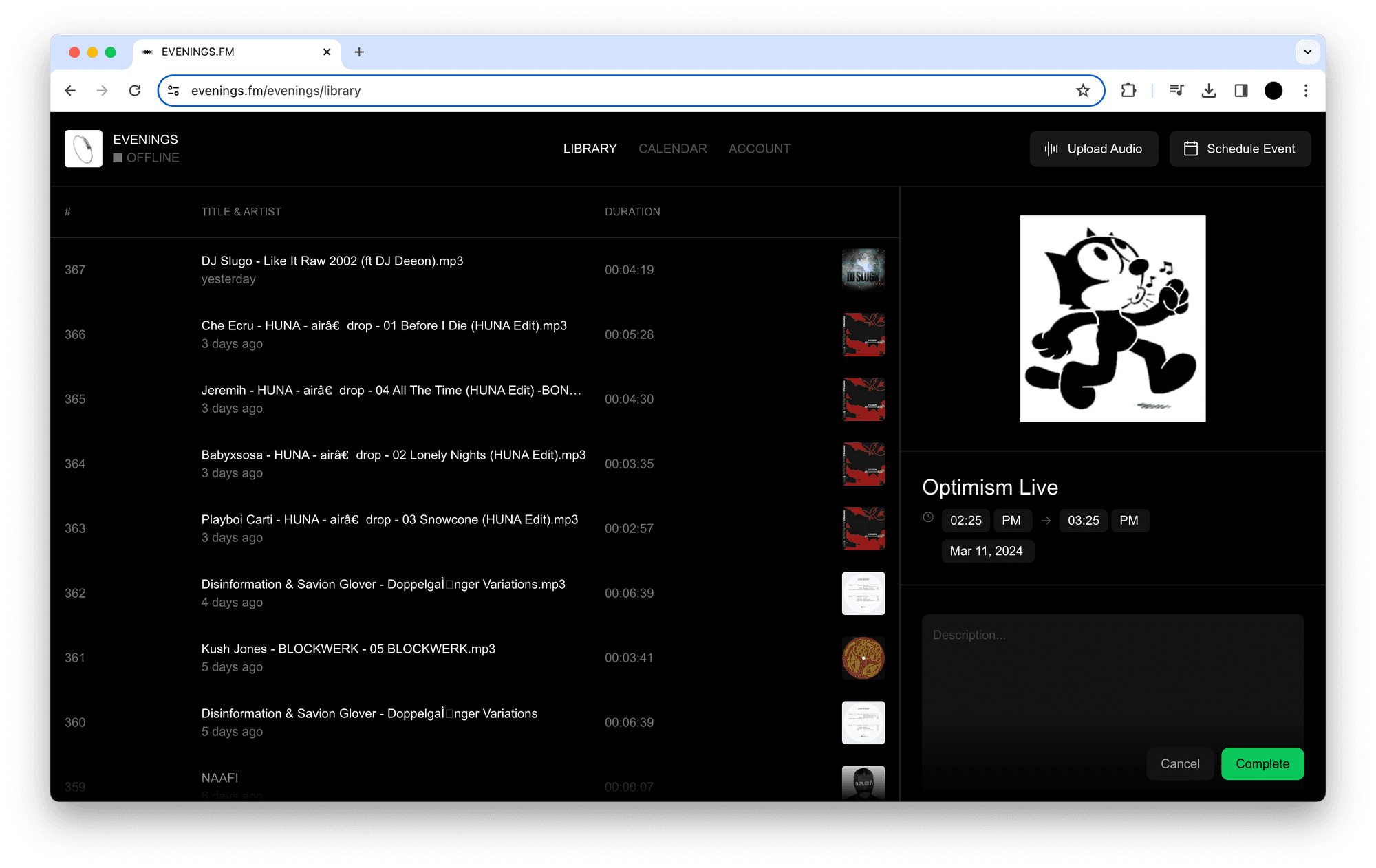
- Cover: click the image area to add cover art.
- Title: your show's name. Left blank, it's saved as "Untitled".
- Start and end time: the time picker uses a 12-hour clock, so 21:00 is 9:00 PM. Times are in your device's time zone, and its abbreviation is shown next to them. Read Times and time zones before you schedule from a different country than the one you broadcast from.
- Date: if the end time is earlier than the start time, a second date appears so the show can run past midnight.
- Repeat: the dropdown that reads Does not repeat. See Repeating shows.
- Private / Public: new shows are Private, which means only you can see them. Switch to Public to give the show an event page where listeners can RSVP. See Event pages, RSVPs and text blasts.
- Description: optional notes about the show.
Click Complete to save. If the end comes before the start, the form says "End time must be after the start time." and doesn't save.
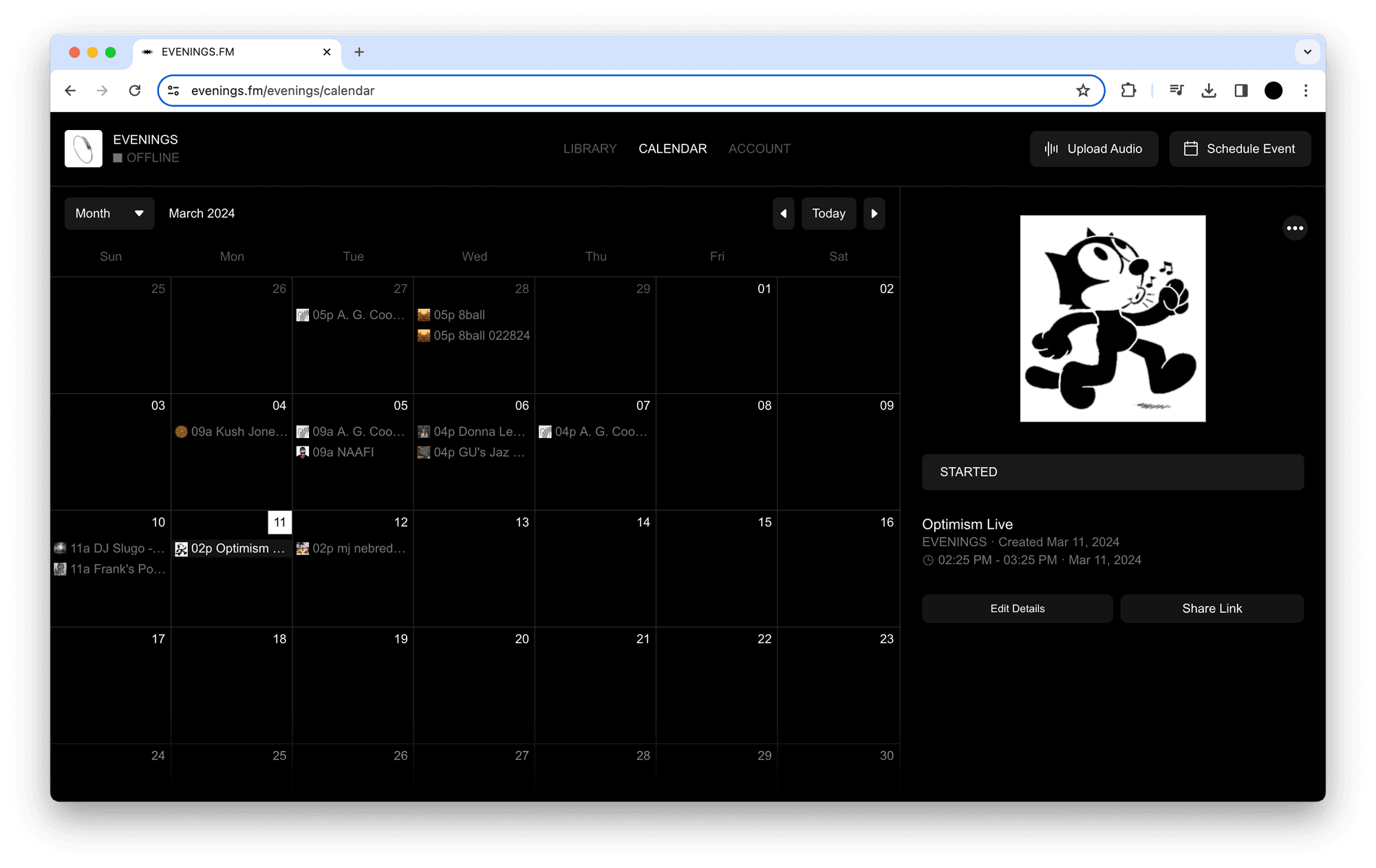
Step 03: Find it on your Calendar
The show appears on your Calendar tab. Click it to see its details, change it with Edit Details, or open its page with Share Link. Its status reads Upcoming until it starts, Started while it's on, and Past afterwards.
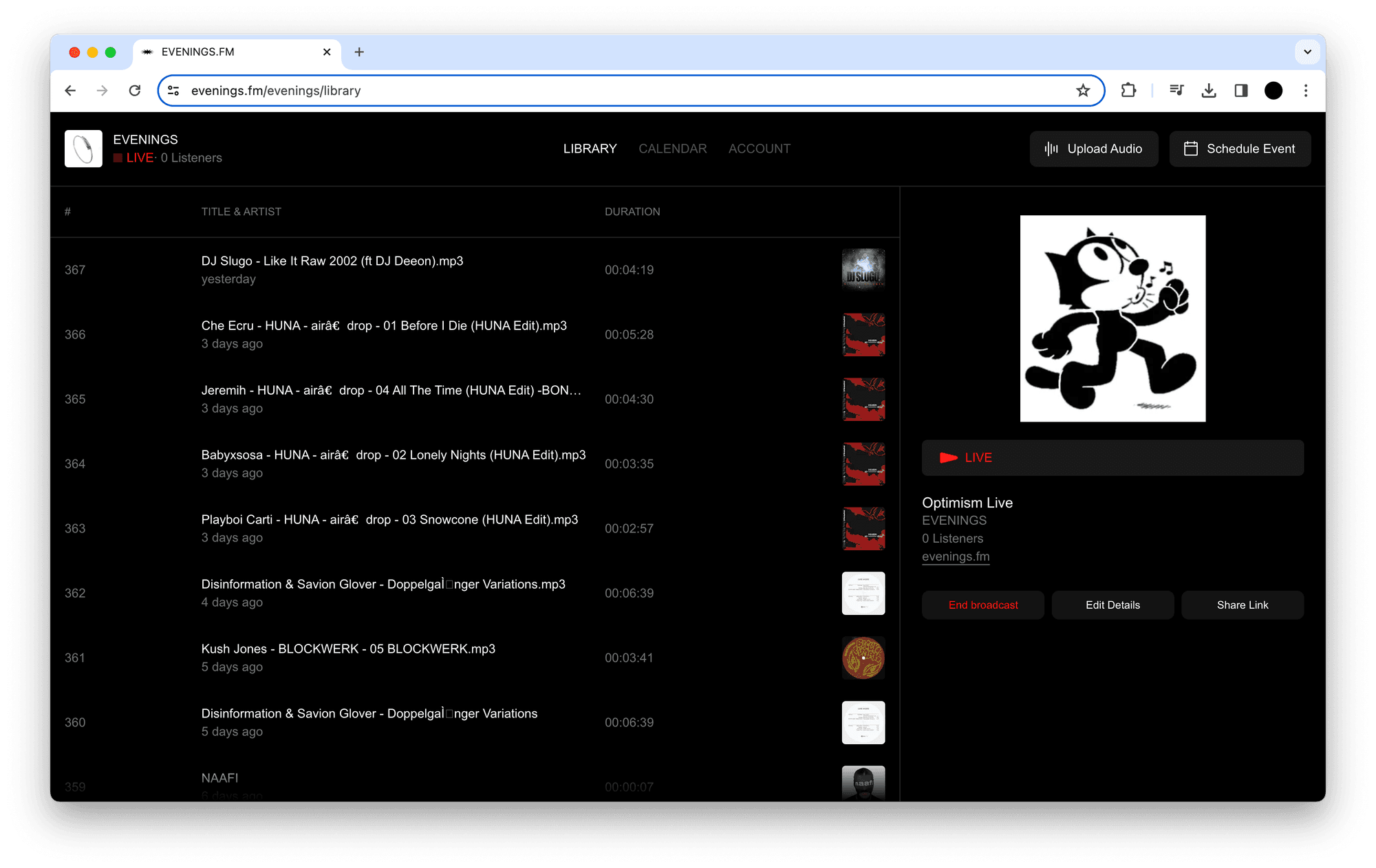
Step 04: Go live at show time
Scheduling a live show doesn't start a broadcast for you. When it's time, go live the way you normally do, from your browser or from software like OBS. As long as you go live during the slot, your broadcast shows the show's title and cover.
Step 05: Find the recording in your Library
When you end the broadcast, the recording is saved to your Library with the show's title, cover, tags and description, and it's linked to the show.
- Only the first recording made during the slot takes the show's details. If you go live a second time in the same slot, that recording gets your broadcast's own title. How to rename a broadcast covers that title.
- New recordings are unpublished, so they won't appear on Explore until you choose Publish to Explore.
- A broadcast that never sent any audio isn't saved.
Times and time zones
This is the part to get right if you broadcast from outside the time zone your computer is set to, or for listeners in other countries.
- Entering times. We read the start and end times in the time zone your computer or phone is set to, and show its abbreviation next to the times, such as EDT or GMT+2. Check it before you click Complete.
- Saving. We save the show with that time zone. A repeating show keeps its clock time across daylight saving changes there: a weekly 21:00 show scheduled from Berlin stays at 21:00 Berlin time when the clocks change.
- Your Calendar. A show's details list its start and end times in the time zone it was saved with. The calendar grid itself uses your device's current time zone.
- Listeners. Event pages and your public schedule show times in each listener's own time zone. A show at 21:00 in Berlin appears as 3:00 PM to a listener in New York in summer. The event page doesn't print a time zone, so when you write a time in a post or a text blast, add yours ("21:00 CEST").
- Travelling. If you schedule or edit a show from a device set to a different time zone, the times are read in that zone, and saving an edit moves the show to it. Set your device to your station's time zone before you schedule or edit, or convert the times yourself.
Repeating shows
Use the dropdown that reads Does not repeat to make a show recur. The choices depend on the date you picked:
- Does not repeat
- Daily
- Weekly on (the show's weekday)
- Monthly on the first, second, third, fourth or last (weekday)
- Monthly on the last (weekday), offered when your date is the last of its weekday that month
Repeating shows keep going with no end date. Edits and deletes apply to the whole series, and Edit Details shows the series' first date. You can't change or skip a single date yet. To end a series, open it on your Calendar and choose Delete Event from the … menu.
A few things only work on a series' first date for now:
- Going live picks up the show's title and cover on the first date only. On later dates, rename your broadcast before you go live.
- RSVP reminders go out for the first date only.
- The event page shows the first date.
If listeners RSVP week to week, a separate one-off show for each date works better. How to run an event goes through that.
Next
With the show on your calendar, make it public and collect RSVPs so listeners get a text before you start. If a show lands at the wrong time, email contact@evenings.email with the time you meant and your time zone, and we'll help you sort it out.