
Guides
How to stream internet radio with BUTT over Icecast
Updated
This guide takes you from installing BUTT to streaming your station over Icecast.
BUTT (Broadcast Using This Tool) is free and open source, and it runs on Windows, macOS and Linux. It's written and maintained by Daniel Nöthen, and it's one of our favorite tools in internet radio: small, dependable, and built for exactly this job. Thank you, Daniel.
We've talked to a lot of stations that broadcast with BUTT, and for a long time we couldn't support them. That's a big part of why we built Icecast ingest alongside RTMP, so they can bring the setup they already have.
BUTT is a good fit if you want a light encoder that sends one audio input and nothing else. If you'd rather mix several sources, OBS is also free and connects over RTMP, and on a Mac Audio Hijack is a paid option. You can also go live from your browser with nothing to install. If you DJ, Mixxx, Traktor and VirtualDJ can broadcast without BUTT, and for Serato or rekordbox, BUTT is the broadcaster to use: How to live stream a DJ set shows how to get your mix into it.
1. Install BUTT
Download BUTT from danielnoethen.de/butt and install it. The first time it runs, your system may ask for permission to use your microphone or audio input. Allow it so BUTT can hear your input.
2. Add Evenings as a server
On Evenings, click Go Live at the top right of your dashboard and use the Copy button next to Stream Key.
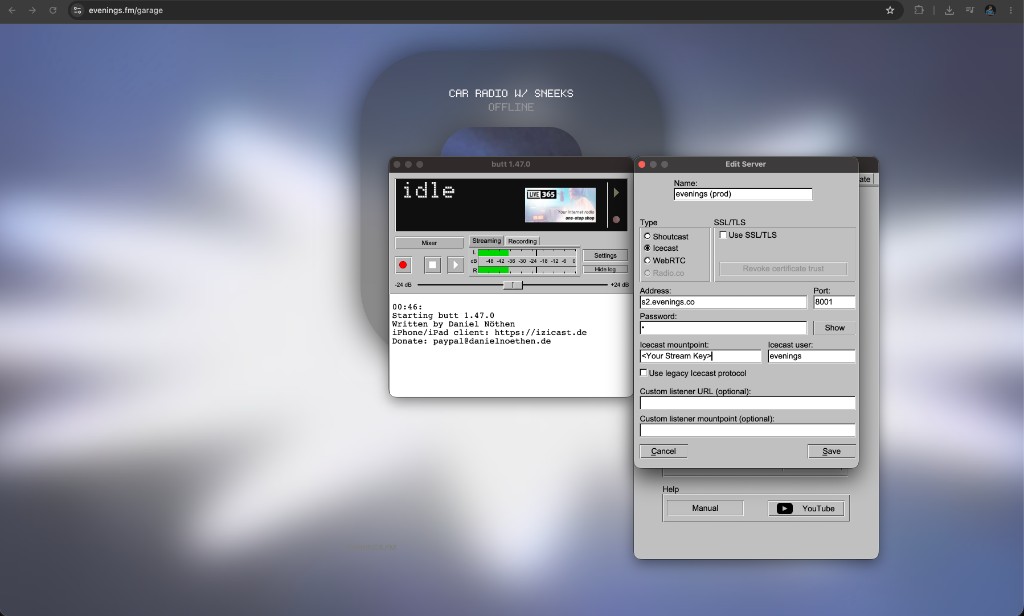
In BUTT, click Settings, then under Server Settings click ADD. Fill in the server like this:
- Name: anything that helps you recognize it, such as "Evenings"
- Type: Icecast
- Address:
s2.evenings.co - Port:
8001 - Password: any placeholder, such as
x. Don't use a real password here (see below). - Icecast mountpoint: your stream key
- Icecast user:
evenings
Leave Use SSL/TLS and Use legacy Icecast protocol unticked, then save the server.
3. Go live
Pick your input device in Settings under the Audio tab if you haven't already. Then click the play button in BUTT's main window to connect. The display stops showing idle once BUTT is streaming.
On Evenings, your station's name at the top left of the dashboard now shows LIVE and a listener count. Click it to open the player and hear what your listeners hear.
Only one connection can use your stream key at a time. If you go live from the browser or another Icecast app with the same key, the newer connection wins and BUTT gets disconnected. OBS and Audio Hijack can't connect while BUTT is live.
4. Stop
Click the stop button in BUTT's main window when your show is over.
Every broadcast is recorded, and the recording shows up in your Library as a track after you stop. If your connection drops partway through, that part is saved on its own, and when you connect again we begin a new recording.
How these Icecast settings work
If you've run Icecast before, two of these fields will look unusual. That's because we built Icecast ingest to work the same way as our RTMP ingest: one stream key per station, and holding the key is what lets you broadcast.
- Address and port: our streaming server,
s2.evenings.co, takes Icecast connections on port8001. Every station connects to the same place. - Icecast mountpoint: on a normal Icecast server this is the path your stream lives at. On Evenings it carries your stream key, and that's how we know which station the audio is for.
- Icecast user and password: BUTT needs something in these fields to connect, but we don't check them. Your stream key does that job. The connection on port
8001isn't encrypted, so keep real passwords out of the password field.
Because the key is the only thing that authorizes a broadcast, treat it like a password and keep it out of screenshots you share.
Next
Now that BUTT connects, schedule your next live show so listeners know when you'll be on. If BUTT won't connect, Troubleshooting covers the usual causes. If you're still stuck, or you're feeding Evenings from another Icecast source, email contact@evenings.email with your station name and setup, and we'll work through it with you.