
Guides
How to stream with Mixxx: Live Broadcasting settings
Updated
This guide sets up Mixxx's Live Broadcasting so your DJ set goes straight to your Evenings station over Icecast, with no separate encoder.
Mixxx is free, open source DJ software for Windows, macOS and Linux, built by a community of volunteers. It's had Icecast broadcasting built in for years, and it works with the same Icecast ingest we use for BUTT. The screenshots are from Mixxx 2.4, taken while it was streaming into our ingest; Mixxx 2.5 has the same settings.
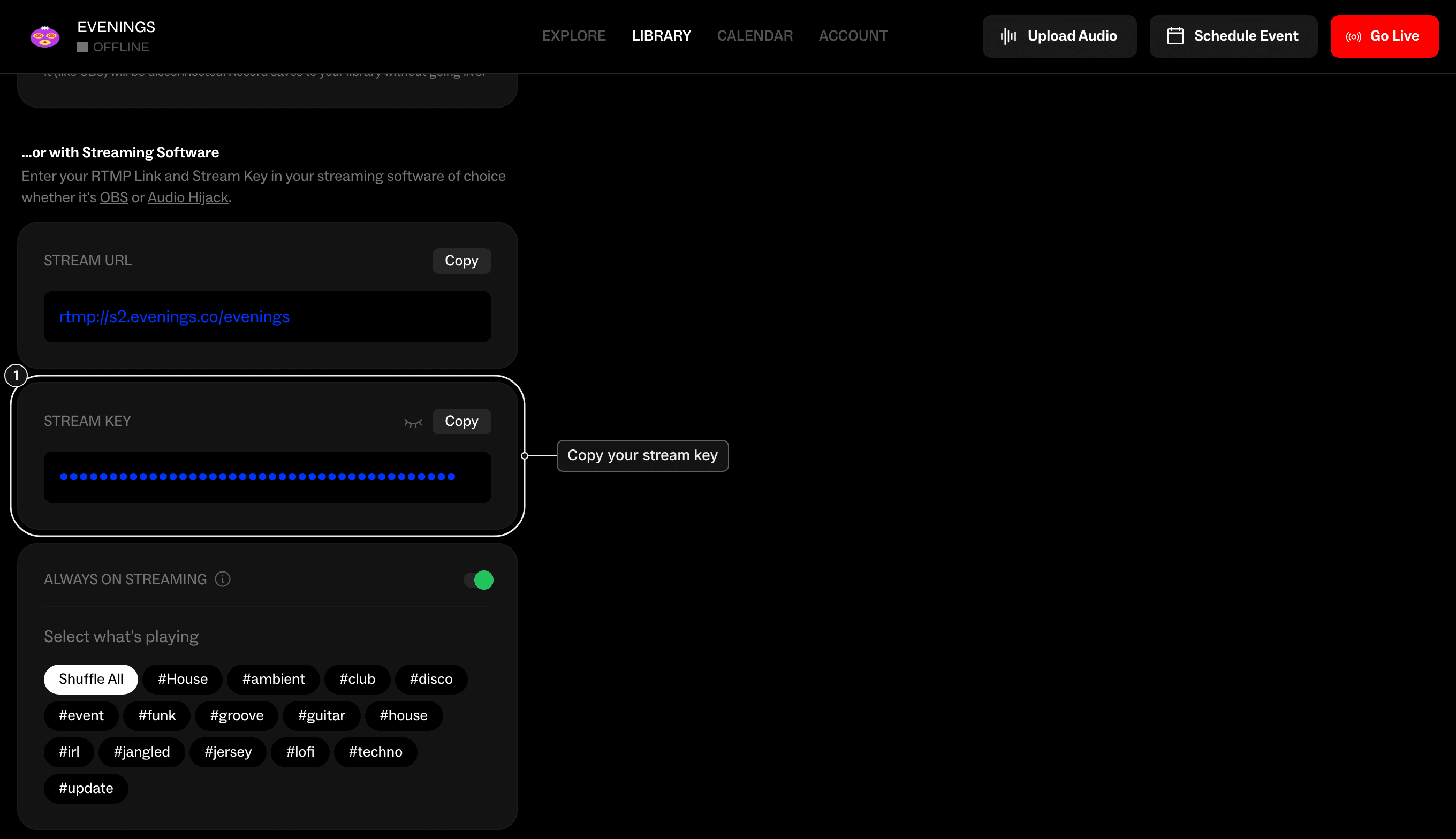
1. Copy your stream key
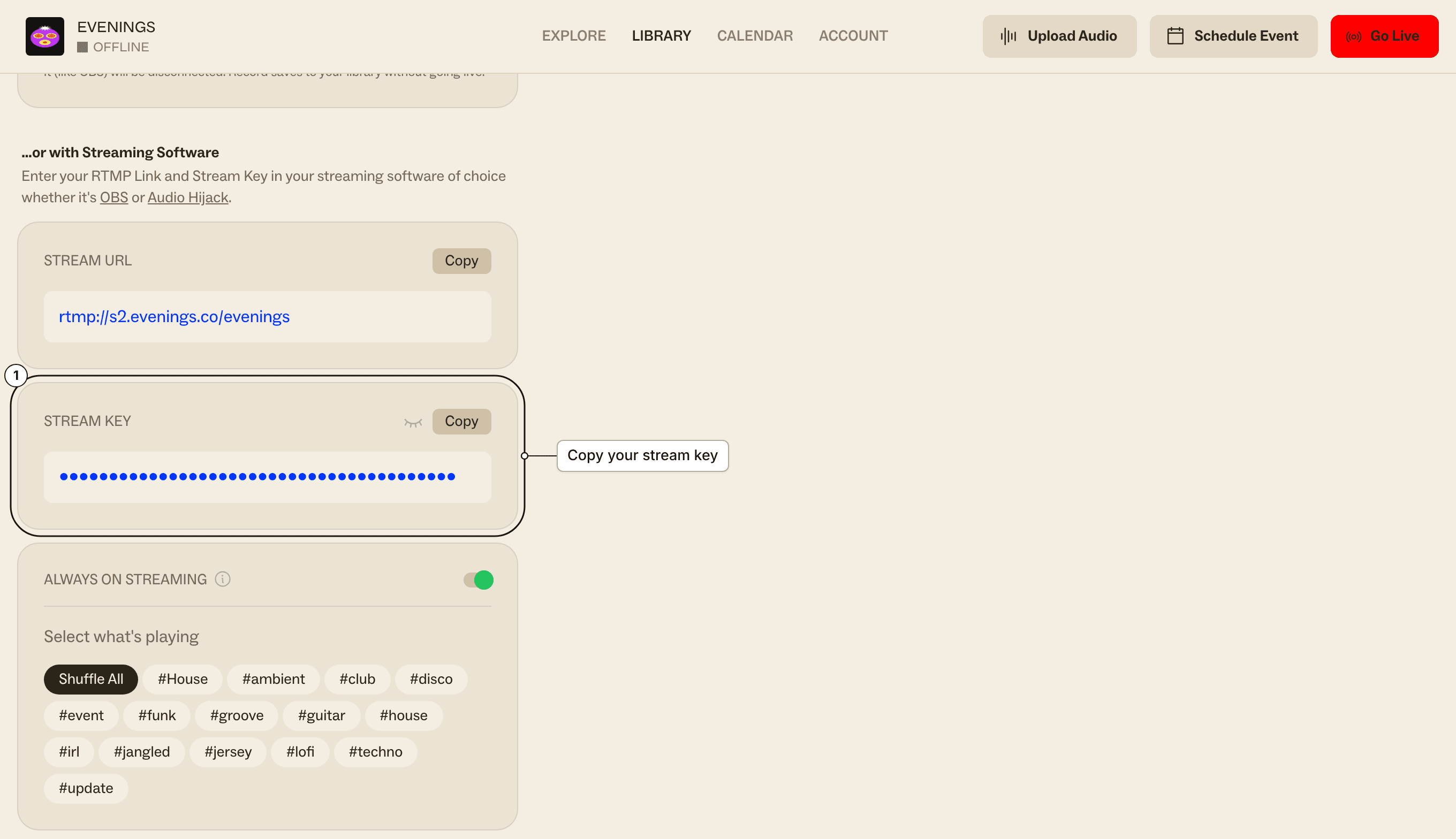
On Evenings, click Go Live at the top right of your dashboard and use the Copy button next to Stream Key. You'll paste it into Mixxx in the next step.
2. Open Live Broadcasting preferences
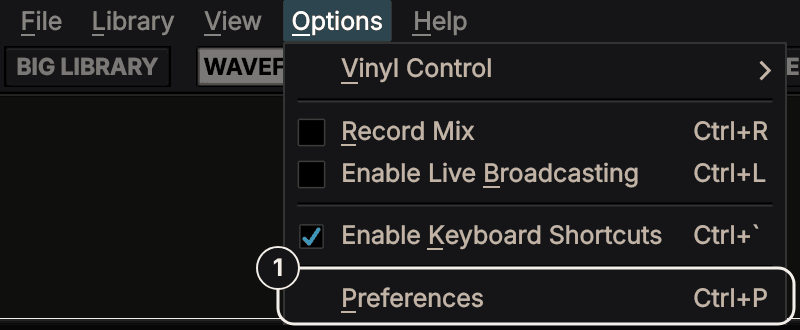
In Mixxx, open Options > Preferences and pick Live Broadcasting in the list on the left. On macOS, Preferences is in the Mixxx menu.
Under Live Broadcasting source connections there's a table with one connection, usually named Connection 1. Select it and make sure its Enabled box is ticked. The settings below it belong to whichever connection is selected.
3. Fill in the server
Under Server connection:
- Type: Icecast 2
- Host:
s2.evenings.co - Port:
8001 - Mount: your stream key
- Login:
evenings - Password: any placeholder, such as
x
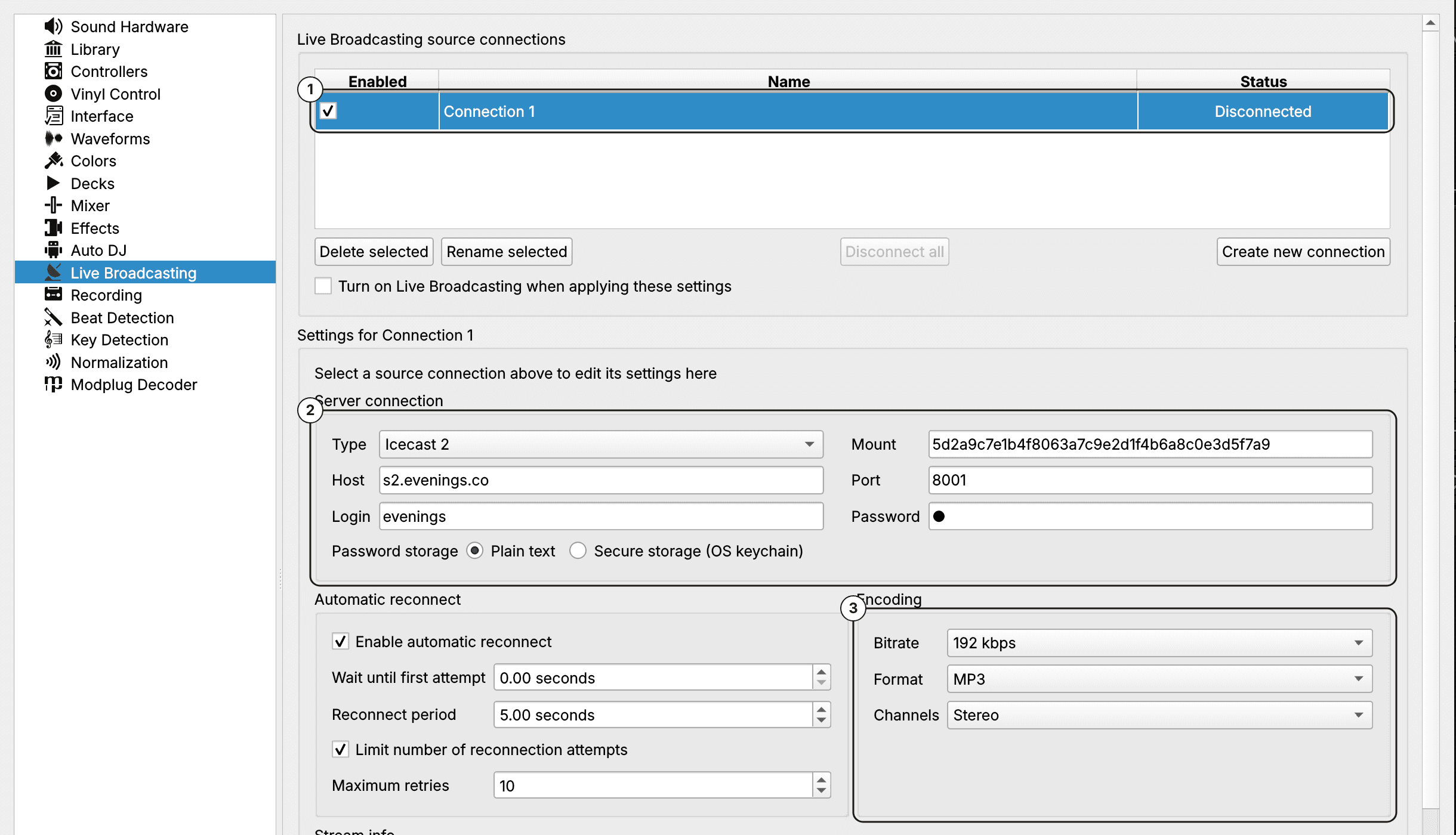
The numbers match the steps on this page: 1 is the connection you're editing, 2 is the server, and 3 is the encoding in the next step.
Type the host on its own, without http:// or a port on the end, and change the port from Mixxx's default of 8000. Mixxx adds the slash in front of the mount for you, so paste the key exactly as you copied it. We don't check the login or password; your stream key is what lets you broadcast (the BUTT guide explains why). The connection to port 8001 isn't encrypted, so keep real passwords out of these fields.
Keep Enable automatic reconnect ticked (it's on by default) so Mixxx tries again if your internet drops. Each time it reconnects we start a new recording, and the part before the drop is saved on its own.
4. Choose the encoding
Under Encoding, set Format to MP3 and Bitrate to 192 kbps or higher, and leave Channels on Stereo.
We convert every broadcast to a 160 kbps MP3 for listeners and record it as a 192 kbps MP3, so sending 192 kbps or more keeps the most detail in both. Ogg Vorbis works too. Opus does as well, but Mixxx only broadcasts Opus when its sample rate is set to 48000 Hz under Sound Hardware. On Linux, the AAC options need libfdk-aac installed. MP3 is the simplest choice everywhere.
The Stream info and Metadata fields are for public Icecast directories. We don't read them, so your station page shows the show details you set on Evenings. Mixxx asks for a Genre, so put anything there.
Click OK to save.
5. Go live
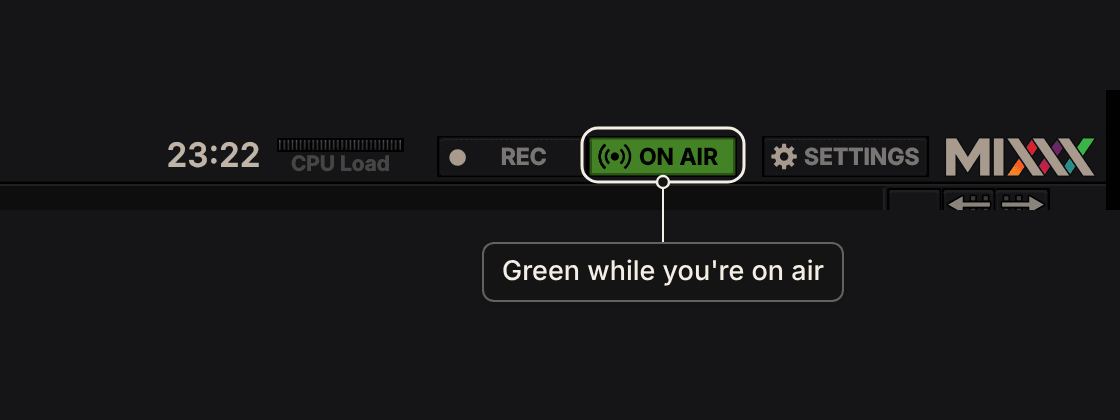
Turn on Options > Enable Live Broadcasting, or click ON AIR at the top of Mixxx's default skin. The button turns green once you're connected.
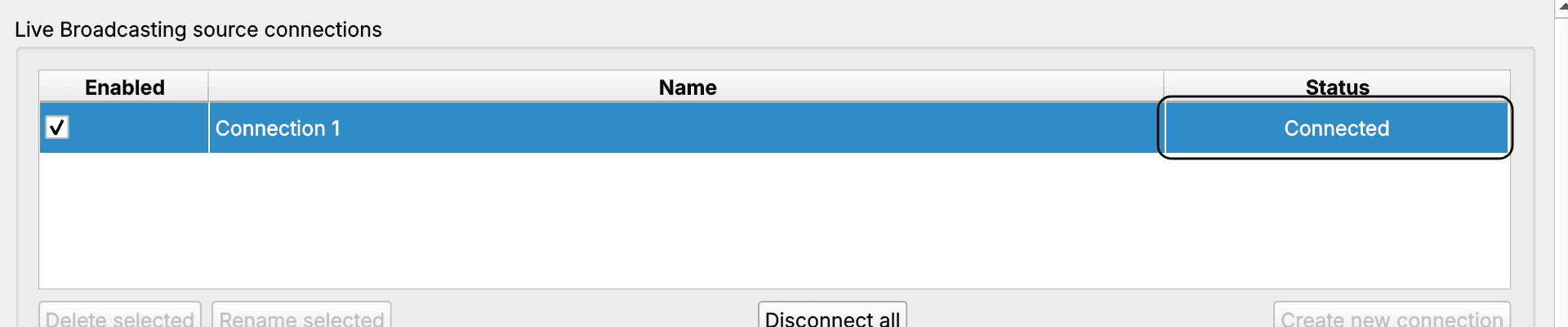
In Preferences > Live Broadcasting, the connection's Status goes from Connecting... to Connected.
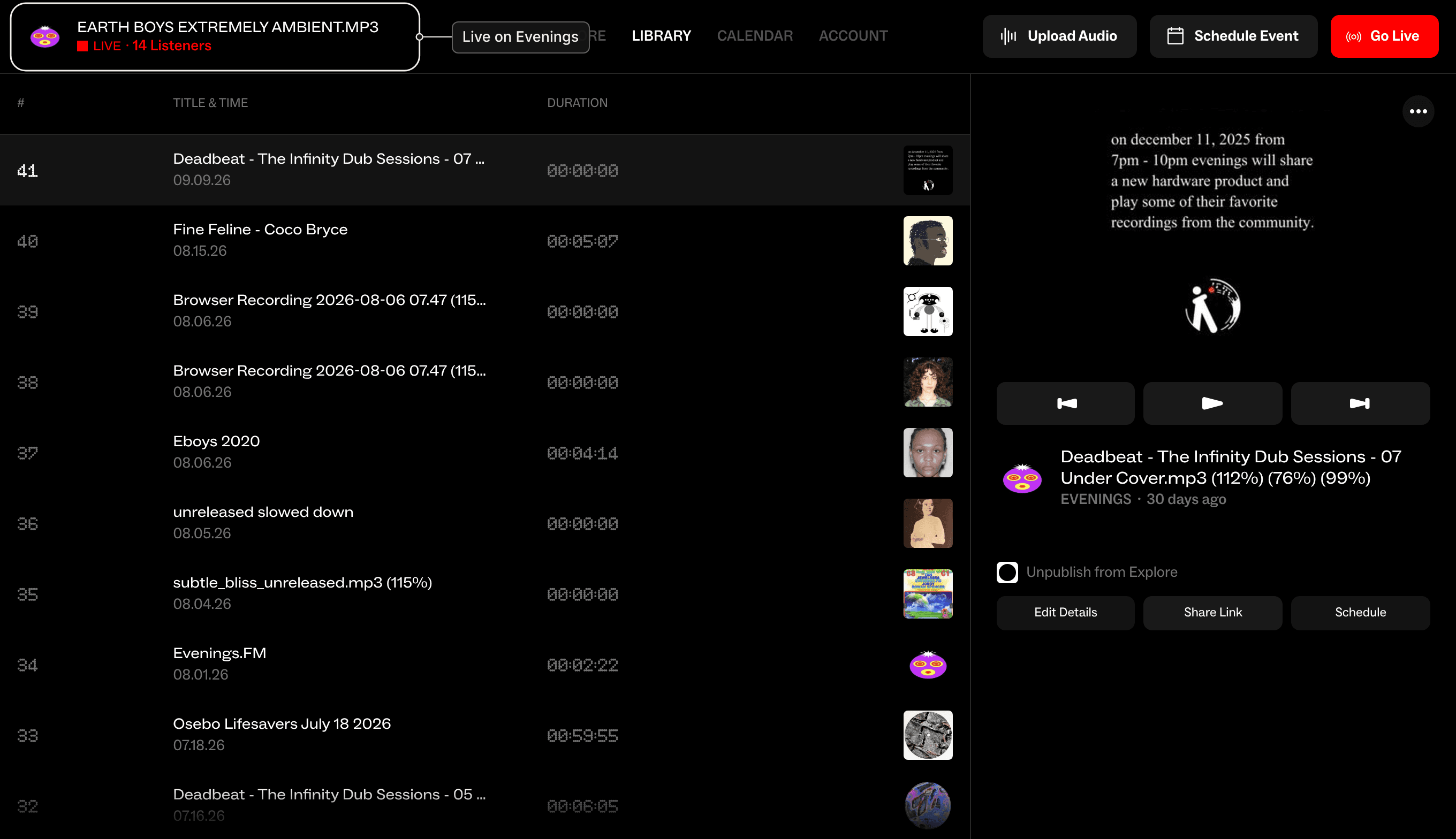
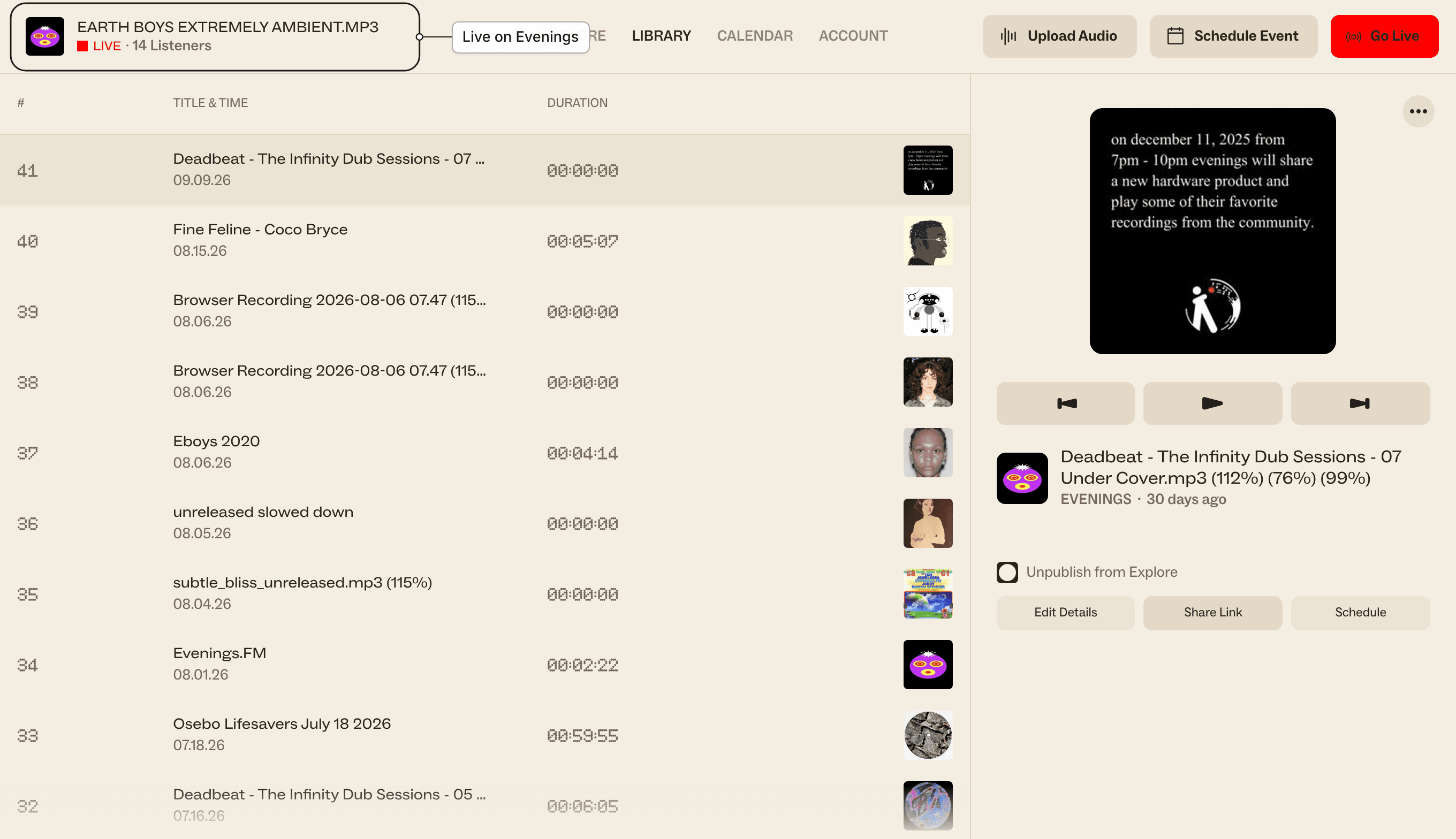
On Evenings, your station's name at the top left of the dashboard now shows LIVE and a listener count. Click it to open the player and hear what your listeners hear.
Mixxx broadcasts its main mix, after the main gain, with your microphone and talkover mixed in. If you're mixing on an external mixer instead, plug its output into your audio interface and pick that input under Sound Hardware > Input > Record/Broadcast.
Only one connection can use your stream key at a time. If you go live from the browser or another Icecast app with the same key, the newer connection wins and Mixxx gets disconnected.
6. Stop
Turn off Options > Enable Live Broadcasting, or click ON AIR again, when your show is over.
Every broadcast is recorded, and the recording shows up in your Library as a track after you stop.
If Mixxx won't connect
If the status shows Failed or Mixxx says Can't connect to streaming server, check these first:
- Host is exactly
s2.evenings.co, with nohttp://and no port. - Port is
8001, not Mixxx's default of8000. - Mount is your stream key, copied with the Copy button so no stray space comes with it.
- Type is Icecast 2, not Shoutcast.
Next
Put your next set on the calendar so listeners know when to tune in: schedule a live broadcast. If Mixxx still won't connect, Troubleshooting covers the usual causes, or email contact@evenings.email with your station name and a screenshot of your Live Broadcasting settings (with the key hidden), and we'll work through it with you.