
Guides
How to use Always On streaming
Updated
Always On plays tracks from your Library whenever nothing else is on air, so anyone who tunes in to your station hears something. It's for stations that want to stay on between shows without someone at the desk.
Before you start
Always On needs at least one track in your Library to play. Every live broadcast is recorded there, and you can add audio from the Library page or through your Upload Page. If you want Always On to play only some of your tracks, tag them first (see Step 03).
Step 01: Open the Go Live page
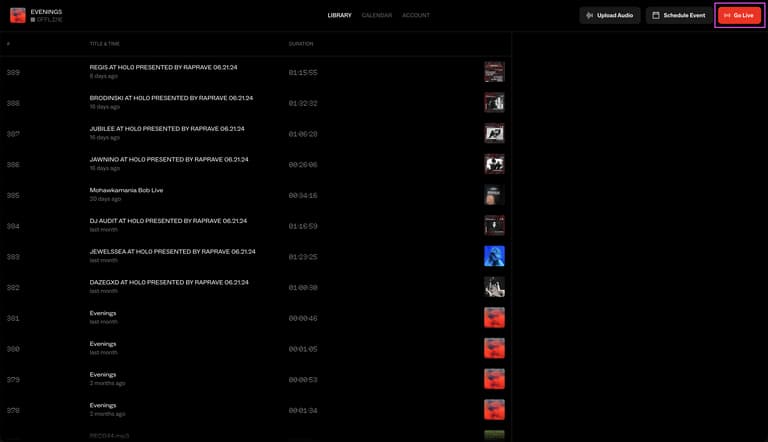
Sign in and click Go Live at the top right of your dashboard.
Step 02: Switch on Always On
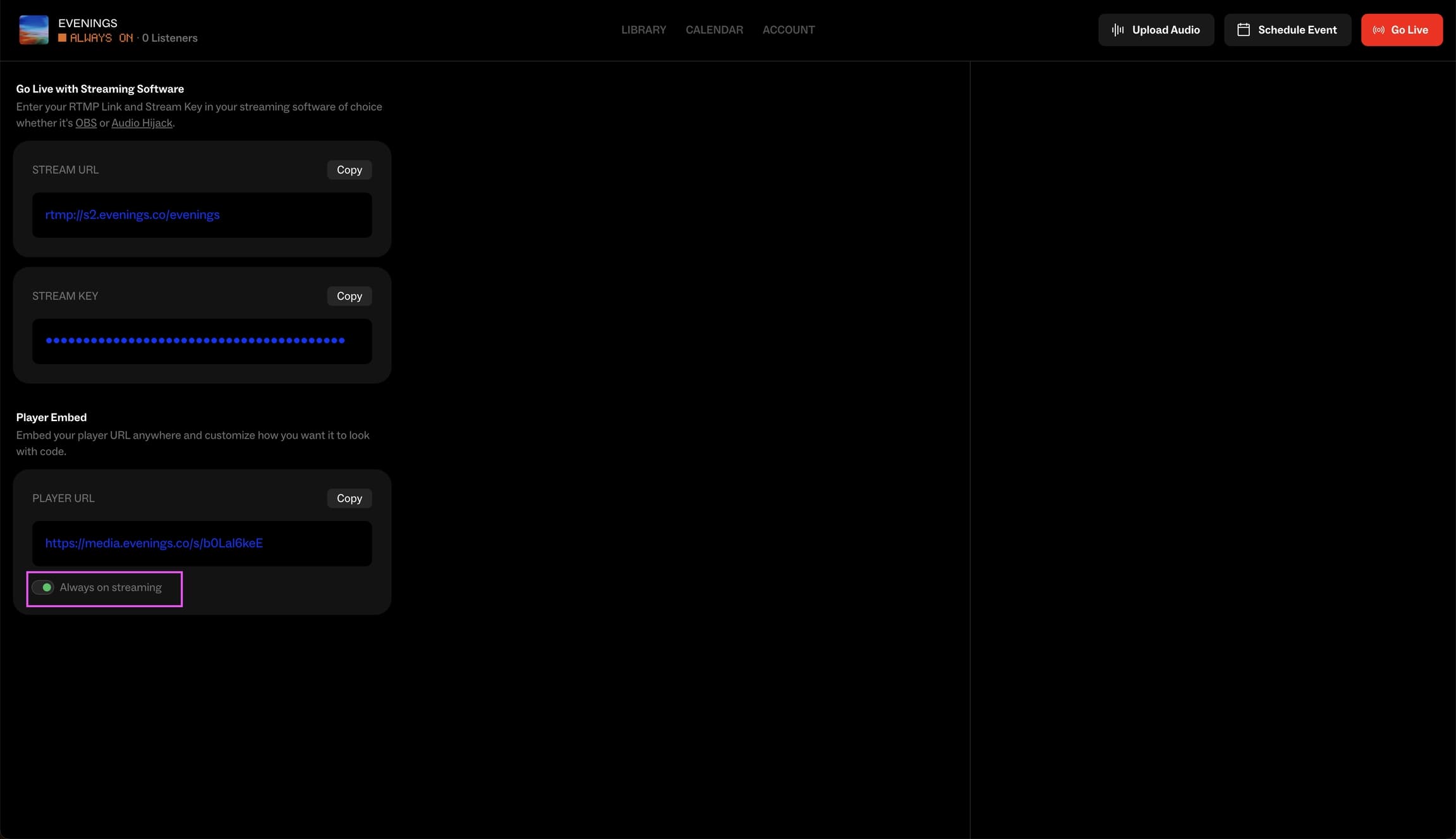
Find the Always On Streaming card, below your Stream Key and above Player Embed, and switch the toggle on. The setting saves as soon as you click it. Once the first track starts, the player at the top left of your dashboard reads ALWAYS ON.
Step 03: Choose what plays
With Always On switched on, Select what's playing appears under the toggle.
- Shuffle All is the default. It plays any track in your Library.
- Pick one or more tags (shown as #tag) to play only tracks with those tags. A track plays if it has any one of the tags you picked, so picking
#mixesand#interviewsplays both kinds.
When your selection differs from the saved one, a Save button appears. Click it. The new selection applies from the next track, so the track playing now finishes first.
To tag a track, open it in your Library, click Edit Details, and add tags in the Tags field. The chips on the Go Live page list every tag used anywhere in your Library.
What Always On picks from
- Your whole Library, published or not. Publish to Explore only decides whether a track appears on Explore. It doesn't keep a track off air, so use tags for that.
- Guest uploads too. Tracks guests send through your Upload Page land in your Library, and guests can tag their uploads. On Shuffle All, or if a guest uses one of your Always On tags, their track can go on air before you've heard it.
- Tracks at random. The same track can come up twice in a row.
- Never deleted tracks.
If no track matches your selection, Always On has nothing to play and your station stays quiet. Tag a track or switch back to Shuffle All, then switch Always On off and on again so it starts looking for a track.
Step 04: Skip a track or end Always On
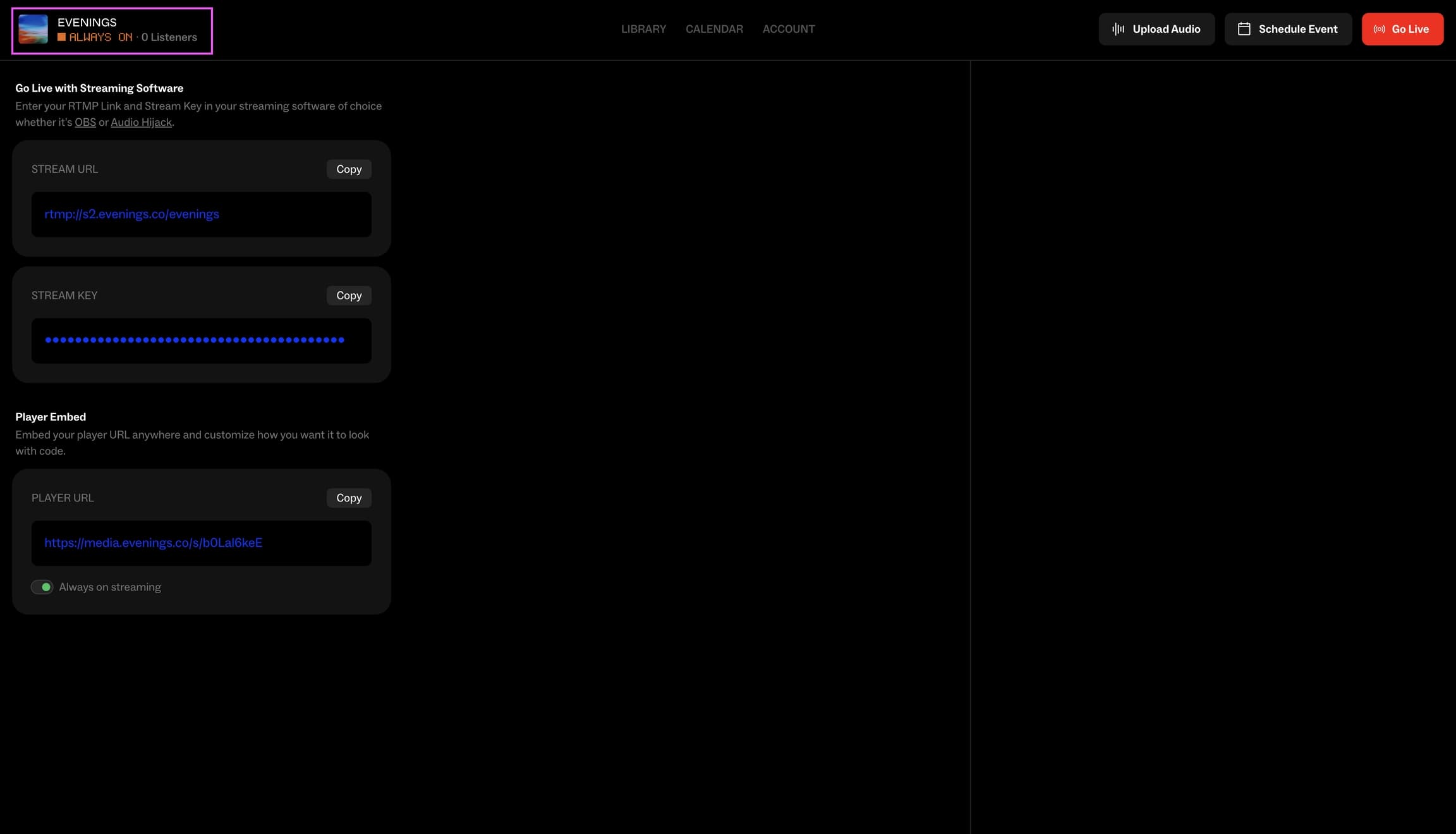
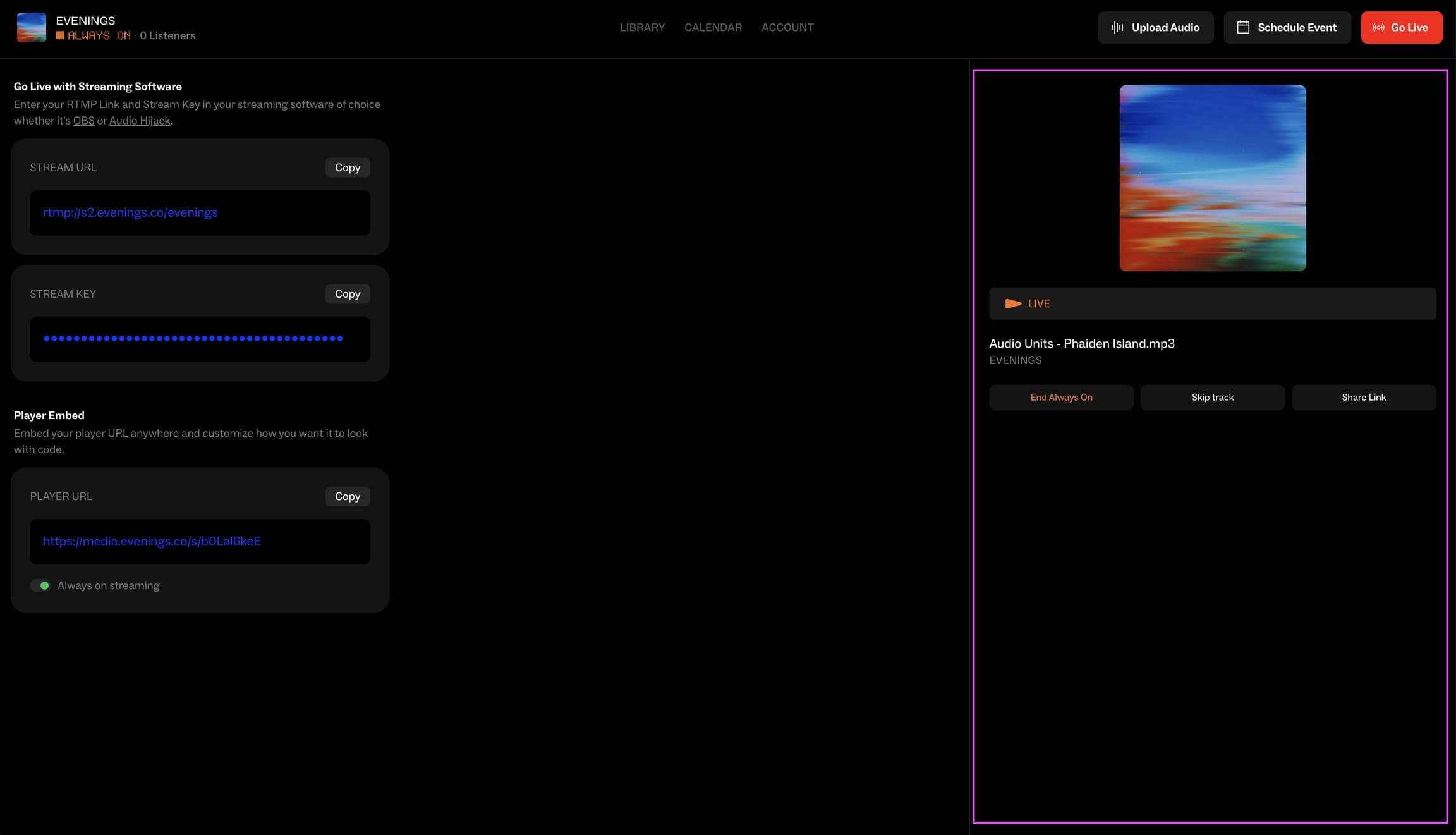
While Always On is playing, the player at the top left of your dashboard shows ALWAYS ON in orange. A live broadcast shows LIVE in red. Click the player to open the now-playing panel, with the current track, your listener count and three buttons:
- Skip track asks you to confirm, then plays another track picked at random.
- End Always On asks you to confirm, then stops playback and switches the setting off. It does the same thing as switching the toggle off on the Go Live page.
- Share Link opens your station page so you can send it to people.
How it fits with live and scheduled shows
You can leave Always On switched on all the time. When you go live, your broadcast takes over, and a scheduled prerecorded show takes over when its start time comes. When either one ends, Always On picks up again. How Evenings works has the full order under "What's on air".
Two things Always On doesn't do: it doesn't text your station's subscribers (they only hear from us when you go live), and it doesn't add recordings to your Library, because it's replaying tracks you already have.
Next
To put a particular recording on air at a set time instead of at random, schedule a prerecorded show. If Always On stays quiet when you expect it to play, email contact@evenings.email with your station's address and we'll look at what it's picking from.