
Guides
How to use the Upload Page
Updated
The Upload Page is a password-protected page where guests can upload audio straight into your station's Library. It's for the people around your station who don't have an Evenings login: a visiting DJ sending in their set, or a friend digitizing a box of tapes for your archive. They need two things from you, the link and the password.
Step 01: Turn on the Upload Page
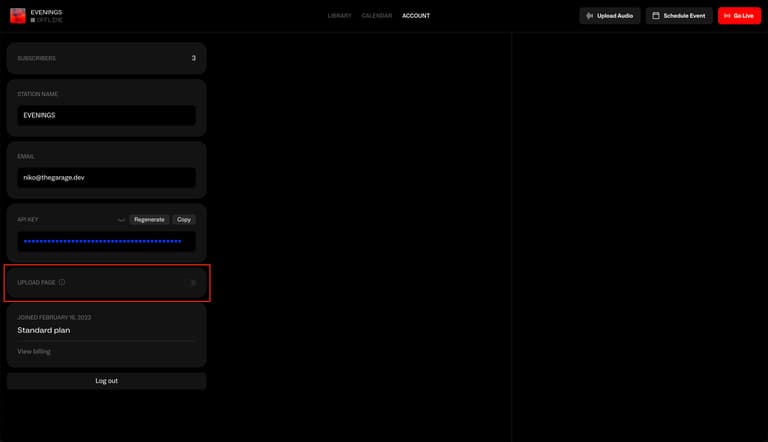
Sign in and open your Account page. Find the Upload Page card and switch the toggle on.
Step 02: Set the password
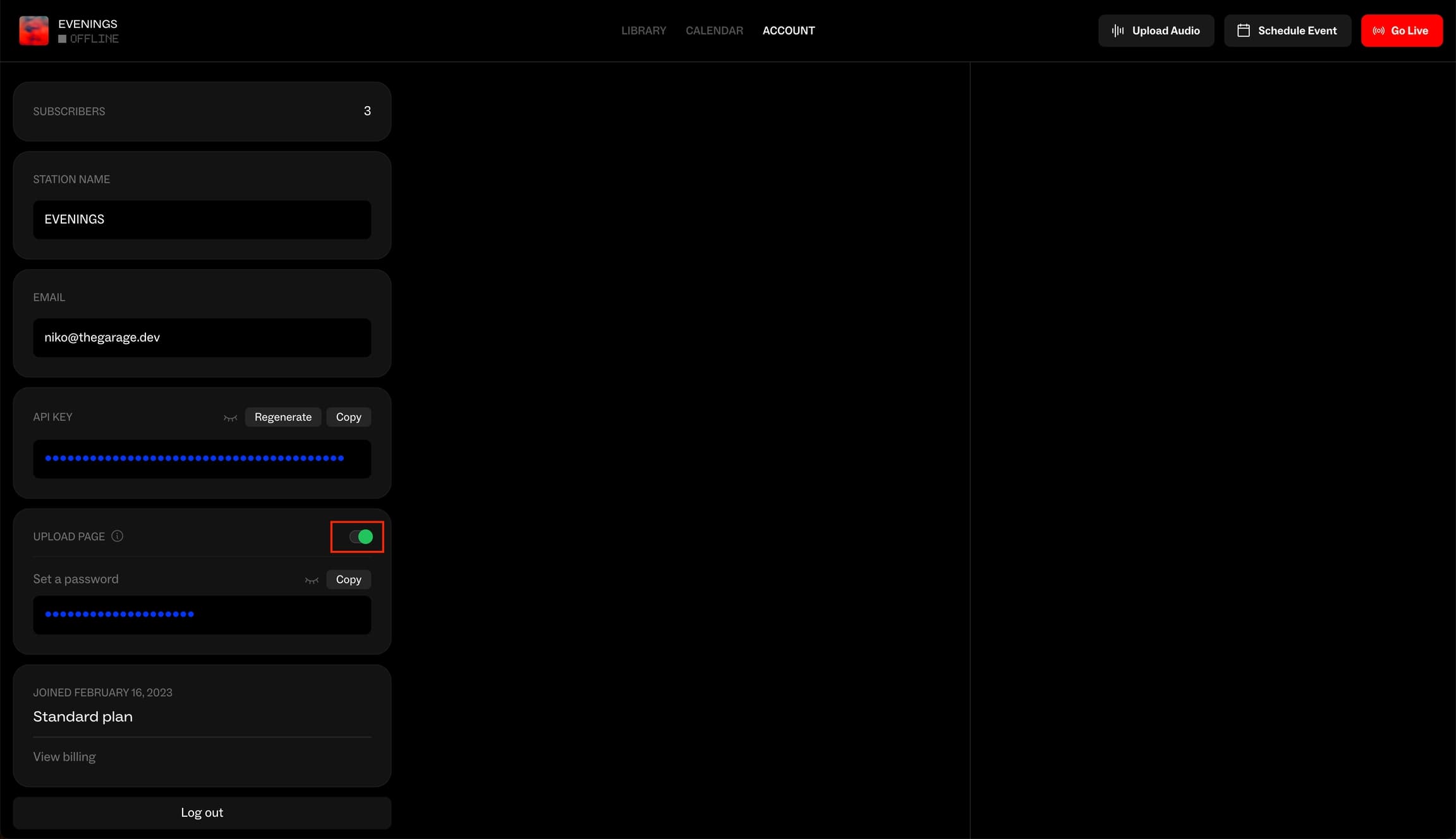
Set a password appears under the toggle, already filled in with a three-word password we generate for you, like Nostalgic Fader Owl. Keep it, or type your own and click Save, which appears once you change it. The eye icon shows the password and the copy icon copies it.
Passwords are case-sensitive and include the spaces, so copy and paste it when you send it to someone rather than retyping it.
Step 03: Share the page
Once the Upload Page is on, a View page link appears next to the toggle. Your page lives at your station's address plus /upload. For Sample Radio, that's evenings.fm/sample-radio/upload.
Send guests the link and the password. Anyone who has both can upload to your station, so share them only with people you'd hand a recording to.
What guests see
Guests go through three screens.
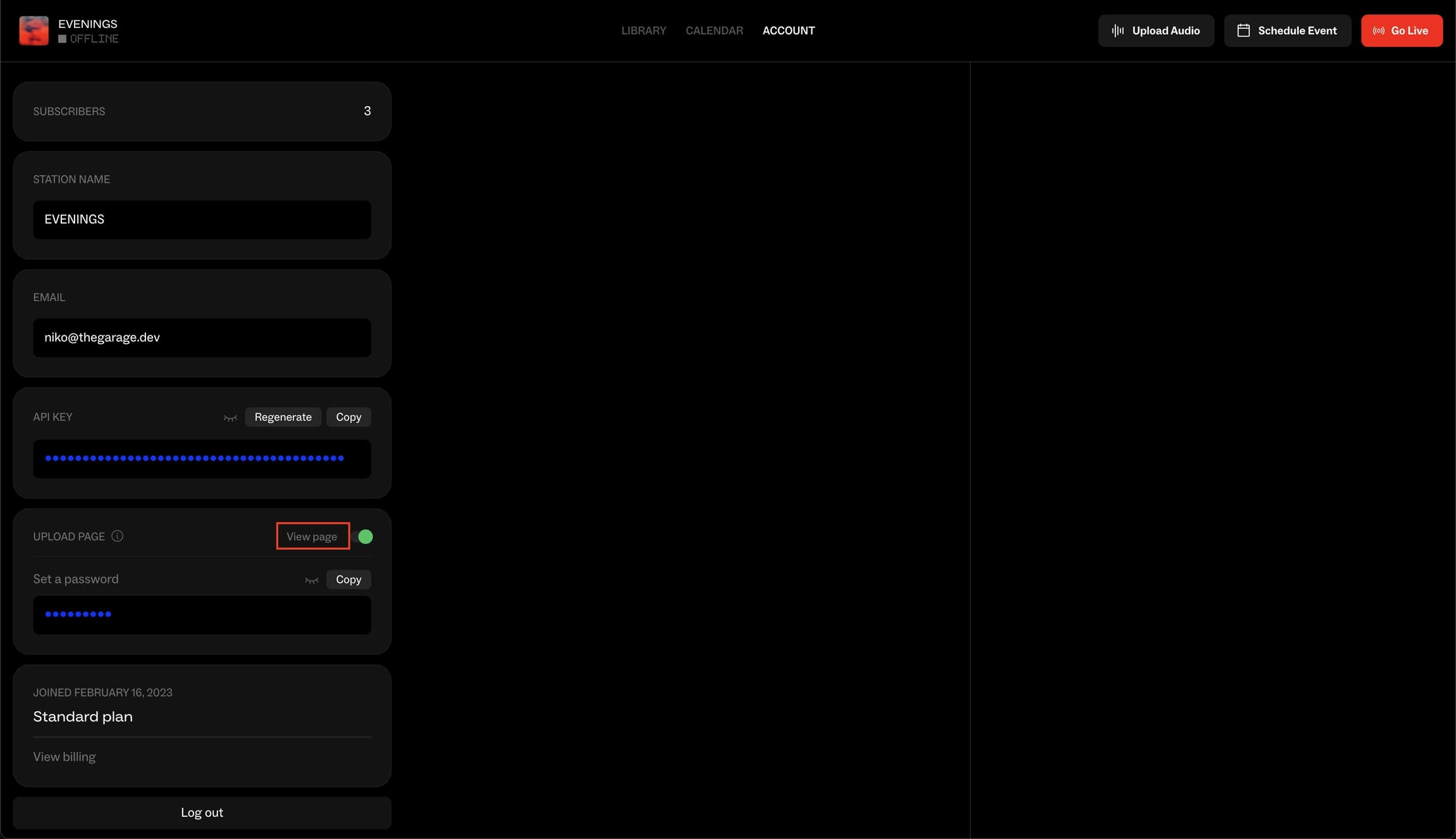
1. Password. They type the password and click Submit. A wrong password shows "Invalid password". After 10 wrong attempts in 15 minutes, we stop accepting passwords from that network for 15 minutes, and the guest still sees "Invalid password", so if someone is stuck, check they have the exact password and ask them to wait before trying again.
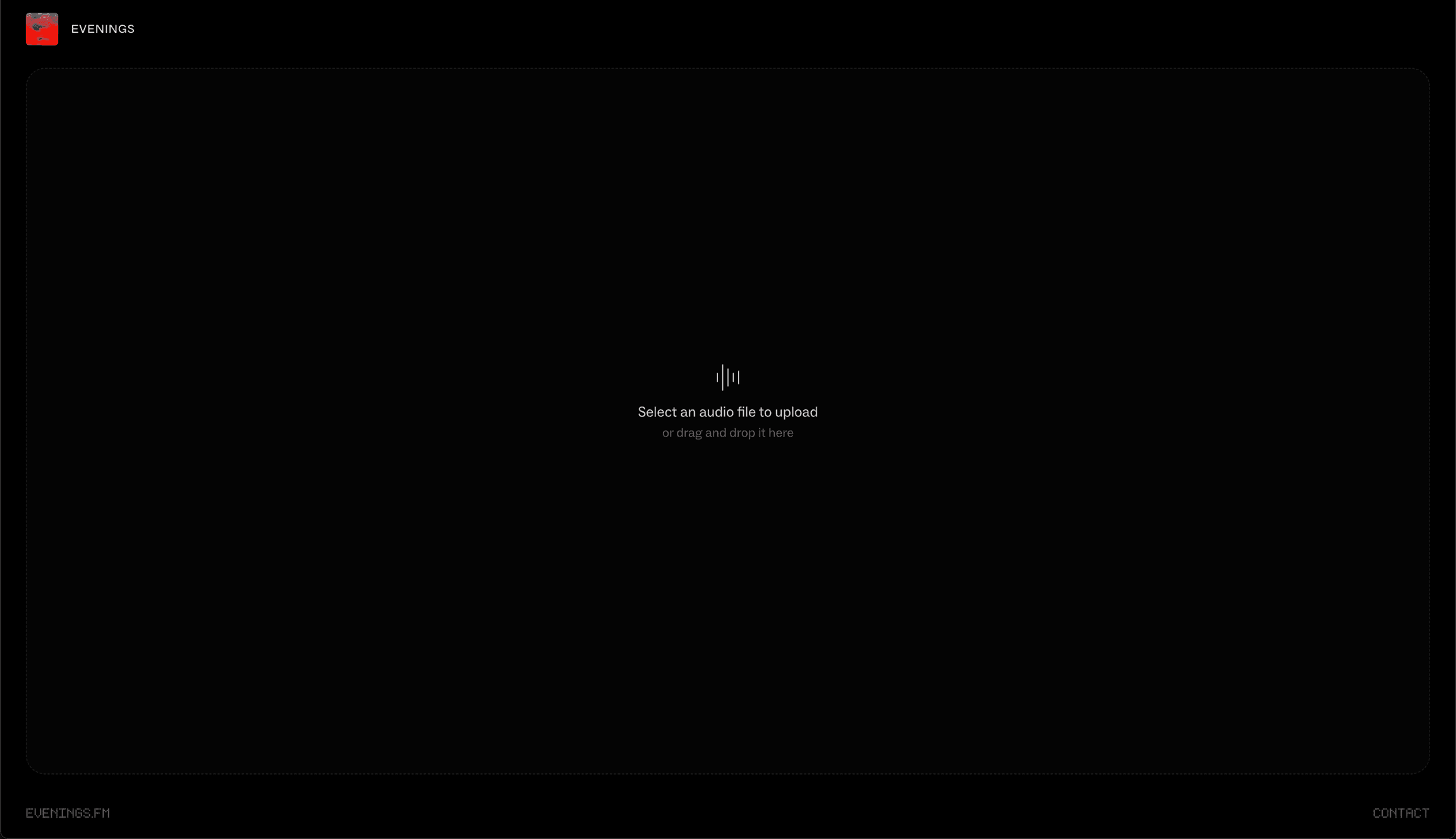
2. Upload. They drag an audio file onto the page or click it to choose one. It takes one file at a time, and the file picker accepts MP3, WAV, AIF, M4A and FLAC.
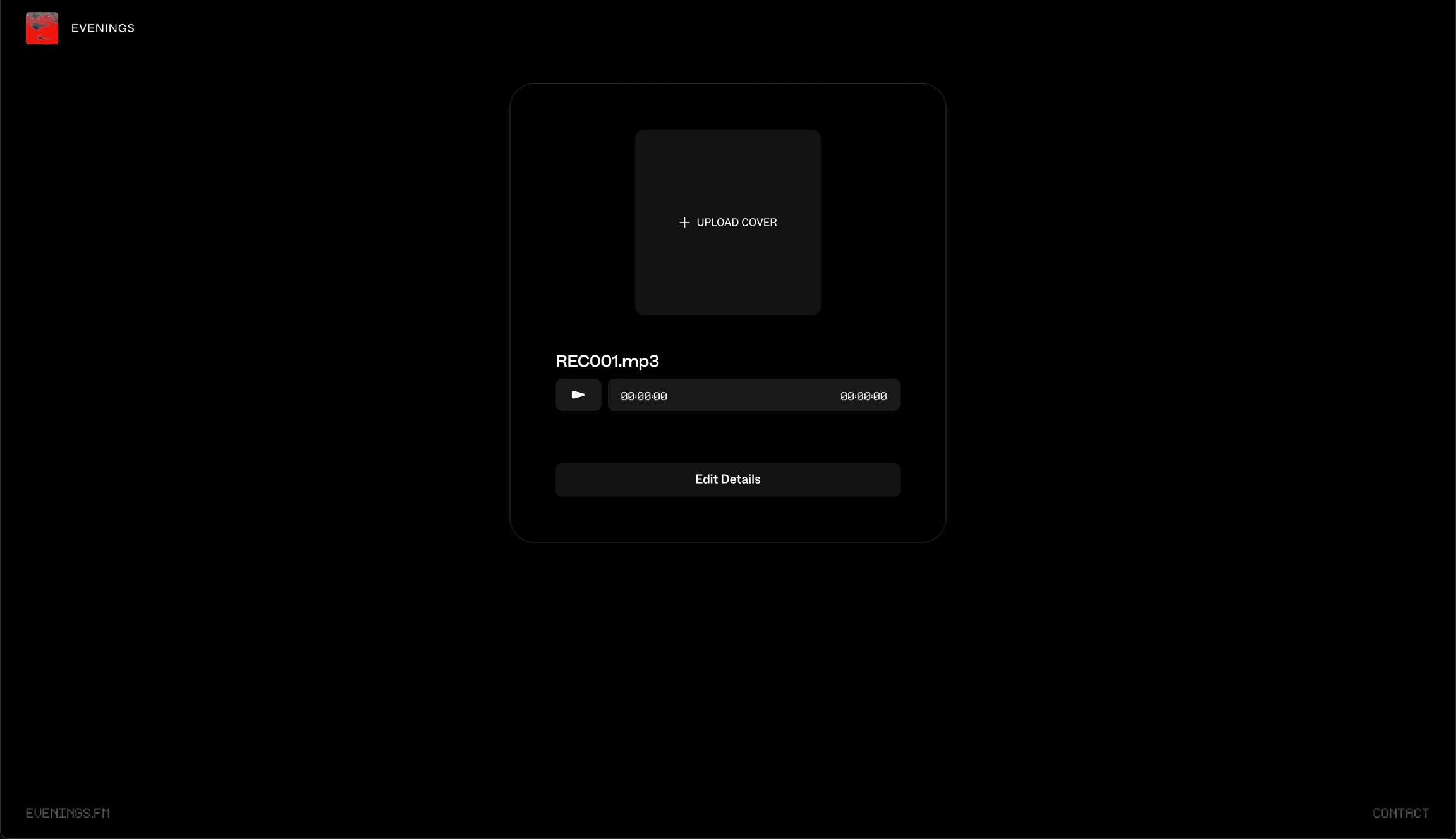
3. Details. When the upload finishes, the guest can play the track, add a cover image, and click Edit Details to set the Title, Tags, Link and Description, then Save Changes. To send another file, they reload the page and enter the password again.
Where uploads go
Every upload lands in your Library as an unpublished track, so nothing becomes public on Explore until you choose Publish to Explore.
Unpublished doesn't mean off air, though. Always On plays from your whole Library, and guests can add tags, so a guest's track can come up on your station before you've listened to it. If that matters to you, give Always On tags that only you use and check the tags on new uploads.
Turn it off or change the password
Switch the toggle off on your Account page and the Upload Page stops loading for everyone. To keep the page but shut out people who had the old password, type a new one and click Save.
Either way, it takes effect straight away. Guests who already entered the password are cut off on their next step, and an upload that's already sending finishes. After a password change, guests enter the new password to keep going.
Next
Once guest uploads are coming in, schedule one as a prerecorded show to give it a proper time slot. If a guest can't get in or an upload fails, email contact@evenings.email with your station's address and roughly when they tried, and we'll find out what happened.