
Start here
Launch your station
Updated
This guide takes you from an empty account to a station people can tune into, with a week of shows on the calendar. It should take you about twenty minutes, plus however long your first show runs.
The screenshots are from our own station, evenings.fm/evenings, so you can see what all of this looks like with real shows in it.
Find your way around
Once you're signed in, everything lives in four places across the top of your dashboard:
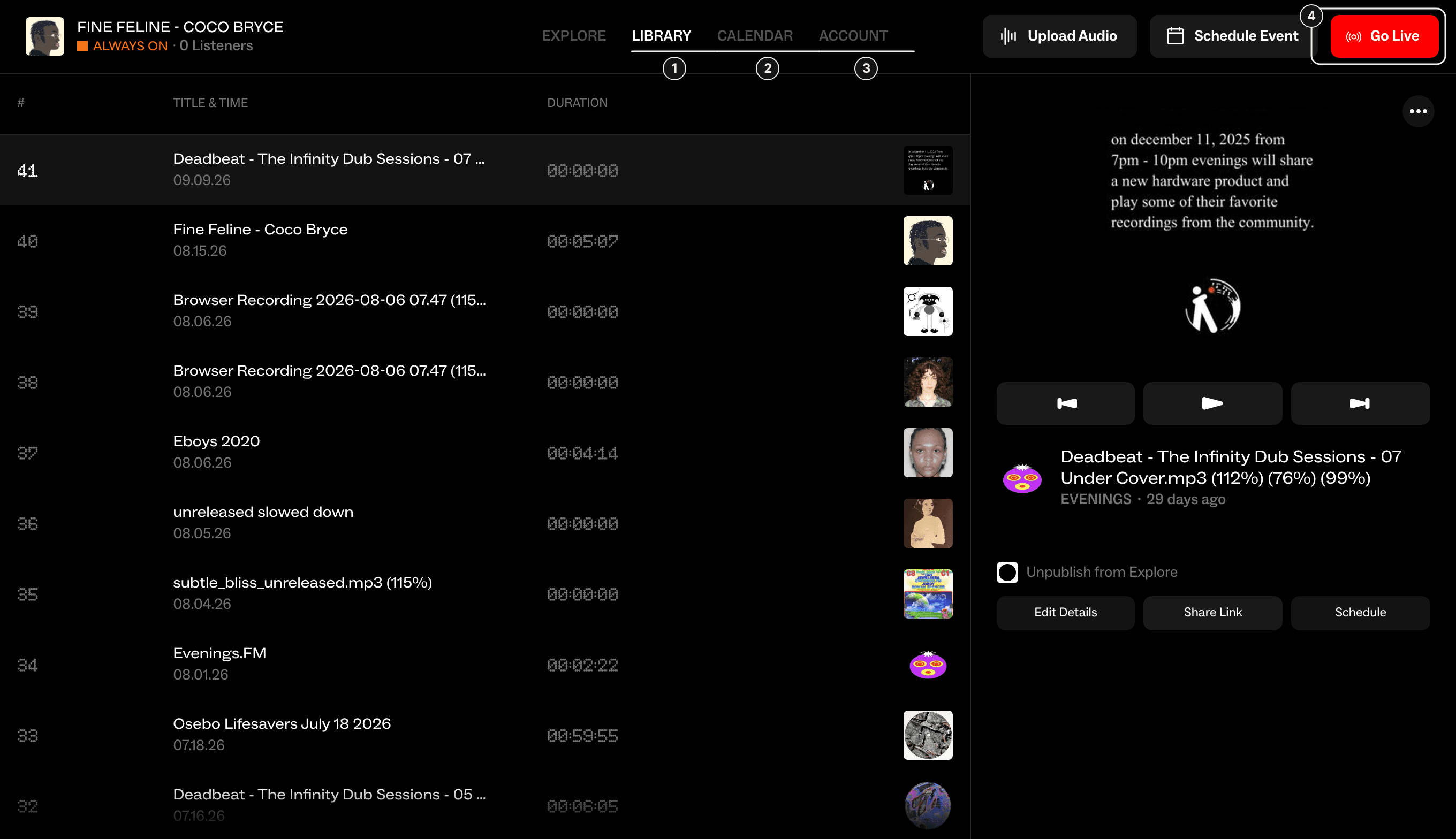
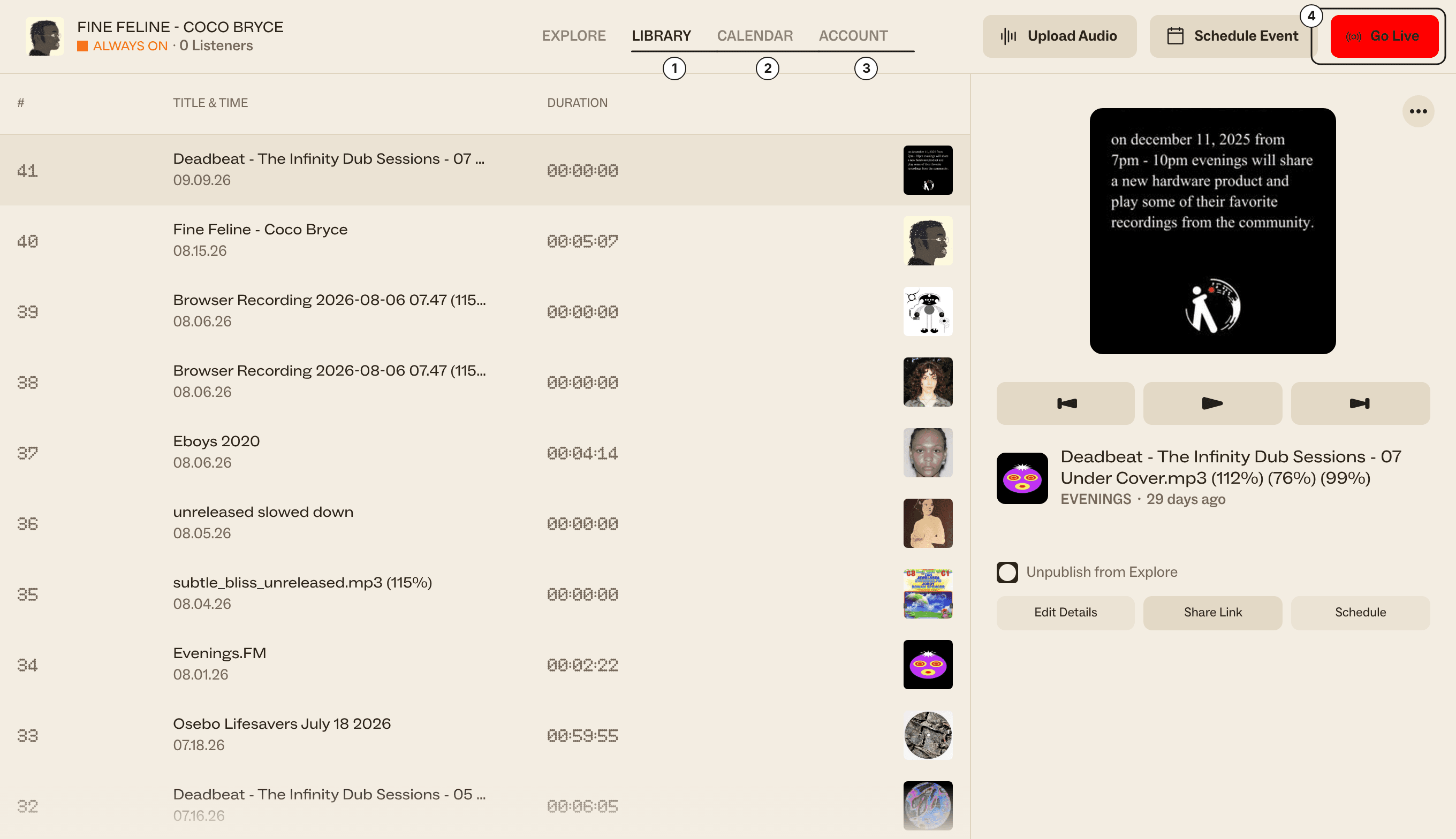
- Library: every track you have, including recordings of your live shows.
- Calendar: your schedule, live and prerecorded.
- Account: your station's name and photo, your keys and your plan.
- Go Live: where you start a broadcast, from your browser or from streaming software.
1. Give your station a name and a face
Open the Account tab. Your Station Name is what listeners see at the top of your page and in their texts when you go live. Your Station Photo shows up everywhere your station does: your page, the player and Explore.
A few tips for the photo:
- Make it square and simple. It's often shown smaller than a thumbnail, so one clear thing beats a collage.
- Make it something only you could have. A logo works fine, but so does a photo of your gear, your room, or your crew.
2. Fill your Library
Your Library is the shelf everything else draws from. Scheduled prerecorded shows, Always On, and your public archive all play tracks from here. There are a few ways to fill it:
- Upload Audio at the top of your dashboard, for files you already have.
- Record on the Go Live page, to make something without going on air.
- Just go live. Every broadcast is recorded, and the recording lands in your Library when you stop.
Give your tracks clear titles and a couple of tags each (like house or ambient), because Always On uses tags to decide what to play.
3. Put your week on the calendar
A schedule tells listeners when to come back. Click Schedule Event, give the show a title, a cover and a time, and pick how often it repeats. A show can be:
- Live, where you go on air yourself at that time. Here's how to schedule a live show.
- Prerecorded, where Evenings plays a track from your Library for you, even if you're asleep. Here's how to schedule a prerecorded show.
Here's what a few weeks of shows look like on our schedule:
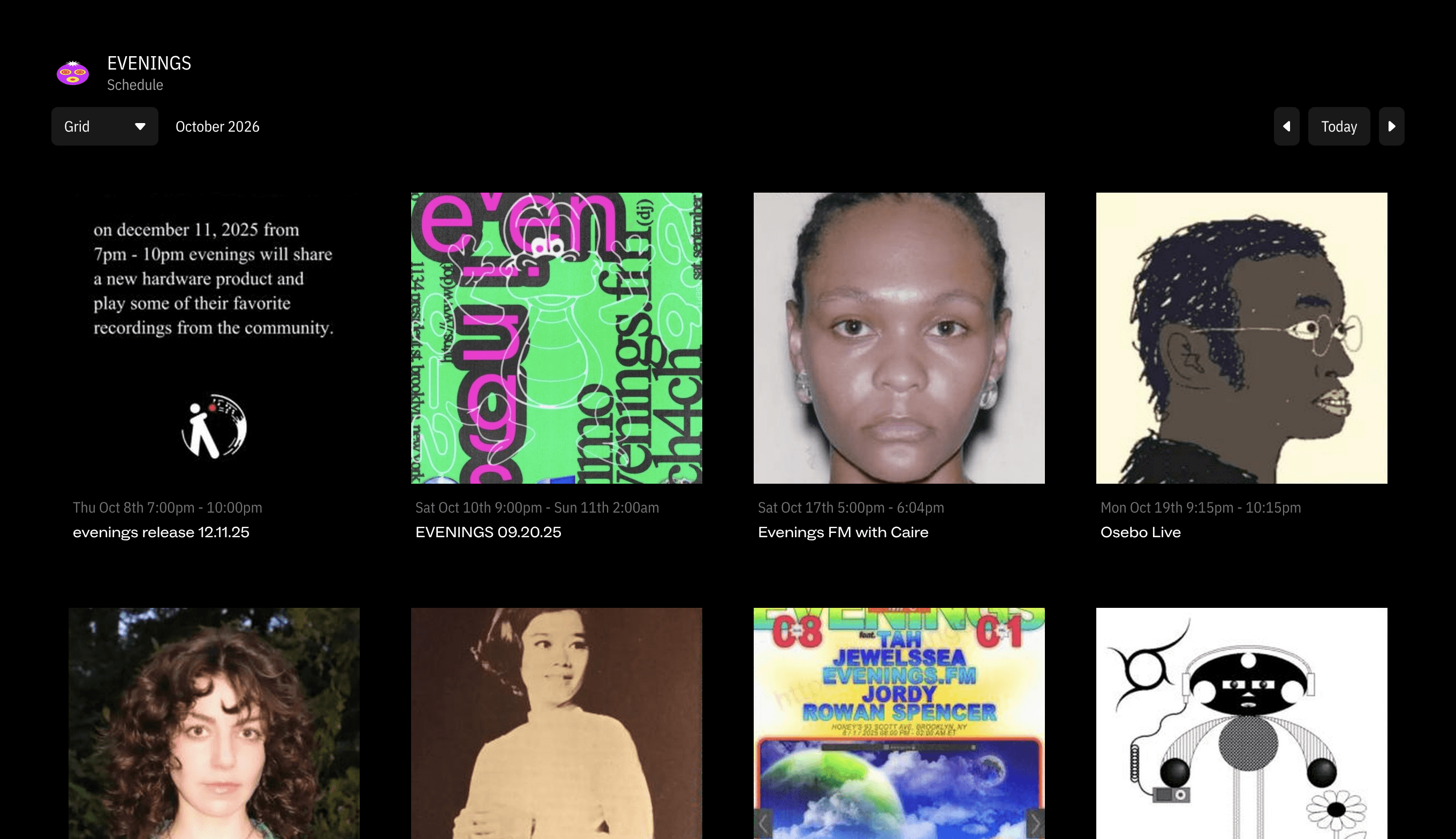
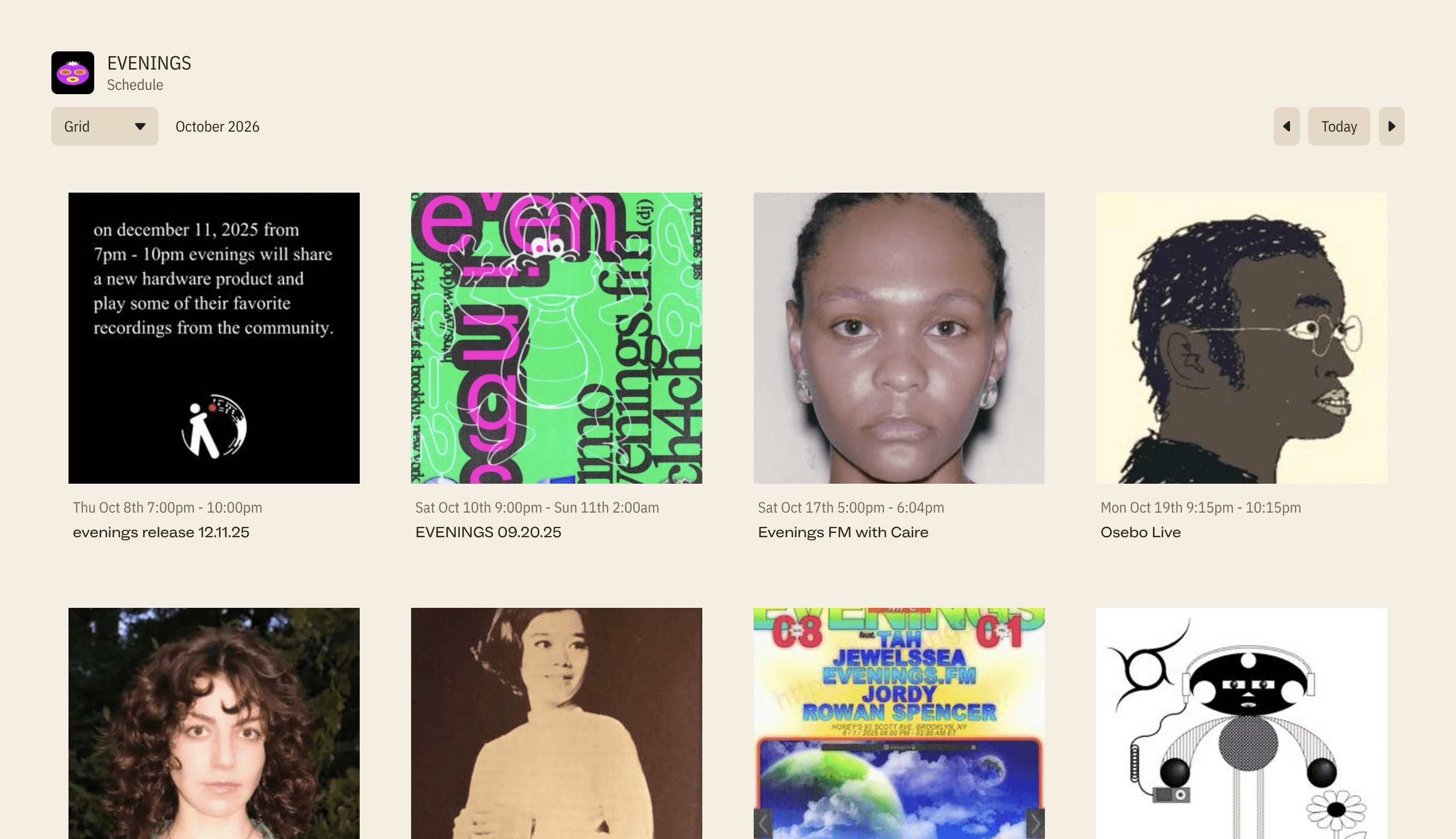
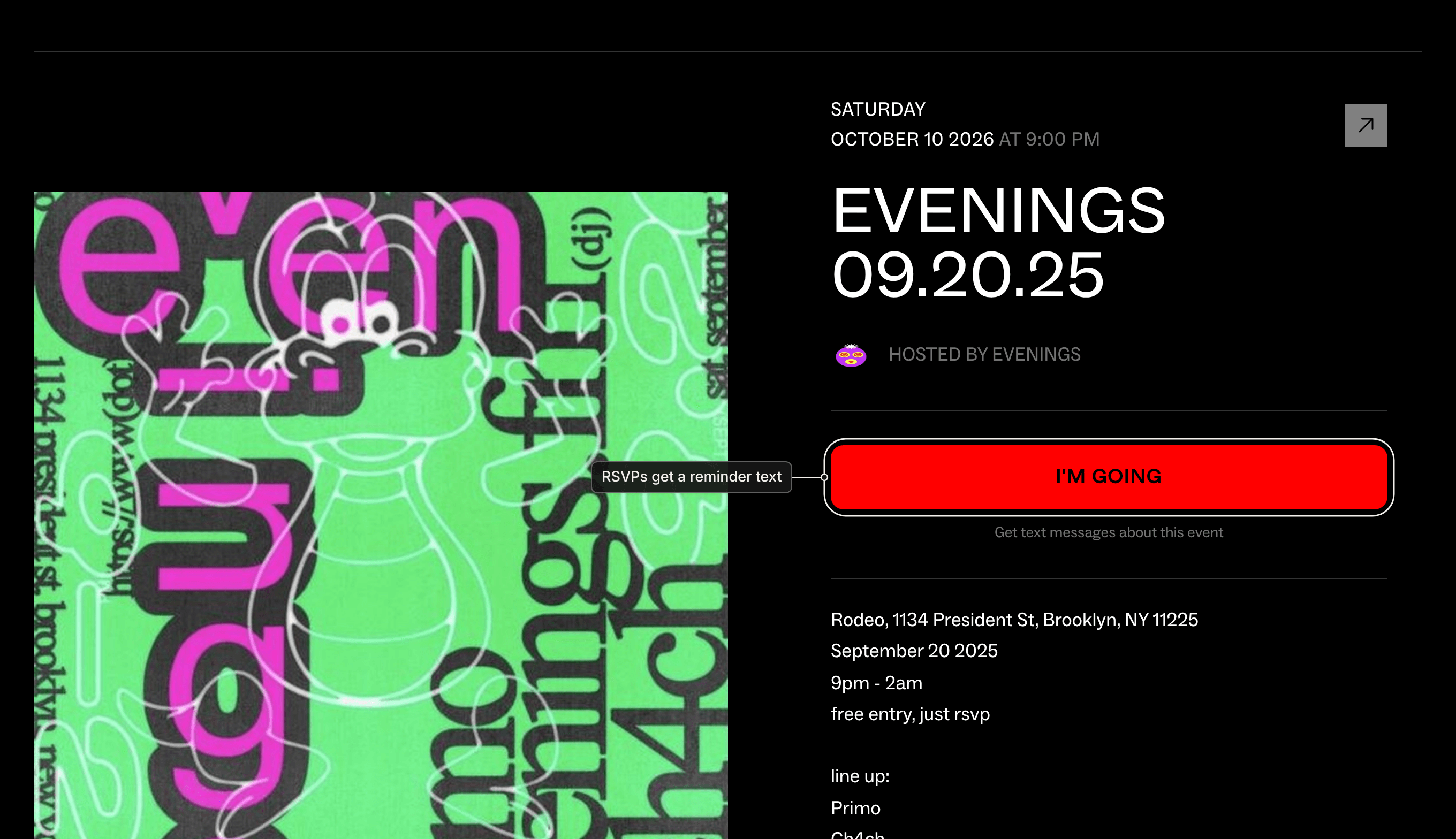
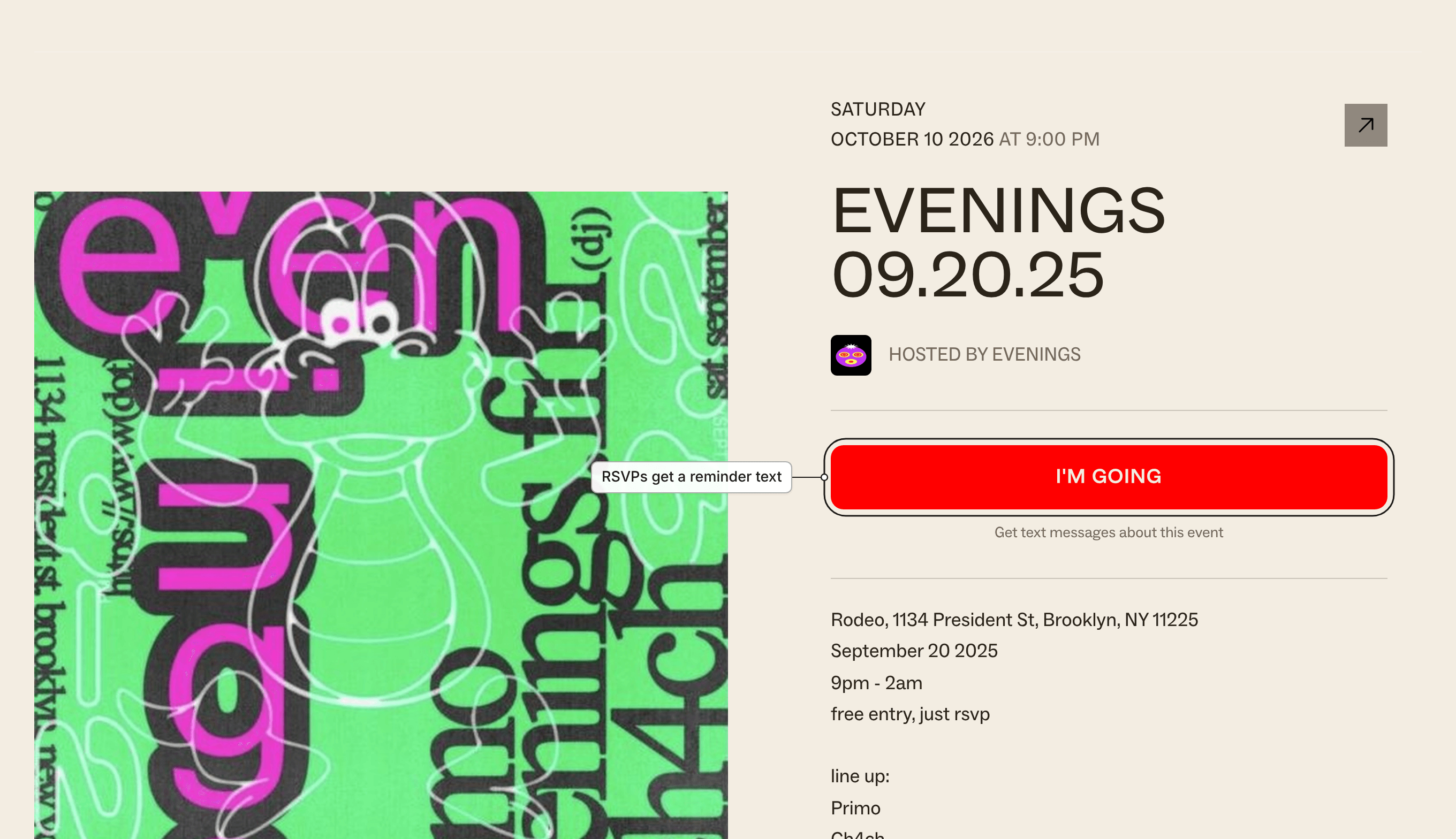
Every show gets its own event page. Listeners can tap I'm going to RSVP, and they'll get a reminder text before it starts:
4. Go live
When it's time, click Go Live. You have two options:
- From your browser. Share a tab, your computer's audio, or a mic, with nothing to install. Use Chrome or Edge. Your first broadcast walks you through it.
- From streaming software. Copy the Stream URL and Stream Key from the Go Live page into OBS, Audio Hijack or BUTT.
If you go live during a scheduled show, the recording picks up that show's title, cover and tags automatically.
As soon as you're on air, your station page switches to live and everyone who subscribed gets a text.
5. Get people listening
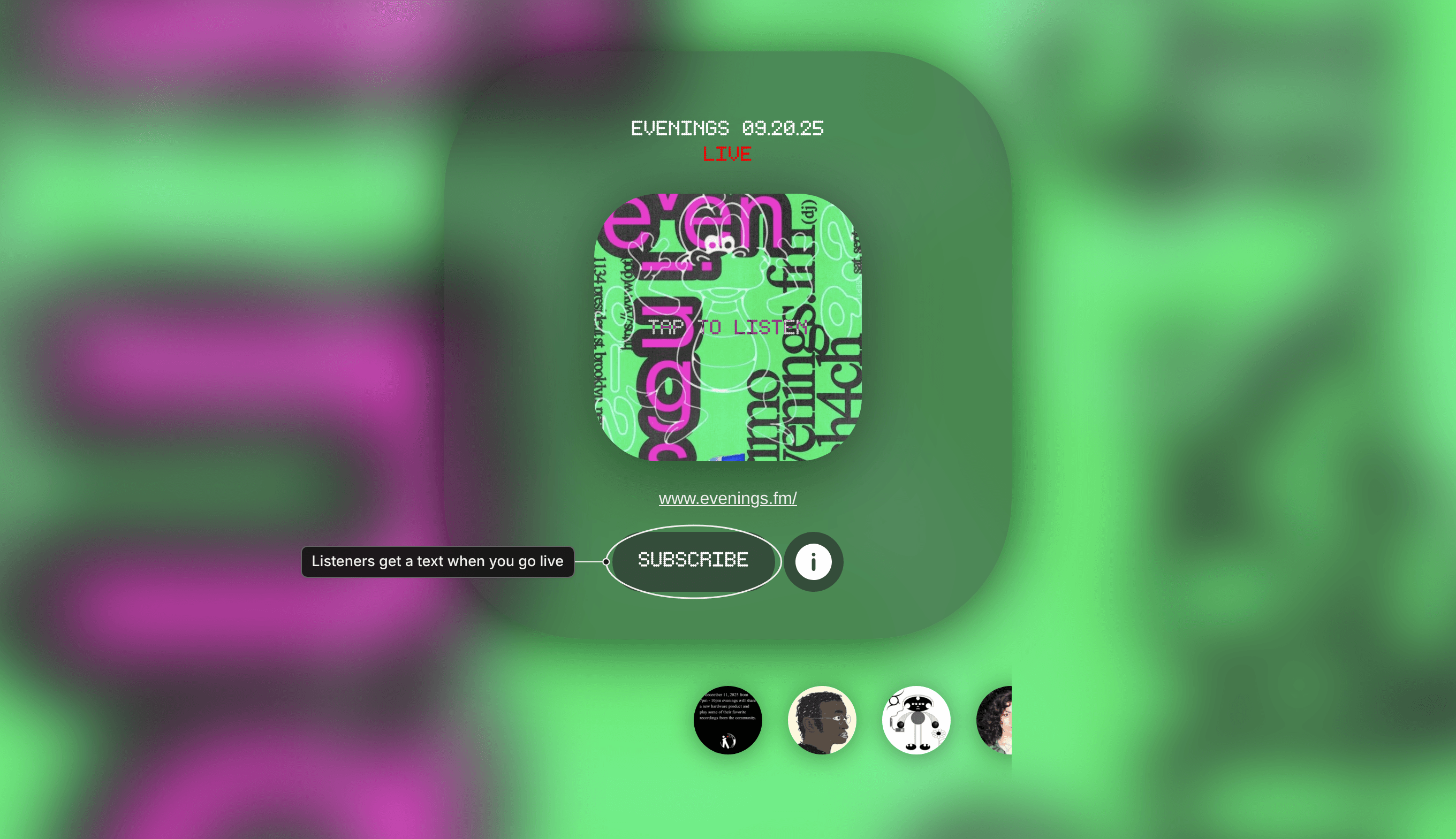
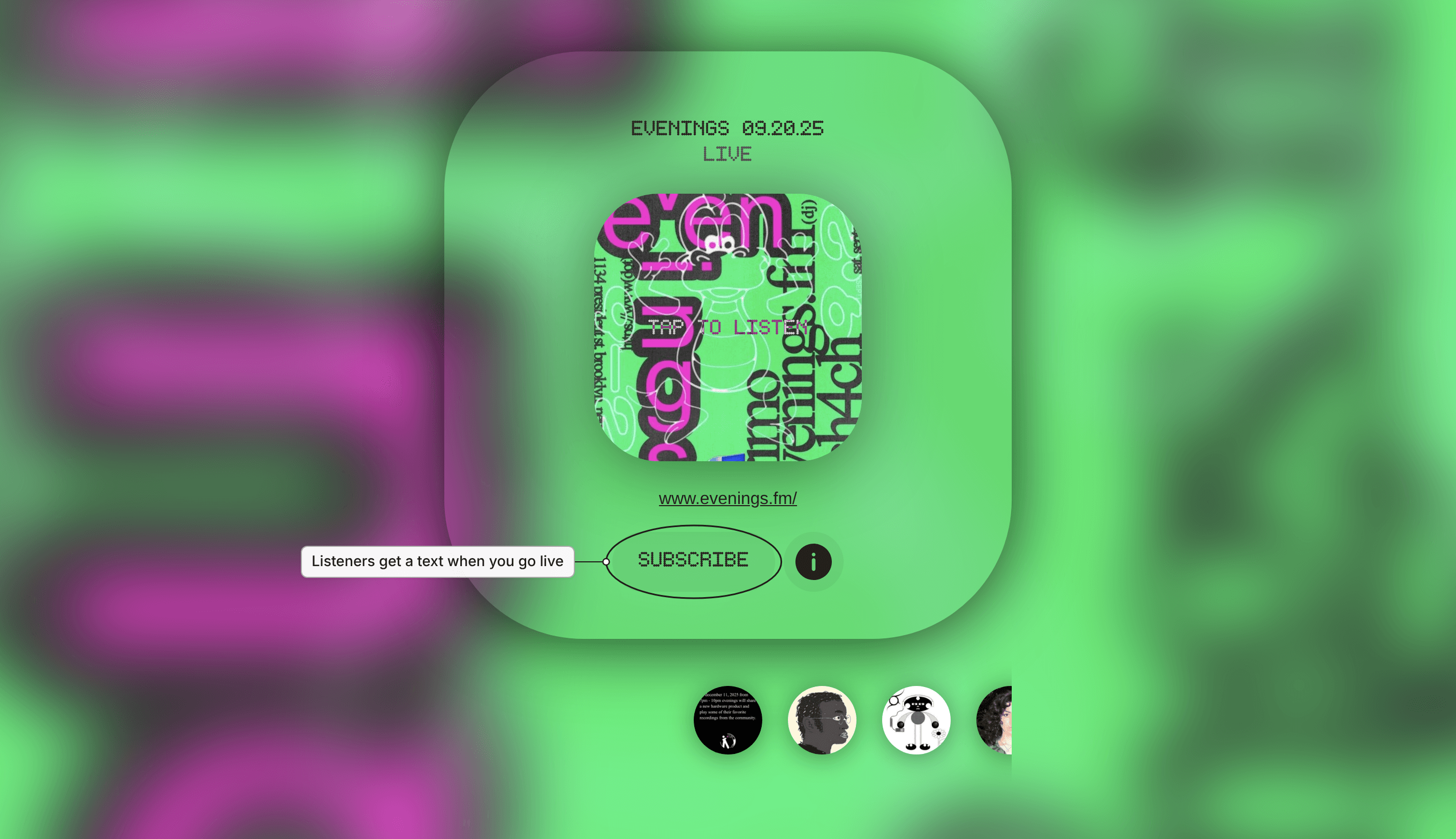
Your station page is at evenings.fm/your-station. It has your player, your upcoming shows, and a Subscribe button. Subscribers get a text whenever you go live, which is the most reliable way to get people back.
Share your page wherever your people already are. If you have your own website, your player URL (also on the Go Live page) plays your stream anywhere that plays audio, and our HTML player guide shows you how to build a player around it.
What's next
- Keep the station on between shows. Always On plays from your Library whenever nobody's live.
- Let other people send you shows. The Upload Page gives guest hosts a password-protected page to drop off their recordings.
- Build on it. The API gives you your station's schedule, tracks and live status.
Questions? Email contact@evenings.email.